Learn How to Add Feed Subscriptions to Google Reader - ARCHIVED
Editor’s Note: Google Reader is being shut down on July 1, 2013. Users are encouraged to use Google Takeout in order to transfer their accounts to other RSS feeds. This article was orginally published in 2008 and has been archived but left up for informational purposes.
Quick Start
There are multiple ways to add feeds to Google Reader. Before you add RSS feeds, you need to find a feed you want to subscribe to. Google offers pre-packaged bundles of feeds that you can add. You can also search for friends and family on a variety sites quickly within Google Reader or search for feeds you might like by keyword. If you’re just getting started with RSS feeds, these options can be very helpful. On the same page, Google Reader has a link to import your subscriptions by uploading an OPML file from your hard drive. You can find those options by clicking Discover on the left hand navigation bar.
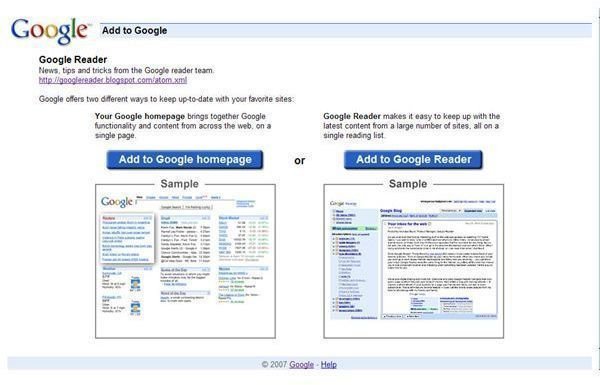
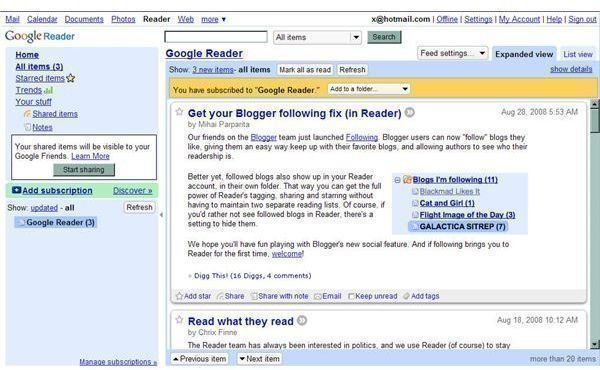
Many sites now display a +Google button. Clicking this little, white button will bring you to a page where you may choose to add the site’s feed to your Google Homepage or Google Reader. Click the Add to Google Reader button to instantly add the feed to your Google Reader subscriptions. Clicking the button brings you to your Google Reader. It will show a confirmation that you are subscribed to the feed. Below the confirmation will be all the items from that feed, starting with the newest first, and the first portion of the item.
Subscribing to Blogs
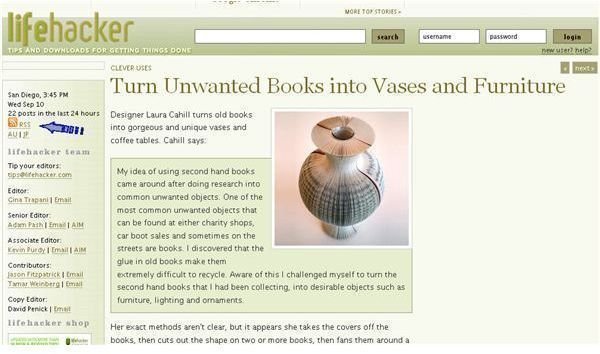
If you already have some favorite blogs bookmarked, select the bookmark and go to the site. On your URL bar you should see an orange symbol with white lines. That is the standard symbol for RSS feeds. If there isn’t one by your URL bar, you can look around the site. On many blogs there is a feed button on the front page.
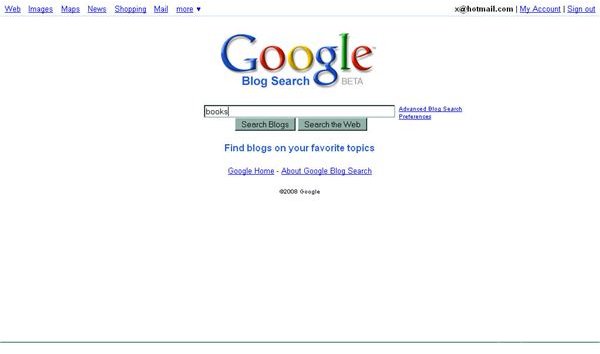
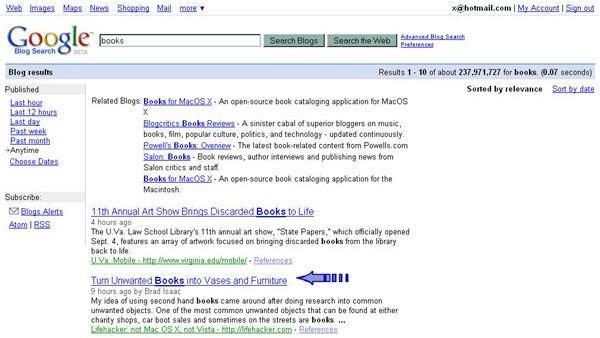
If you don’t have any favorite blogs yet, you can use Google Blog Search (unfortunately this service is no longer available) to find one you like. If you like books, for example, type the word books into the search field. The results will be blog posts containing the word books. Read some of them and pick one you like. Look for the orange RSS feed symbol and click it. Follow the instructions after that to add it to Google Reader.
Google Blog Search
Adding Feeds Manually
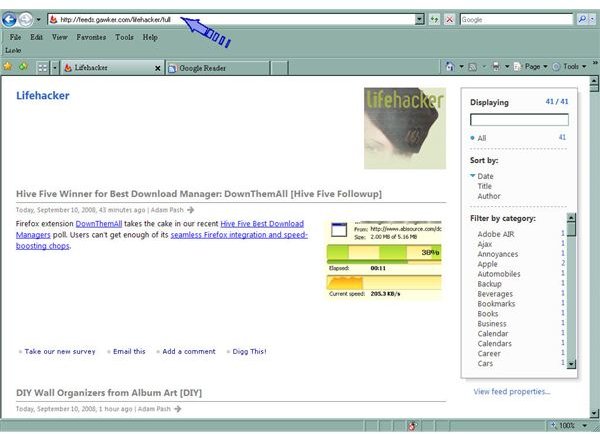
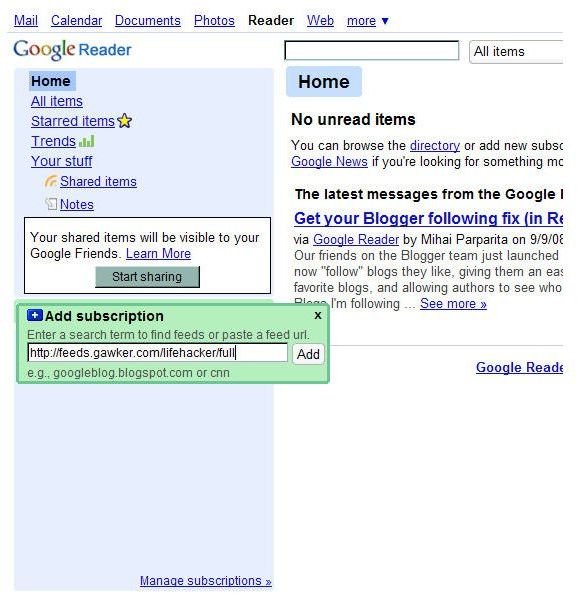
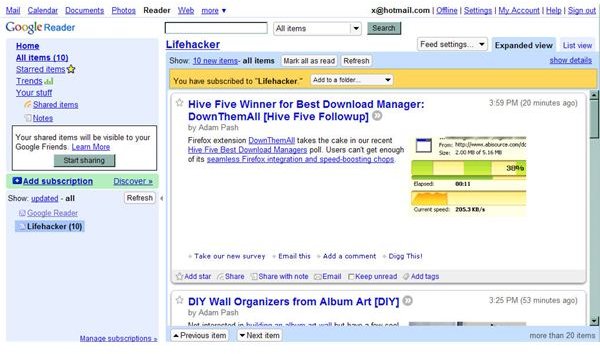
To manually add a feed, you first need to find the feed URL. When you clicked on the RSS button in our blog search result, it brought you to a page. The feed URL was displayed in the URL bar. Sometimes feed URLs will be shown right on a website’s page. Most commonly though, you will have to click the RSS button. Copy the feed URL, then go to Google Reader. In Google Reader you will see a link on the left side navigation bar that says Add Subscription. Clicking Add Subscription will bring up a little box where you will paste the feed URL. Click add. Google will again show the little confirmation box and the feed items below it.
Add Lifehacker Feed
Advice from Google
When you first begin to add feeds, Google Reader will display tips. Like almost everything else that displays tips, you can disable them or ignore them. However, for newbies many of these tips are quite handy. Try reading the first few tips before you decide to ignore them. They really are called tips for a reason. Add the Google Reader blog feed to your subscriptions to stay on top of the latest developments. Just click the link, copy the URL, and add manually or go to the Google Reader Blog and click the +Google button.
This article has been placed in our archives.
This post is part of the series: Google Reader
Google Reader is an easy to use, popular web-based feed reader. In this series learn the basics, tips and tricks, and add-ons to enhance your user experience.
- Adding RSS Feeds to Google Reader
- Google Reader for Sharing News With and Without a Gmail Account
- Managing Google Reader Sharing Features
- Take Notes in Google Reader
- Using Google Reader Offline
- Going Mobile with Google Reader
- Google Widget to Display Shared Items on Your Blog
- Themes Change the Look of Google Reader
- How to Turn Google Reader Subscriptions into a Blogroll
