In Google Chrome, you can delete cookies one at a time or you can remove them all at once. You can also modify the default settings in Chrome to block all cookies or only allow certain ones. Read on to find out how.
Cookies and Chrome
If you’re more accustomed to managing security and privacy options in other web browsers, the tool to delete cookies in Google Chrome may seem a little hidden at first. It’s actually not too hard to find, but the path to get to it is labeled differently than it is in other browsers.
In this guide, we’ll show where the option to delete cookies is located and look at some of the other tools you can use to manage cookies in Chrome as well.
How to Delete Cookies
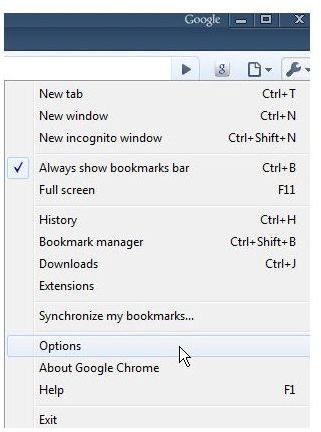
Step 1: From the Tools menu (the one with the icon shaped like a wrench), select Options as shown in the screenshot below. (Click any image in this article to enlarge.)
Step 2: In the Google Chrome Options window, make sure that the Under the Hood tab has been selected. Then scroll down to the end of the Privacy section and click on the Show cookies and website permissions button.
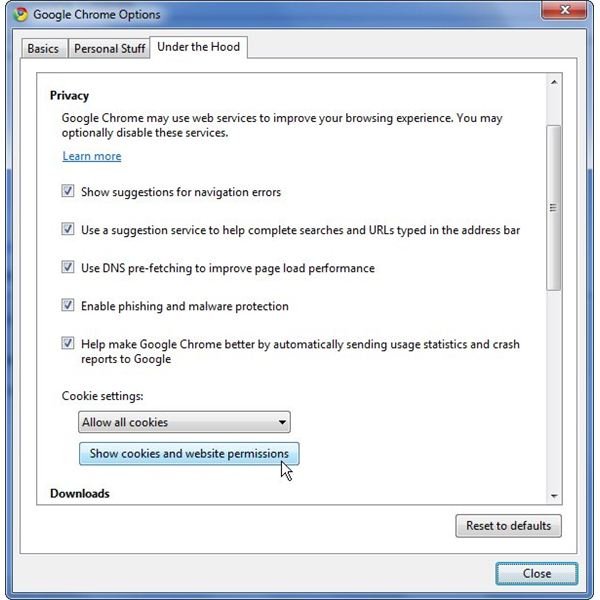
Step 3: A new window labeled Cookies and Website Permissions will appear that lists all of the cookies stored on your computer.
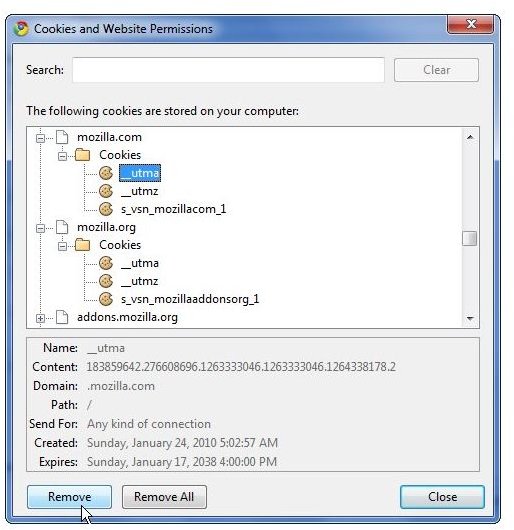
If you want to get rid of all cookies, click on the Remove All button. However, you also have the option of removing individual cookies. To do this, locate the cookie you want to delete and select it in the list. Note that when you select an individual cookie, details about that cookie will be shown in the lower portion of the window. Click the Remove button to delete that particular cookie.
You can also delete all of the cookies related to a specific website by selecting that website’s folder and then clicking Remove. If you choose to go this route, it’s a good idea to browse through the entire list of cookies and look for sub-sites or alternate names for the web site. For instance, in the screenshot above, there are folders for mozilla.com, mozilla.org, addons.mozilla.org, and so on.
Step 4: When done, click Close to close the Permissions window and then Close again to exit the Options window and return to the main browser.
Managing Cookies in Chrome
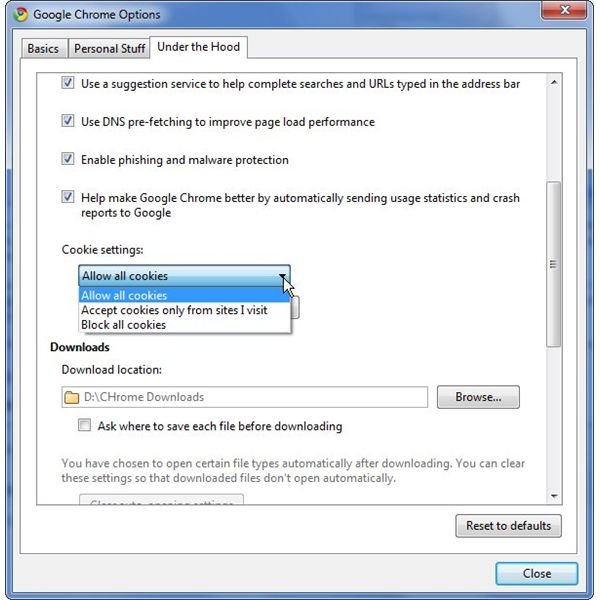
By default, Google Chrome is set up to allow all cookies. If you don’t care for this option, you can change it on the Under the Hood tab of the Google Chrome Options window. In the Privacy section under Cookie settings, there is a drop down box that lets you choose from one of the following three settings:
- Allow all cookies
- Accept cookies only from sites I visit
- Block all cookies
After deciding on which setting you wish to you use, click Close to exit the Options window.
For more information on modifying security and privacy options in Google Chrome, see the following articles.


