Be a Web Creator with Google Sites
What is Google Sites?
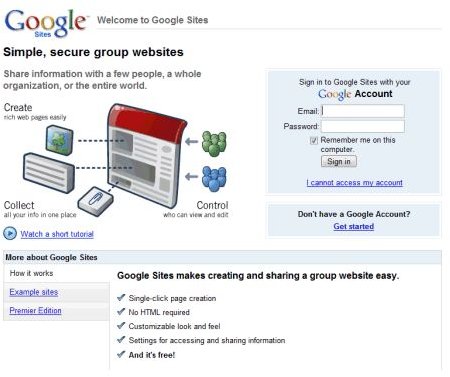
Google Sites is the new and free way for anyone to create their own place for information on the web. As with any Google application, in Google Sites you will need to have a Gmail account to be able to log into the system. The main objective of Google Sites is to use the application for a team purpose, such as creating a site for your local book club or to keep in touch with friends and family. Sites will enable you and others in your group to have a central location for calendars, videos, attachments and text. Here we are going to go over the steps needed for your to create your own Google Sites.
For more information on using Google Sites, check out Editing Pages in Google Sites and Custom Code and Google Sites.
Your Own Google Sites
There are two ways that you can open the Google Sites application. The first way is to sign into your Gmail account, just as you would normally do and then click on the drop down menu on the top left hand side of the screen where you will see the text more underlined. Scroll down, click on Sites and you’ll be taken to the sign up page for the Goggle Sites application. The second way you can get started is to click on the following link: https://sites.google.com, which will ask you to sign in with your Google account information.
Once you are all signed into Google Sites, you will be prompted to click on the Create new site button. When you click on the button you will be taken to a new page that will ask you a variety of questions, such as what name you want to give your site and give a short site description. You will then choose whether your site will be allowed to be viewed by anyone, making the site public or you can specify with permissions who can view the site. Also, on that page you will be given the option of picking from a gallery of pre-made Google Sites templates that will give your site a creative feel. Once you have entered your information, just click the blue Create site button at the bottom of the page and Google Sites will then take you to your new site page.
Creating your own site with the Google Sites application is fast and simple. There is no need for you to know HTML or CSS because the application does the coding for you. Once you have your site set up, Google Sites gives you the ability to change the design, privacy settings and the number pages that you create at anytime.
*image provided by and ©2011 Google, Inc.
