How to Add Contacts to Google Talk
You can use Google Talk for two things: chatting and talking. Talking will be covered in a later article in this series, so let’s consider chatting. Google Talk is set up to make it easy to chat with your friends, as long as they are Google Talk or Gmail users – with a few exceptions.
In addition to lett you chat with Google Talk and Gmail users, Googlt Talk will also let you chat with people who use other instant messaging platforms, as long as those programs are based on Open Source technology. Here’s a quick list of the other instant messaging clients that Google Talk can chat with:
- Adium
- GAIM
- Chat
- Miranda
- Psi
- TrillianPro (This program is not free.)
These Chat programs aren’t as widely used as AIM or Yahoo! Instant Messenger, but they are cross-functional with Google Talk, in case you know people who happen to use them.
Set Up a Contact List
When you’re ready to begin chatting with other people, the first thing you need to do is set up a contact list. If you’re using Gmail, your contact list should set up automatically, and you can add new contacts easily. Even if you’re not a Gmail user, setting up a list isn’t difficult.
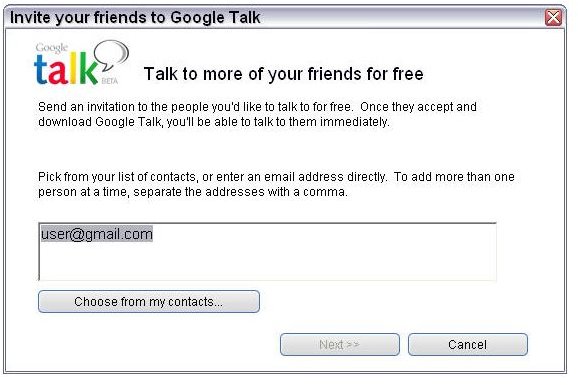
Begin by opening the Google Talk window, and then click the +Add button in the bottome-left corner of the window. As the figure below shows, an invitation window opens. Enter the email address of the person you would like to chat with into the text box provided, then click Next. Alternaticely, Gmail users can choose contacts from their contact list.
The next screen that appears will contain a prewritten invitation to the person you’re inviting. You can leave this invitation as it is or you can change it by typing your own words into the sace provided. When you’ve finished with your message, click N****ext.
The final screen is a confirmation that you’ve completed the invitation. The invitation has not yet been sent, however, so you have to click the Finished button to send it. After you do, the window closes and you’re returned to your Google Talk window.
Your friend’s address now appears in your Google Talk window with an invited notation next to the person’s name. If your friend accepts your invitation, the invite notation disappears. If the person rejects the invitation, he or she will be removed from your contact list.
Once you’ve populated your contact list then you can start chatting. The next article in this series shows you how.
[This article is excerpted from Google Powered: Productivity with Online Tools by Jerri L. Ledford (ISBN: 978-0470109656, Wiley, Jan. 2007).]
This post is part of the series: Using Google Talk for Communications
Google Talk offers VoIP (Voice over Internet Protocol) phone service and instant messaging, along with other features that help you stay connected to people around the globe. This series of articles covers getting started using Google Talk for all your communication needs.
