
Combine the power of OpenOffice.org with the Google Docs to give you added flexibility when working with your documents.
Introduction
While Google Docs is easy to use, sometimes you just want to work in the familiar confines of a desktop office suite. Or, you might be collaborating with someone who does. The obvious way around that is to log into Google Docs, download your document or spreadsheet or presentation, edit it and then upload it back into Google Docs.
That’s a lot of work though. Why not cut out a couple of those steps and do everything from within your office software? If you use the OpenOffice.org suite, you can do just that with an piece of software (also known as an extension) named ooo2gd that you can add to the application.
Getting going
To use Google Docs and OpenOffice.org together, you’ll need the following:
- A Google Docs account.
- A copy of OpenOffice.org 2.4 or newer installed on your computer.
- The latest version of of ooo2gd (version 2.3.1. as of this writing).
- Java 6 SE , which most computers have installed.
Install the extension by starting any component of OpenOffice.org. For example, with Writer (the word processor component), select Tools > Extension Manager, and then click My Extensions. Click the Add button. Find the file gdocs-2.3.1.oxt, and then click Open.
Once the extension is installed, you’ll need to restart OpenOffice.org.
Using ooo2gd
When OpenOffice.org restarts, you’ll notice a new toolbar. You can use this to upload to or download from your Google Docs account.
Obviously, the two main functions are importing from and exporting to Google Docs. To import, click the downward-pointing arrow on the toolbar. A small window will appear, asking for the user name and password that you use to log into Google Docs. You can also tell OpenOffice.org to save the login information on your hard drive.
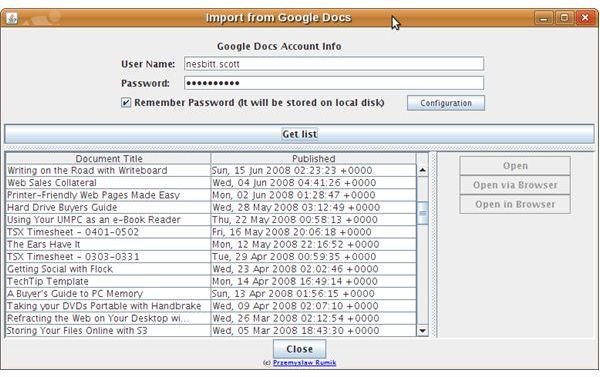
Click Get List to retrieve a list of your documents. Click on the name of a document in the list, and then click Open. A second or two later (depending on the speed of your Internet connection and the size of your file), your documents will open in OpenOffice.org.
What if you want to save a file on your hard drive to Google Docs? Open that document in OpenOffice.org, then click the upward-pointing arrow on the toolbar. The extension will ask you for your Google Docs user name and password. Click OK. After a few seconds the file will be saved to Google Docs.
Conclusion
OpenOffice.org paired with ooo2gd is a convenient way to use Google Docs from within the comfortable confines of your computer desktop. This solution is easy to set up and use and gives you a little more flexibility when using Google Docs.


