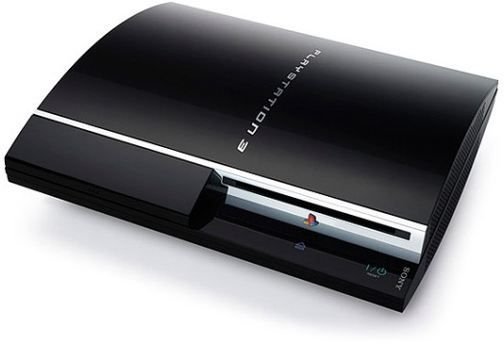
Want to watch movies on your TV that you’ve got sitting on your PC? Using TVersity you can stream them through your Sony PS3!
Use Your PlayStation 3 as a Media Sharing Device
TVersity is the free home network media sharing application that makes it easy to share media stored on your PC to any other networked device in the house.
Available to run on as basic a system as one running Windows XP with a Pentium III processor and as little as 128 MB memory and 50 MB hard disk space, TVersity is by far and away the best solution to home media sharing, capable of streaming data to a range of media viewing devices – including the Sony PlayStation 3.
Of course this is great news for PS3 users – this guide shows you how to set up TVersity with your PlayStation 3 and enjoy the benefits of enjoying your favourite movies and albums from the comfort of your home theatre.
Hardware and Software Requirements
If your PC is running Windows Vista or Windows 7 then you should be able to setup media sharing through TVersity without making any changes to Windows Media Player – however Windows XP users may need to upgrade the free media player.
As stated above, you can start using TVersity with quite a low spec of PC by modern standards. However if you plan to view .WMV files (Windows Media Video) through TVersity you will need Windows Media Player 11 (available from Microsoft.com ). If not, WMP 9 will suffice.
You’ll also need to have your PS3 connected to your home network.
Naturally you’ll also need to install TVersity itself. It is available from www.tversity.com and comes as both a free and pro version. All you need for successful streaming of media on your PC is the free version; the pro version simply features some premium content such as Hulu or BBC iPlayer and a host of other options, as well as requiring a higher spec of PC.
Once TVersity is installed on your PC, you’re ready to start using it with your PlayStation 3!
Setting Up TVersity and PS3
Following installation, you need to make sure that TVersity is running. Right-click My Computer and select Manage; from here, expand Services and Applications, select Services and in the right pane look for the entry TVersityMediaServer. Right-click on this, select Properties and set the Startup Type to Automatic, and Start the service.
TVersity’s media server should now be running in the background each time you boot your PC. Next, launch the app on your PC via Start > All Programs > TVersity Media Server > TVersity Media Server or the desktop shortcut created in the installation.
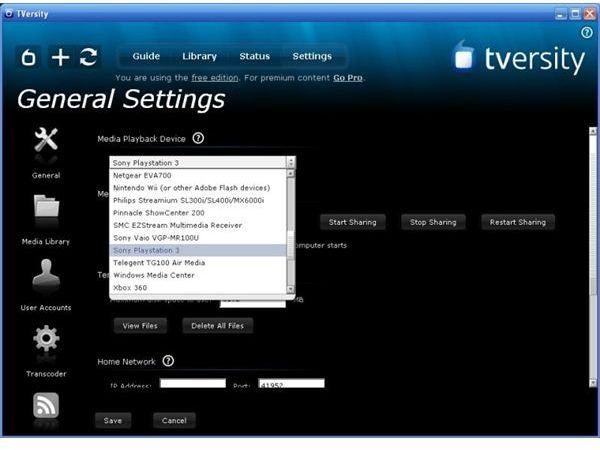
To setup TVersity to connect to your PS3, go to the Settings tab and choose Sony PlayStation 3 in the Media Playback Device drop-down. Other fields on this screen should remain as the default options until you’re ready to customize your use of TVersity.
Next go to the Transcoder option on the left of the console, and setup your current connection speed based on the type of home network you have. You might alter some Compression and Optimization options later on to tweak the efficiency of the streaming.
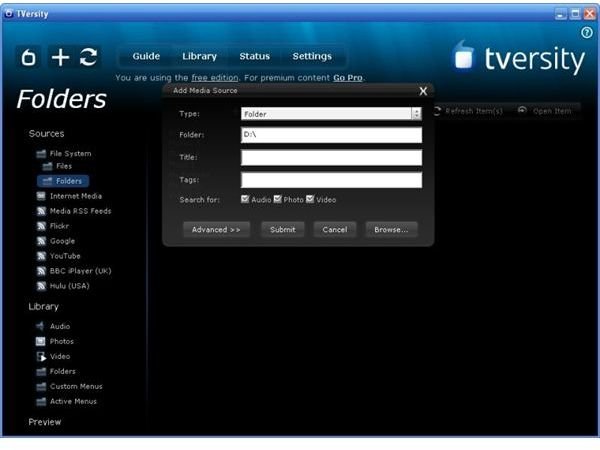
You then need to add folders containing media files to TVersity. Do this via the Library tab – click the Add Item button and browse for the correct folder. Finish by clicking Submit to add the folder to the library.
Finally, with both the PS3 and your PC switched on and connected to your home network, do a search on your PlayStation 3 for available servers. TVersity should appear in this list, and you’ll be ready to start viewing streamed media from your PC!