The superb freeware home network PC media streaming system TVersity can occasionally fail to access folders that have been added. This article examines why and offers a solution.
Missing Folders in TVersity?
A great solution for enjoying video, audio and pictures from your PC through your TV, TVersity is a freeware application that will stream media content to a variety of set-top boxes, portable devices and consoles.
Xbox 360 users can use TVersity through the My Xbox screen on their consoles in order to view their media of choice – providing that it’s been made available to view in TVersity.
TVersity users who are utilising their Xbox 360 as a home media center may find that the movie, tune or photos they want to view can’t be accessed, despite having already setup the folder.
This is usually down to the way in which TVersity allows folders to be added and managed, and can easily be resolved. However if you can’t see any of your folders through your Xbox 360, you may need to repair Windows Media Player 11.
Adding Folders
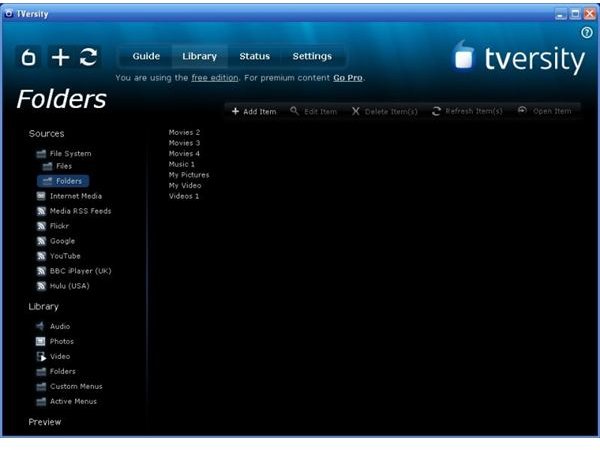
Adding folders in TVersity is an easy task – simply click on the Library tab at the top of the TVersity console and add the folders you require with the Add Item button.
You can check which folders and their contents are available in TVersity by expanding the list in the left hand menu.
If the required folder isn’t visible (you can check this by going to the desktop version of the TVersity player https://localhost:41952) and you have already added it, try the following:
- Confirm the folder path. You might have two folders with the same name, or a folder called “movies” within a folder called “movies”.
- Confirm the folder is available and the contents viewable in Windows Media Player 11
- In TVersity, remove and re-add the folder.
- Check your Xbox or the desktop player.
If your movie or audio folder still won’t display, it’s possible that there is a problem with the database.
Fixing the Database
TVersity makes use of the database created in Windows Media Player 11 in order to track media on the host PC so it is important to check that your media files are present in the Windows Media Player library.
Issues in finding folders can be traced back to WMP 11, so if you are experiencing problems finding folders, a repair of the media player library is recommended.
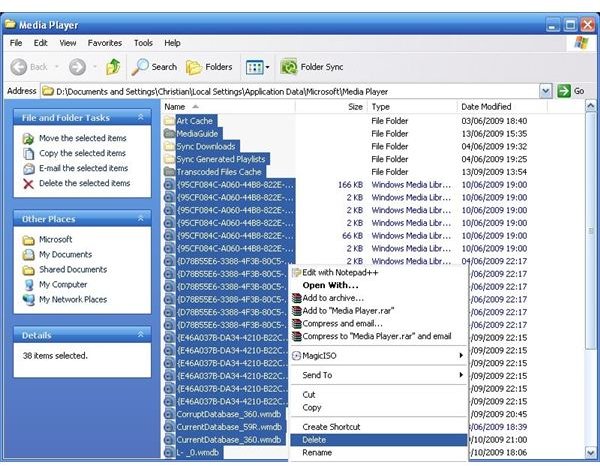
In Windows XP this can be done by exiting Windows Media Player and going to Start > Run and entering: %userprofile%\Local Settings\Application Data\Microsoft\Media Player - then click OK.
If you’re using Windows Vista, insert instead: %LOCALAPPDATA%\Microsoft\Media Player
In this folder you should find some files with the extension .wmdb – if you can’t see any files, go to Tools > Folder Options > View and select the Show hidden files and folders button.
Then select all files in the folder and delete them. The next time Windows Media Player 11 is opened, it will generate a new database as it rebuilds the library. You may need to re-add some folders to the library, but you’ll find that you can now see the missing folders on your Xbox 360 and enjoy the content via TVersity!