How to Clean Hard Drive on Computer with CCleaner
CCleaner Is Great! (5 out of 5)
As we explained in the first article, day to day computer operation leaves a large volume of unneeded and perhaps dangerous files behind to clog up your hard disk. Many programs exist that will check areas where these files build up and delete them. Some cost money and some are free, and one of the best from either camp is CCleaner from Piriform, a London, UK based outfit. That’s not just me saying that, CCleaner reviews are consistently positive. More good news, CCleaner happens to be from the free camp.
It is tiny (2.8MB), so you can run it from a thumb drive when your friend’s disk is full. It is also easy to use, so you can install it for him and just tell him to run it instead of dragging you out to look at his PC. Just download it, run the setup file, and then run the program from your start menu, short cuts, or even by right-clicking the recycle bin. If you selected this option during installation, CCleaner will be a new option in the menu that pops up.
Running CCleaner
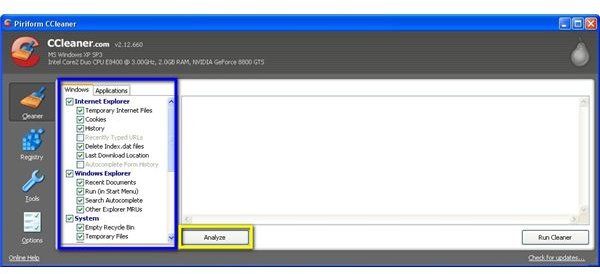
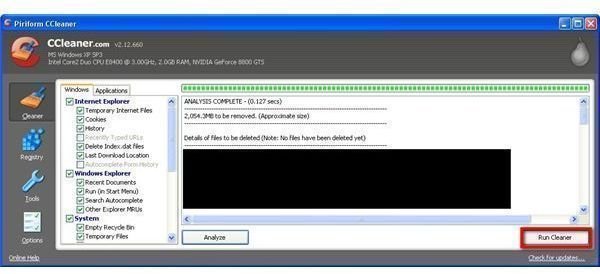
Use the tabs and checkboxes (in the blue rectangle in the pic at right) to choose which areas you want cleaned and which you want left alone. Then hit Analyze (yellow). CCleaner takes a look around and tells you what it wants to delete, as shown in the picture below. The picture has the files blacked out. If you find out what I have been browsing, you could guess what I am going to write about, and that would ruin the surprise.
Take a look and make sure there is nothing important in there, then click Run Cleaner (red) to delete it. Note that once you are comfortable with how CCleaner works, you can just click Run Cleaner to do both steps at once if you would like.
The only problem CCleaner has occasionaly led to is deleting auto-complete info and passwords remembered by your web browser, as well as cookies that configure some sites. It will also clear your browser’s cache and history. If you use these features, make sure to uncheck the boxes for them. Note that Internet Explorer is included in the Windows tab, but other browsers you use will be under the Application tab.
All in all though, it is a great, free piece of software. And I mean free: no nagging or begging. If you feel like donating you can go to their website and do it.
Our next article will show you some tricks to find a few files CCleaner may have missed. You can delete these by hand and get even more space back.
This post is part of the series: Reclaim Your Hard Drive’s Speed and Space
We tell you why your hard drive is slow, why it fills up so quickly, and what you can do to fix it easily and for free.
