How to Change Desktop Wallpaper in Windows XP
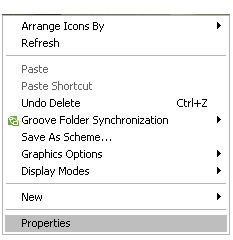
Windows XP comes equipped with a small selection of desktop images that users can explore. If you don’t care for the selection that it comes with, we will also discuss how you can browse online for wallpapers to put on your desktop. But first things first, we first need to change the existing desktop image.
The images provided can be enlarged by clicking on them.
Step 1
Be sure to minimize all active programs first, because you’ll want to see your current desktop image. Then, on any open space of your desktop, right-click on your mouse. A menu should appear. On the very bottom of the menu, click on “Properties.” Don’t worry if you don’t see the same options on your menu as you do on mine; I’m just using my computer as an example.
Step 2
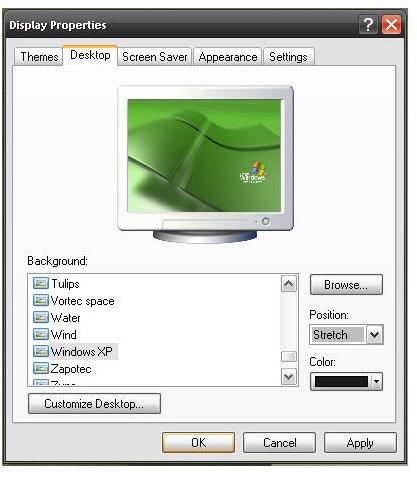
You should now see a window with the title “Display Properties.” To change the desktop image, you’ll want the second tab from the left: “Desktop.” Go ahead and click on it.
Now the window will display your current desktop image on the top. On the lower-left, you’ll see a selection of existing images from which to choose. Go ahead and click on any of the list to see if you find anything you like. You’ll also see some options on the right. The option that says “Color” is what your desktop will display if there’s no image. You can change that if you like. As for “Position,” there are three options: Center, Tile, and Stretch. Center places your image in the center of the desktop at its actual size. Stretch also places your image in the center, but if it isn’t the same size as your screen, it stretches the image until it fills your desktop. This can distort some images. Tile places your image in the upper left corner of the screen and then repeats it both across and down until it fills the screen. If you have an image on your computer that you want to use for the desktop image, you can click on “Browse” to search for a picture file.
After you’ve found an image you like, you can preview it by clicking on “Apply.” You can do this with as many images as needed to help you pick the desktop picture you want. After you’ve found one you like, save the changes by clicking on “OK.” If you don’t like any of the images, click on “Cancel” and it will revert to your original desktop image.
Step 3
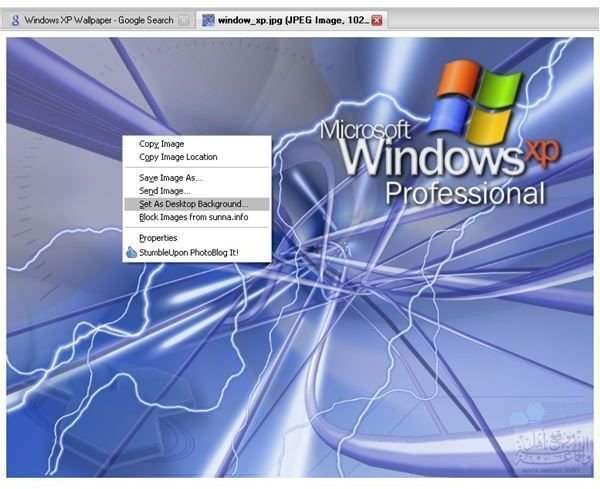
There are a wide variety of desktop images that can be found online. In your preferred search engine, type in “Desktop Wallpapers” as an image search. Then, check out sites which may have images you’re looking for. When you’ve found one that you like, right-click on it, and choose “Set as Desktop Background.” (In Internet Explorer, the option will read “Set as Background.”) Another window will appear to confirm your choice. Click “OK.”
If you’re not sure about the dimensions on your monitor, go back to the “Display Properties” window that you used to change your desktop image. This time, you’ll want the tab on the far right that says “Settings.” Where it says “Screen Resolution” is the number you want (1024 by 768 for example). Make sure you use those dimensions when choosing a new desktop image to ensure a perfect fit.
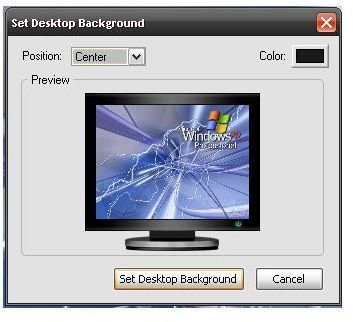
Keep in mind that when you choose the “Set as Desktop Background” option, the image will not save on your computer permanently. If you come across another image online you want to use, it will write over your current desktop background image. Make sure you save the images you want to keep separately so that you don’t lose them!
