Although its name is Microsoft “Word,” this comprehensive word processor allows you to use so much more than just text in a document. Learn all the different ways that you can use Word symbols, from accent marks to special characters to mathematical figures and more.
Overview
There are many reasons why you might need to know how to use Word symbols. Legal documents sometimes require special characters such as the registered trademark symbol or the copyright symbol . Commonly used, non-English words often have accent marks. If you are creating a math worksheet or need to display advanced mathematical calculations in a document, you will need symbols for them as well.
Fortunately, there are many Word symbols you can utilize and many methods for inserting them into a document. The correct solution is determined by the symbols you need and the version of Word with which you are working.
Commonly Used Symbols
At first consideration, you might think that you have no use for Word symbols. However, there are many commonly used symbols of which you are likely to need at least one or two as you work in Word. For instance, if you are creating a report that includes financial figures, you will probably want to use a dollar sign or perhaps a Euro sign. As mentioned previously, the copyright and trademark symbols are often required in legal and other documents. The degree symbol is another popular one.
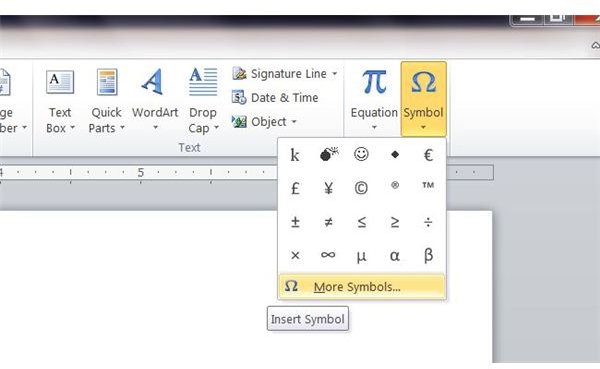
The simplest method to use for inserting Word symbols is opening the Insert Symbol dialog box. In Word 2003, go to the Insert menu and select Symbol. In Word 2007 or 2010, go to the Insert tab of the ribbon and click on Symbols. You can choose one of the commonly used symbols suggested or click More Symbols to open the Insert Symbol dialog.
Here you can choose the font and symbol you want to use and insert it. You can also learn about and apply shortcuts for symbols in the dialog.
Symbol Shortcuts
There are several shortcuts that you can use to add symbols to a Word document . The Alt key on your keyboard can become your best friend if you frequently use specific Word symbols. To use the symbol’s character code to insert it, press and hold the Alt key and type the character code. For example, the Alt key numeric code for the trademark symbol is 0153. Therefore, you would press and hold the Alt key and type 0153 using the numeric keypad on the right side of your keyboard. After you have typed each number in sequence, release the Alt key and the trademark symbol appears.
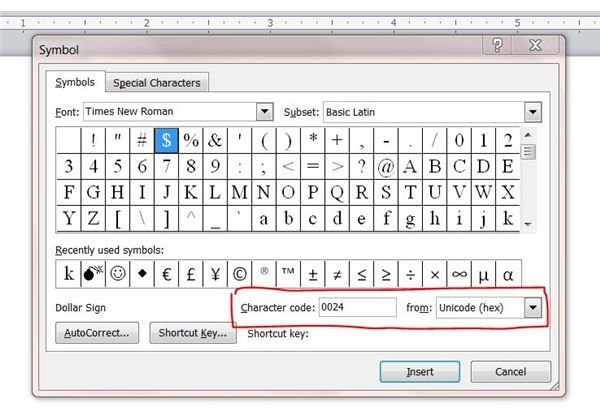
To learn what the Alt key numeric code for a specific symbol, go to the Insert Symbol dialog box. Click on the symbol for which you want to find the code. Make sure Unicode is selected in the From box to the right of the Character Code box. The number in the Character Code box is the one you will want to remember.
If you need ever need shortcuts for typing accent marks in Microsoft Word , simply press and hold the Ctrl key along with the accent mark you want to use. Type the letter and the accent appears.
Another way to use shortcuts to insert Word symbols is to make your own. You can create your own keyboard shortcut in Word for any symbol. Open the Insert Symbol dialog box as listed in the previous section. Find and select the symbol for which you want to create a shortcut. Click the Shortcut Key button near the bottom of the dialog. Click inside the Press New Shortcut Key box and press the key combination you want to assign to the symbol. Check the Currently Assigned To box to determine whether the shortcut is assigned to another command. You can reassign the shortcut to the symbol if desired, but be aware that it will no longer work for its orignial purpose. Clic the Assign button to create your custom shortcut.
You can also find steps for creating other custom keyboard shortcuts in Little Known Microsoft Word Keyboard Tricks .
Mathematical Symbols
Word also provides ways for you to insert and use mathematical symbols. In Word 2003, you will need to install an add-in called Microsoft Equation 3.0 before you can insert an equation into a document.
The steps for inserting mathematical symbols into a Word 2007 or 2010 document are much simpler. Basically, you need only go to the Insert tab of the ribbon. In the Symbols group, right beside the Symbol button, you will find Equation. You can use this feature to insert built-in symbols and equations, or go to the More Equations option to gain access to even more options. You are certain to find precisely the one you need.


