Email Distribution List To Someone In Microsoft Outlook
Distribution Lists Explained
Why would you send an email distribution to someone in Microsoft Outlook? Well, this might be particularly useful when handing over work prior to vacation or starting a new job, and works especially well if you and your colleagues are all using the same email software.
Once received by your colleague, the distribution list can be added to their own address book, ready to be used.
Outlook is a popular and flexible email client, one that makes it a simple task to forward contacts to colleagues. This guide explains how to forward a distribution list in both earlier versions and the more recent Outlook 2007 and 2010.
(See Create Distribution Lists in Outlook 2007 for information on setting up an email distribution list.)
How to Send an Email Distribution List to someone in Microsoft Outlook 2007/2010
The steps needed to send an email distribution list in Outlook 2007 or later are much simpler than in earlier releases; clearly someone at Microsoft recognised that this was a much needed function!
To forward your distribution list, open Outlook, and start a new message (via the New button on the toolbar, or CTRL + N).
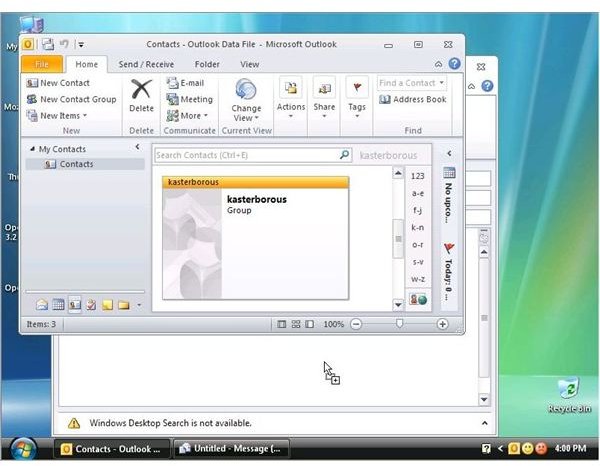
Next, go back to the main Outlook window. You will need to resize Outlook so that it doesn’t fill your entire screen, and to enable you to view the new email message at the same time.
Open the Outlook Contacts screen, and find your distribution list of choice.
Finally, left-click your distribution list and drag it to the body of your new email.
With a recipient added into the To: field, you will be ready to send the email!
Forwarding a Distribution List in Earlier Versions
Users of earlier versions of Outlook require a different set of instructions to forward distribution lists. For a start off, sending an email distribution list to someone in Microsoft Outlook 2000 or 2003 will only work if Word is not being used to write emails. You can check and disable this in Outlook by going to the Tools > Options box.
On the Mail Format tab, look for Use Word to edit e-mail messages (or similar, depending on version) and ensure the checkbox is cleared.
Click OK to finish; you will then be ready to include a distribution list from your Contacts into a new email message.
To do this, start a new email message (File > New) and go to the Insert > Item… menu. In the Insert Item window, select Contacts in the Look in: section, and in the Items: list, in the lower half of the box, find the distribution list you want to send.
In the upper right area of the Insert Item window, check that Attachment is selected. Select your distribution list of choice, and click OK – the list is now added to your email message, which is now ready for you to forward at your convenience!
