Are you leaving tracks everywhere you go online? If your browser is sharing cookies with a website you’re not even (knowingly) visiting, you’ve got third-party tracking cookies on your PC. This article defines cookies and looks at blocking a certain type.
Cookies, Cookies, Cookies
Cookies are small text files sent to your PC by servers at the websites you visit. They get their name from “magic cookies” in Unix, which are short data communications between two programs where the second program, the one receiving the cookie, may not even be aware of the content of the message.
In a similar way, web browser users are not usually aware of the content of the message in a cookie.
By convention, cookies are only sent from your computer to the domains that set them. An organization like Google or Yahoo, for example, would have many different destinations within their domain. Thus, many locations within the domain could interact with the cookie.
When you visit a website, you may encounter a graphic or other page element that actually isn’t part of the page. Instead, it’s served from a remote server. Your browser, in the act of connecting to that other location, gives that server access to their cookie.
An advertiser may recognize that cookie, identify you by habit (or name, if you’ve entered your name at some website within their sphere) and then decide what advertising to send to that page. All this happens as the page loads. This type of cookie is called a third-party tracking cookie. Generally, any cookie that does not originate in the domain you’re visiting is a third-party cookie. The advertiser would say that they are targeting ads that will likely appeal to you.
It doesn’t have to be a graphic, video, music link, or anything that you’ll recognize, either. It can be a single pixel in the corner of the page. These are called “web bugs.” A web bug may do nothing other than tell the advertiser, “He was here.”
Now multiply that by a million websites. A company that also sells ads would have a big incentive to make carrying their ads dependent on also carrying their tracking and targeting applications. This is called analytics.
Let’s look at getting rid of them.
Internet Explorer
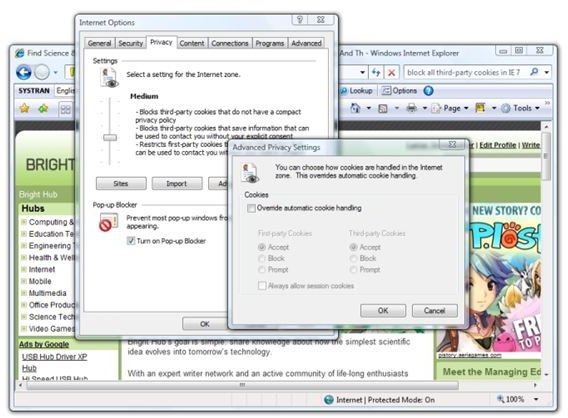
In Internet Explorer 7, press Alt to bring up the menu, and click on Tools. Then click Internet Options. Slide the Privacy slider to the middle or higher.
At this level, IE “blocks third-party cookies that do not have a compact privacy policy.”
This is what W3C (an internet standards organization) has to say: The Platform for Privacy Preferences Project (P3P) enables Websites to express their privacy practices in a standard format that can be retrieved automatically and interpreted easily by user agents. P3P user agents will allow users to be informed of site practices (in both machine- and human-readable formats) and to automate decision-making based on these practices when appropriate. Thus users need not read the privacy policies at every site they visit.
In Internet Explorer 7, even “High” allows cookies from websites with a compact privacy (P3P) policy. You’d have to block all cookies in order to block these.
Back to W3C for more.
Sites implementing such policies make their practices explicit and thus open them to public scrutiny. Browsers can help the user to understand those privacy practices with smart interfaces. Most importantly, Browsers can this way develop a predictable behavior when blocking content like cookies thus giving a real incentive to eCommerce sites to behave in a privacy friendly way. This avoids the current scattering of cookie-blocking behaviors based on individual heuristics imagined by the implementer of the blocking tool which will make the creation of stateful services on the web a pain because the state-retrieval will be unpredictable.
Oh, that’s me. Well, we don’t want to block useful cookies, so let’s take a look at the other settings.
Medium
-
Blocks third-party cookies that do not have a compact privacy policy
-
Blocks third-party cookies that save information that can be used to contact you without your explicit consent
Advertisement -
Restricts first-party cookies that save information that can be used to contact you without your implicit consent
Medium High
-
Blocks third-party cookies that do not have a compact privacy policy
-
Blocks third-party cookies that save information that can be used to contact you without your explicit consent
Advertisement -
Blocks first-party cookies that save information that can be used to contact you without your implicit consent
High
-
Blocks all cookies from websites that do not have a compact privacy policy
-
Blocks cookies that save information that can be used to contact you without your explicit consent
Advertisement
Well, Microsoft is sold on compact privacy policies, but what if our individual heuristics make us imagine that we still don’t want ANY third-party cookies. (“Heuristic” meaning “knowledge gained from experience.”)
Anyway, we can wrest control.
Click the Advanced button, and this dialog appears.
Image
Check “Override automatic cookie handling” and you can block all third-party cookies. (But remember that you’re a “pain” to somebody out there.)
The steps are the same in Internet Explorer 6.
Firefox
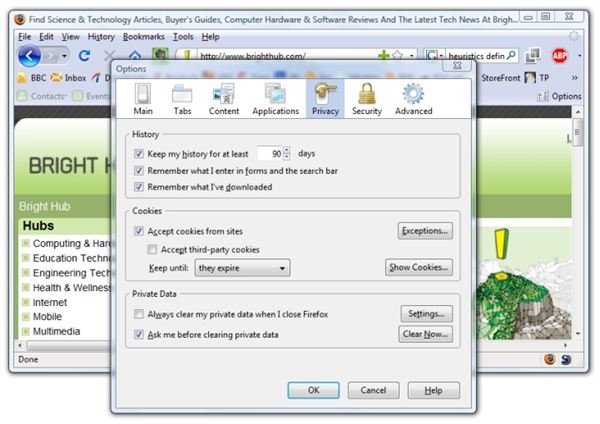
After that romp through Internet Explorer’s settings, Firefox 3 is gentle by comparison. Click on Tools, then the Privacy tab, and make sure “Accept third-party cookies” is not checked.
Images
References
Platform for Privacy Preferences (P3P) at W3C
Thank you for reading.


