Can you bake bread in the time it takes for your Vista PC to start up? Or does it seem that way? Fortunately, there are some relatively easy steps to take to speed up Vista’s boot time. We describe several of them here.
Before We Begin . . .
A good thing to do before making adjustments to Vista settings and operation is to set a Vista system restore point in case something goes wrong and makes your PC unbootable. We will try our best to avoid that, but let’s be cautious.
Also, in the following, it’s assumed that if you have User Access Control (UAC) active, you’ll click through any questions from Vista security by giving yourself all the permissions to continue.
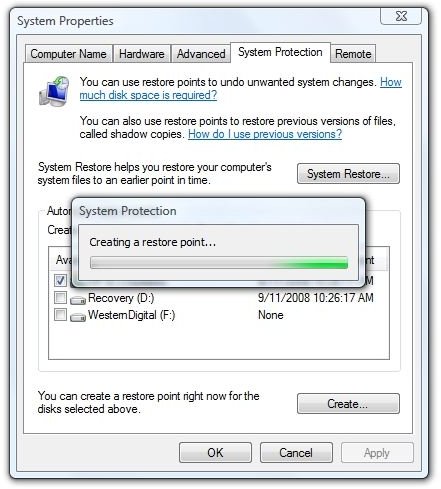
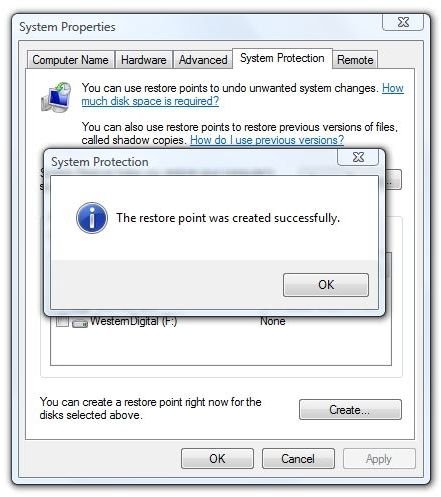
Creating a restore point isn’t hard. Right-click “Computer” and select Properties – or press the Windows key, right-click “Computer” in the Start Menu, and select Properties. Then click on “Advanced system settings” under “Tasks.” This will open the “System Properties” dialog. Click the “Create” button and give your restore point a name. It will then say “Creating restore point” and when done, “The restore point was created successfully.”
Images
If you get error 0×8004230C and a message that “Shadow copying the specified volume is not supported,” then the Shadow Copy service is not running on your Vista PC. Unless, for some reason, you don’t really WANT Volume Shadow Copy (VSS) running, you can fix this by pressing the Windows key and typing “services.msc” into the search block. This will open the “Services” dialog.
Image
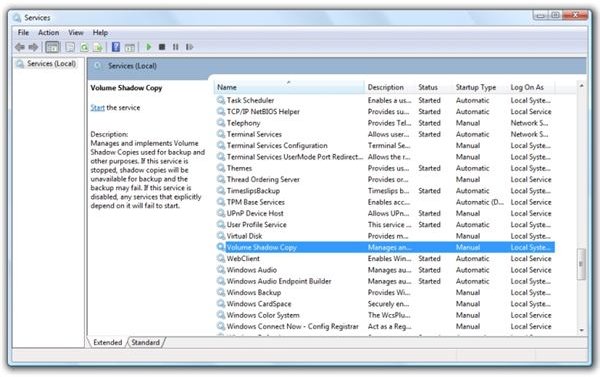
Find “Microsoft Software Shadow Copy Provider” in the list and right-click it. This will open the “Shadow Copy Provider Properties” dialog. Under “Startup type:” set it to Automatic. Then click “OK.” Back in the Services dialog, right-click the same line and select “Start” to make the service start immediately.
Then do the same for “Volume Shadow Copy.”
Once both services are running, you won’t see the error message and your restore point will be created.
Shadow Copy in Vista powers the Vista Backup Center, “Previous Versions“ and the ability to go back to the “last known good configuration” when a startup problem occurs. There’s no good reason NOT to be running this service in Vista. (I’m sure that somebody will let me know if I’m wrong here.)
Now that we’re safely backed up, let’s continue.
Change the Boot Options
Unless you’re running a dual-boot machine, you can save some start up time by turning off Vista boot options you don’t need and turning on options you do need. This also is not complicated. Click on Computer, then Properties, and then “Advanced system settings” to open the System Properties dialog. Under “Startup and Recovery,” click the Settings button.
Image
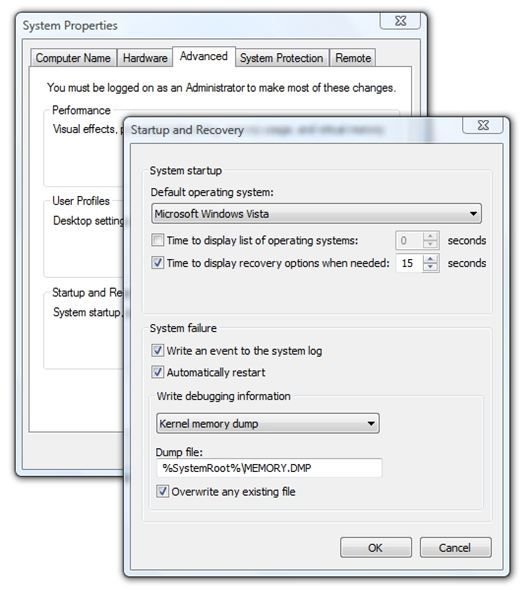
Un-check “Time to display list of operating systems.” (Unless, again, you have a dual-boot configuration.) While you’re here, it’s a good idea to set “Time to display recovery options when needed” to 15 seconds or more. Then click OK twice to close everything.
Dump the Prefetch Folder
Each time you start up your PC or laptop, Vista keeps track of the programs that you start. It then creates small pointer files (.pf) in a Prefetch subdirectory of Windows. Microsoft says , “The prefetch folder is self-maintaining, and there’s no need to delete it or empty its contents. If you empty the folder, Windows and your programs will take longer to open the next time you turn on your computer.”
Let’s test that notion. Press the Windows key and enter “prefetch.”
My experience is that the Prefetch folder contains pointers to programs that I haven’t used in quite some time, and even pointers to programs that are no longer installed.
It certainly does not hurt to dump the Prefetch folder, reboot, and let Windows restart. You may save as much as five seconds here. (That’s not a lot, but every bit helps.)
To dump the Prefetch folder, click any file in the folder and then press Ctrl-A to select all files. Note: if you are using an external storage card for ReadyBoost, press Ctrl and click the ReadyBoost folder to un-select it. Then press Delete to finish.
Stop Unnecessary Services in Vista
This is a big one, but proceed with caution here! We really don’t want to have to use that restore point we created, do we?
To see the list of services running of your Vista PC, press the Windows key and enter “msconfig.” This will open the System Configuration dialog. Click on the Startup tab to see the list of processes that run at boot time.
Here you need to be a bit judicious. Do not stop a service if you do not know what it does. If you’re not sure, do a Google search and find out what the service is.
For example, I see a MobileMe startup item from Apple. I don’t recognize that one, and since I don’t have an iPod, I wonder if this process is needed. A Google search tells me that MobileMe is a service that pushes stuff from the “cloud” to my mobile device. A quick check here tells me that I don’t have an Apple mobile device, so I don’t need that!
Amazon Unbox. Well, sometimes I buy TV shows and MP3s from Amazon, but does it need to run at start-up? I’m usually reasonably sure when I’ve purchased something from Amazon and could start it to download myself. I don’t need Amazon Unbox.
There are other services you may not need. Some applications start a part of themselves at start-up to decrease the perceived time it takes to start the application. If it’s an application you don’t often need to use, then you can prevent it from starting automatically. (I don’t need OpenOffice to prestart.)
Bear in mind as you look at your services that one may impinge or rely upon another. For example, I have a Systran “server” running on my PC. It interacts with MS Word, Internet Explorer, and (until version 3) Firefox. It’s an example of a service that I do want to start.
Again, proceed with caution.
If You Want to Become a Vista Startup Services Sensei
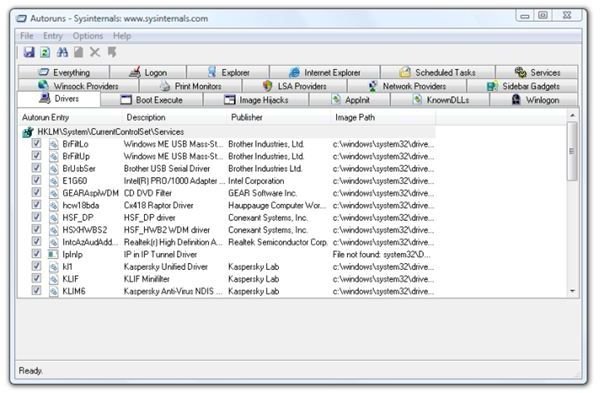
If this article has whetted your appetite and you decide to become a master of your startup services, download Autoruns from the Microsoft Sysinternals website.
“This utility, which has the most comprehensive knowledge of auto-starting locations of any startup monitor, shows you what programs are configured to run during system bootup or login, and shows you the entries in the order Windows processes them. These programs include ones in your startup folder, Run, RunOnce, and other Registry keys.”
Autoruns is pretty amazing. (Click the image to enlarge.)
Image
Minimize the Number of Desktop Icons
Windows Explorer redraws the desktop, icon by icon, several times during start-up, including before and after loading the Vista sidebar. Deleting desktop icons does not remove the programs from the PC, so you should look critically at your desktop icons. Are some images or notes that you could move to a single “My Stuff” folder on the desktop? Do you really need icons from programs that you know well and use frequently? In Vista, it’s often easier to press the Windows key on the keyboard or click the Start icon, enter a few charcters of the program’s name. and press Enter to start it.
You can identify program shortcuts on the desktop by the presence of a small white block with a blue arrow superimposed on the programs’ icons. (Programs that run and insert themselves in the System Tray certainly don’t need to have desktop icons as well, do they?)
This will be a slight increase, but it will get you productive on your PC a little bit sooner.
Set the Vista Indexer for Delayed Startup
The Vista file indexer contributes to a slow startup by starting its search update just as applications are trying to “phone home” for updates and other Windows services are trying to start. Fortunately, setting the indexer for delayed startup is easy.
Press the Windows button or click the Start button/orb and enter
services.msc
clearing the UAC prompt if active on your machine. In the “Services” dialog, select the “Extended” tab at the bottom, scroll down and double-click “Windows Search.” Next to “Startup Type”, click the selection bar and select “Automatic (Delayed Start).” And that’s it. The indexer will wait for other processes to finish before starting its scan.
Change the Order of Startup Applications
Beyond speeding up Vista’s boot time, we are also concerned with how quickly we can begin to use our productivity applications. If you have several applications installed that include start-up services, such as inserting themselves in the System Tray or “phoning home” for updates, you can spread the startup sequence out by using a utility application called Startup Delayer. This is, in effect, sacriicing speed for smoothness, but the perceived up-tick in how soon you can get to the applications you want to use can be surprising.
This is also helpful when start-up errors are occurring, like when a service that depends on another service tries to start first. An example could be an antivirus program that tries to retrieve updates before the network services are up and running.
More information about using Startup Delayer (and Autoruns) can be found in “How to Change the Order of Startup Applications in Vista .”
This article was updated on April 8, 2009. The section on delaying the Vista file indexer startup was added.
If you want to link to this article from your web page or blog, please use:
https://www.brighthub.com/computing/windows-platform/articles/7047.aspx
Related Reading
(Quick Tip) How to Test High Definition Video on Your PC - Want to find out what high-definition video looks like on your current Vista or high-end XP PC without spending any money or buying any additional equipment? You’ll find out quickly if your PC can handle 720p or 1080p video. All you need is a fast Net connection and Windows Media Player 9 or 11.
How to Create a Bootable Disk in Vista - Need a backup method to start a Vista PC? Creating a bootable disc in Vista is not as easy as in previous versions of Windows, but it can be done. This article tells you how.
How to Clone a Laptop Hard Drive with Acronis True Image 2009 - Hard drive filling up and declining hard drive prices getting your attention? If you’re ready to move up to a bigger hard drive for your laptop, this tutorial will show you step-by-step in pictures how it’s done in Acronis True Image Home 2009.
Netbooks, Notebooks, Laptops, and Ultralarges - What’s in a name? By now, we have a pretty good idea about what the difference between a netbook and a notebook is, but is there really a difference between a laptop, a notebook PC, and an ultralarge? For an answer, let’s look back at the beginnings of portable computing.
Thank you for reading this. We hope that you’re enjoying the new Bright Hub.


