How to Customize Windows 7 Explorer | What is New in Windows 7 Explorer
What is New in Windows 7 Explorer ?
Before we learn to customize Windows 7 Explorer, let us take a quick look at what is new in Windows 7 Explorer. The concept of Windows Explorer comes straight from Windows 3.0. It was the version that first carried a dual pane navigation window for navigating through all the files on your hard disk and other drives. Initially called File Manager (under Windows 3.0), Microsoft changed the name to Windows Explorer later. People used it less compared to My Computer in Windows XP. Windows 7 brings back the Windows Explorer as an integral part of the operating system. You can even find a shortcut to the Windows 7 Explorer in the Taskbar.
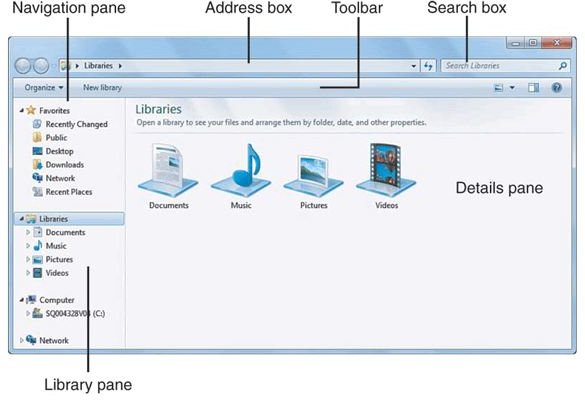
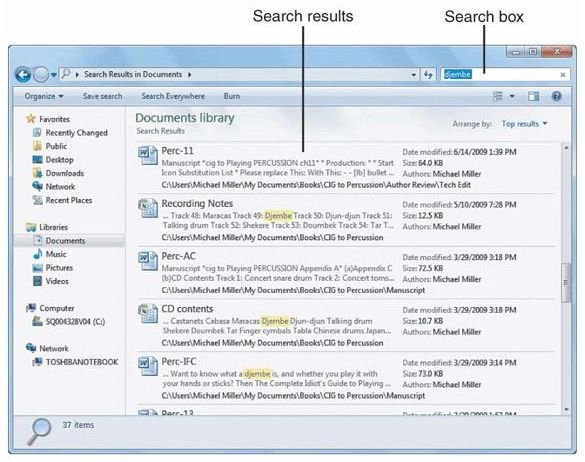
Coming back to what is new in Windows 7 Explorer, there are three important changes – the look, Libraries and the Search box (see Fig 1). The left pane is no more just a list of drives and folders. Instead, you find links to important places that include Favorites, Libraries, networks and other drives. Libraries are new to Windows 7. They are a collection of folders containing similar document types such as music, video, documents and images. Windows Explorer allows you to add or remove folders to and from these libraries. Finally, the search box allows you to search for any file, folder or computer straight from the Windows 7 Explorer (See Fig 2).
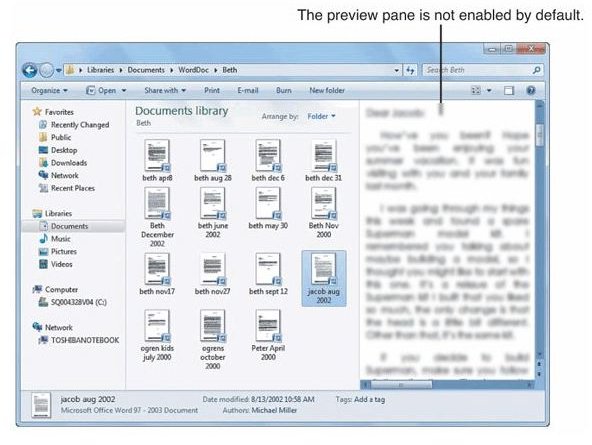
Another feature new to Windows 7 explorer is the Preview pane, which is OFF by default. You can customize Windows 7 explorer to show the Preview pane. It offers you an overview of the contents of any document (See Fig 3). Having checked what is new in Windows 7 Explorer, let us see how to customize Windows 7 Explorer.
Image References - What is New in Windows 7 Explorer
Customize Windows 7 Explorer
The options to customize Windows 7 Explorer are almost the same as in Windows XP. You can change the views, click behavior, appearance of hidden/system folders, etc. using the Folder Options dialog.
Before looking at the Folder Options, let us see how to customize Windows 7 Explorer to display the Preview pane or the Menu bar that are not visible by default. To have the Windows 7 Explorer display Preview pane and/or Menu bar, click on Organize and select Layout. You will get a list of Windows 7 elements, including the Preview pane and Menu Bar (Fig 4 below). Just select the elements that you wish Windows 7 Explorer to display when you open it.
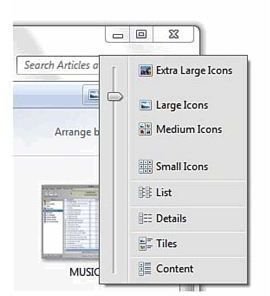
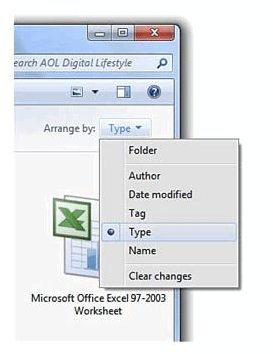
One of the important things about Windows 7 Explorer is the way it presents the details of any drive, folder or library. You may want Windows Explorer to display the items as a list if there are too many elements or as thumbnails for more details. To change the current view, just click on the View button towards top-right of the window. You will get a menu showing not only the different view types but also options to select size of items (Fig 5 below). To customize Windows 7 Explorer for presenting files in a particular arrangement, use the Arrange By button on the top-right corner (Fig 6).
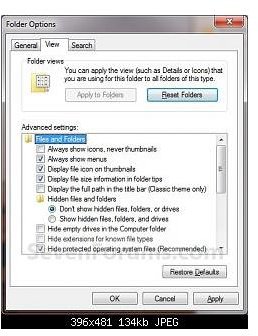
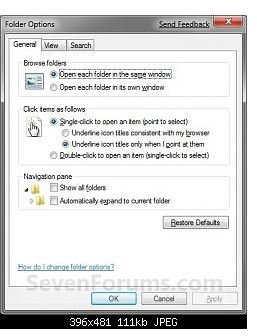
The Folder Options dialog offers you several options such as whether to show hidden files, show/hide file extensions, open files with double click or a single click and more. You can access the Folder Options dialog from Organize -> Folder and Search Options. The options applicable to a particular folder are available under the View tab of Folder Options dialog (Fig 7). You can set global options such as applying a folder view setting to all folders on the drive, through the General tab (Fig 8).
TIP: By default, Windows 7 Explorer shows Libraries, Favorites, Computer and Network as explained in the What is New in Windows 7 Explorer section above. If you wish, you can select Show All Folders under the Navigation pane of Folder Options to get that old Windows Explorer look.
As said earlier, there are not many options available to customize Windows 7 Explorer. Still, you can personalize it by combining the options with Windows 7 Explorer context menus.
Image References - Customize Windows 7 Explorer

Related Articles
Learn more about Windows 7 settings and features in other Bright Hub articles, such as How to Password Protect Folders in Windows 7 and An Overview of Windows 7 Firewall.
