What to do When Windows Firewall is Grayed Out
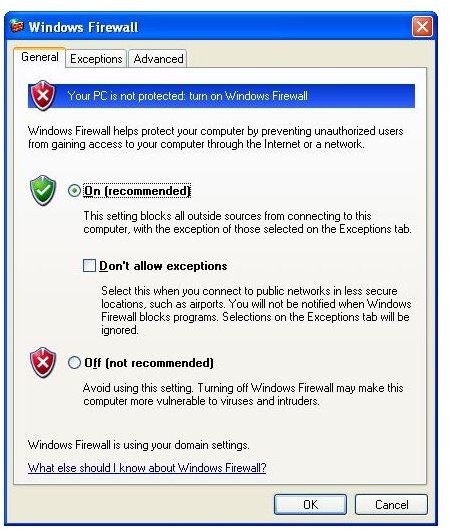
Windows Firewall Grayed Out?
Windows Firewall is automatically activated by Windows upon installation and under normal circumstances should be accessible to anyone to adjust and switch on and off as necessary.
There are few situations in which the Windows Firewall controls would be grayed out – this can happen either due to group policy applied by your system administrator or if you’re running on a single PC or on a home network, much more likely is some sort of malware has infected your PC and changed your firewall settings.
It is for reasons such as this that regular security scans are recommended along with third party firewall solutions.
If you’re running a PC on a home network and the Windows Firewall is grayed out, the first thing to do is check your security software and run a scan to confirm that whatever malware has caused this to occur has been fully removed. The second thing to do is fix Windows Firewall.
The following instructions are for systems running Windows XP Service Pack 2.
What the Malware Does
Assuming that some malicious software (for instance Spyware) is to blame for your Windows Firewall issues, it is likely that your firewall has been left unusable by the removal of the malware.
There would have been little chance of fixing the firewall issue with the malware still on your system, so this is perfectly okay.
When malicious software such as spyware finds its way onto your system (often in downloads or piggy-backed onto free software) it utilizes a layered service provider (LSP) to collect user specific data. LSPs are removed by spyware removal applications (such as Ad-Aware or Microsoft Windows AntiSpyware) and this results in any changes that have been made to your Windows operating system being untouched.
Fixing Windows Firewall
Providing that your Windows Firewall is grayed out due to a malware issue, you will be able to fix it with the following instructions.
Note however that security and system faults on a managed network should be reported to your system administrator – attempting to resolve an issue without admin privileges is unfortunately not possible.
For users with a single home PC or network, resetting the Windows Firewall is possible and reasonably straightforward.
You will need to be logged into your PC as an Administrator – to check which account on your Windows PC has this status, go to Start > Control Panel > Users and check the details of your logins; in most cases where there is a single account, this is the one with admin rights on that PC. In the case of multiple accounts, the one that was created first is typically the Administrator.
Next, go to Start > Run and enter cmd before clicking OK.
The command prompt window should open – enter the following:
netsh Winsock reset
If you are logged in as Administrator, you should see this message:
Successfully reset the Winsock Catalog. You must restart the machine in order to complete the reset.
You should then Restart your PC as prompted to complete the reset.
(Should you attempt this fix while not logged in to the Administrator account, Windows will request that you try again after having logged off and back on with the admin credentials.)
Following restart of your PC, the firewall issues should be resolved - no longer is Windows Firewall grayed out!
