This article teaches you practice exercises in Microsoft Word to become a Word power user.
Getting Started
You’ll naturally improve your skills in Microsoft Word the more you use it. However, performing specific tasks in Word will make you better faster, compared to your everyday usage of Word.
Use the following practice exercises in Microsoft Word to improve your productivity.
Use Templates
Chances are, whatever kind of word document you’re working with is very similar to a document you’ve already done–perhaps many such documents. Use Word’s templates to pre-write the boilerplate text you regularly use in documents.
Letterheads are a perfect example of templates. Walk through this example to create a sample letterhead.
Open Word and press “alt-f” followed by “N.” Word will present a list of templates to choose from. Click the “Stationary” heading, then the “letterhead” link. Scroll through the many letterhead templates and double-click the “Letterhead and Envelope” item. Word will download the template to your computer and open it.
The content that comes with this template isn’t just dummy text but has instructions on how to use the template. Read these to get the best use of the template.
You can use the template immediately to start writing a letter. Or, revise the letter to create your own letterhead.
If you want to create the letter rather than a template, fill out the text shown in the [brackets]. This text is held in special containers called “content controls,” which you can arrange to your liking.
Create your own letterhead
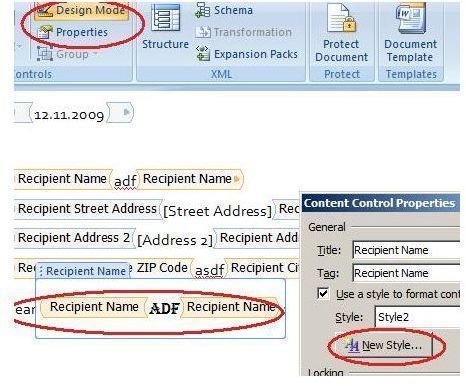
To create your own letterhead based on the downloaded template, open the document in design mode: click “Developer>Design Mode.” Notice the many content controls for holding the date, address and other document parts.
Reformat the control on the salutation line (i.e. “Dear Recipient…”): Click on “Recipient Name,” then click “Properties,” which is under the “Design Mode” icon on the toolbar. Click “New style” on the “Content Control properties” dialog box, then click “Format>Font,” then choose something exotic, like “Algerian.” Close out all dialog boxes and return to letter-writing mode by clicking “Design Mode.” Enter some text in the “Dear Recipient” content control, and notice its font is Algerian.
Save your template in a convenient place: In Windows Explorer, create a new folder on the Desktop called “Mytemplates.” In Word, press “control-s” and navigate to that folder. Name the template as “myletterhead.dotm,” with type “Macro-enabled template.”
Now, point Word to your templates folder: In Word, choose “alt-f>Word options>Advanced” and scroll down to the “General” heading. Click the “File Locations” button, select the “User Template” line, click “Modify,” and point the dialog box to the template folder you just created on the desktop.
Close all dialog boxes, and close all Word documents. In Windows Explorer, navigate to the template you saved in the subfolder under the Desktop and double-click the template. Word will open a new document based on your template.
Learn more about Word’s templates here .
Use autocorrect
Another habit that speeds your work with Word is using Autocorrect. Autocorrect is the feature that replaces “teh” with “the” when you type. This might not seem like a big deal until you come across a long word that’s needed in several places in several documents.
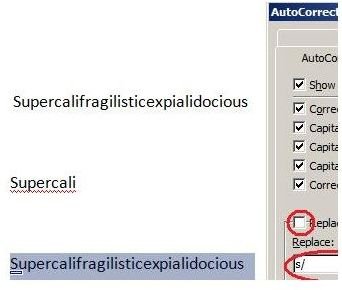
Try out Autocorrect, starting with opening a new Word document. Type “supercalifragilisticexpialidocious” in the document, then select that word. Press “alt-t-a,” which will call up the AutoCorrect dialog box. In the “Replace” box, type “s/” then press “Replace” and “OK” to close the box.
In the document, type “s/” and watch supercalifragilisticexpialidocious leap onto the page.
Turning off AutoCorrect
AutoCorrect can be downright annoying at times, especially if you have it set to replace “t” with some word. (With this substitution, every time you type “don’t” or another word with an apostrophe followed by a “t,” AutoCorrect will insert its text.) Turn off this otherwise useful feature by pressing “alt-t-a,” then unchecking the checkbox that reads “Replace text as you type.”
Learn more about AutoCorrect here .
Use keyboard shortcuts
Along the lines of using AutoCorrect, learn as many common keyboard shortcuts in Word as you can. Doing so will greatly speed your workflow. You can easily start using keyboard shortcuts even if you know none, by simply pressing the “alt” key inside Word. Pressing that key makes Word display the shortcut key for many major tools, alongside the icon for that tool on the toolbar. After using this feature for a little while, you’ll have memorized the shortcuts and won’t need to pause to read them.
Use Mail Merge
Using Word’s mail merge is another essential task if you’re using Word as part of a mailing distribution. Here’s how you can set Word’s Mail Merge to create a basic form letter and customize it with field codes filled by a data source.
Create your data source first. This can take many different forms, but a common one is a Microsoft Access database. Create the following table in Access. Note that the first row contains the field names.
fname,lname,street,city,state
roy,neary,123 sycamore st,smallville,kansas, 32888
clark,kend,456 elm rd,bigville,new york, 32178
lois,lane,876 maple ave,big rock,florida, 32999
Return to Word and open a new document. Start the Mail Merge Wizard by selecting “Mailings>Start Mail Merge>Step by Step Mail Merge Wizard.”
Ensure the “letters” option is selected in the new “Mail Merge” window that appears on the right, then click the “Next:Starting document” link at the bottom of that window.
Select “Use the current document” in the “Select starting document” step, then click the “Select recipients” link. Choose “use an existing list,” then click the “Browse” button. Open up the Access database you just created.

Click “OK” to close the “mail Merge recipients” dialog box, then click the “Write your letter” link.
Paste the following text into your form letter:
«fname», «lname»
«street»
«city», «state»
Dear «fname»,
Thank you for your recent purchase. We hope you enjoy the product and that your neighbors in «city» enjoy it, too.
Regards,
The Big Company
Each of the words enclosed in « and » is a merge field code that you don’t type directly, but insert as follows: select the first field code ("«fname»"). Select “Mailings>Insert Merge field>fname” to insert the code. Repeat this for the remaining terms surrounded by « and » in the letter just given. Be sure to match the correct field code to the bracketed text (i.e. choose “Insert Merge field>lname” to match «lname», “Insert Merge field>street” to match «street», and so on).
When you’ve finished adding all the merge fields, click the “Preview your letters” link. Browse through each letter by clicking the “«” and “»” buttons. Notice that the merge fields have been filled with the values from the Access database. Save or print the finished merge letter.
Read more about Word’s Mail Merge feature here .
Use macros
Macros are small programs in Microsoft Word that can automate every task you do by hand–making them invaluable in any kind of work you do with Office, especially tasks you do repeatedly.
Setting and clearing document options is a practical task that’s easy to achieve with macros. Create the following macro, which turns off and on the AutoCorrect option mentioned earlier in this article.
Open Word and right-click on its status bar (at the bottom of Word’s Window). Check the “Macro Recording” checkbox, then press the Macro recording button in the left part of the status bar.
Name the macro “toggleAc,” then press “OK” on the “Record Macro” dialog box. Press “alt-t-a,” then uncheck the “Replace text as you type” checkbox. Close the AutoCorrect dialog box, then stop the macro recording by pressing the small square, which has replaced the macro recording button in the status bar.
Revise the Macro
Press “alt-F8,” select “toggleAc,” then press the “Edit” button to enter the Visual Basic integrated development environment (IDE). Notice the large amount of code that your macro recording has produced. This code will turn off the AutoCorrect feature, but we want it to turn that feature both on and off. Replace the code with the following subroutine:
Public Sub toggleAc ()
Dim s
s = “AutoCorrect is "
AutoCorrect.ReplaceText = Not AutoCorrect.ReplaceText
If (AutoCorrect.ReplaceText) Then
s = s & “ENABLED”
Else
s = s & “DISABLED”
End If
Application.StatusBar = s
End Sub
Return to Word and create a shortcut for the revised macro as follows: Press “alt-F,” then choose “options.” Click the “Customize” link, followed by the “Customize” button near the “Keyboard shortcuts” text.
Select the “Macro” category, and then the “toggleAC” macro. In the “Press new shortcut key” text box, press “alt-K.” Press the “Assign” button, then close all open dialog boxes.

In the Word document, type “(c),” and notice if it’s replaced by the copyright symbol (which the AutoCorrect feature will typically do). Press “alt-K” to activate your macro and watch the status bar closely as you do so. The status bar will read “AutoCorrect is ENABLED” if the copyright symbol formerly failed to appear. Retype the “(c)” text and watch the copyright symbol now appear. Press your macro’s keyboard shortcut again to disable AutoCorrect.
Learn more about word’s macro feature here .
Use these practice exercises in Microsoft Word to develop your own exercises. Before long, you’ll be a Word wizard.


