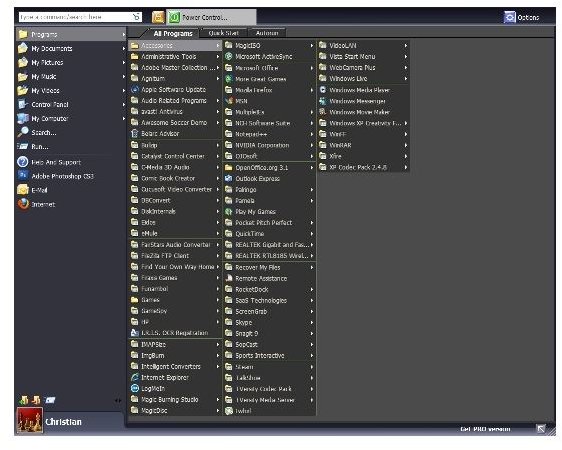
There are many ways to customize Windows XP to resemble the design, layout and styling of Windows Vista - by using a simple software tool you can revamp your Windows XP shutdown menu options!
Give Windows XP Shutdown Menu a Vista Theme
The Windows XP shutdown menu is very different to that seen in Windows Vista and Windows 7 – it includes different menu items and is a separate window, while the Vista shutdown menu appears in the bottom of the Start menu.
While it isn’t possible to move your Windows XP shutdown menu and replicate the more streamlined design of the Windows Vista menu, it is however possible to spruce up the menu with a Windows Vista theme.
Available as freeware, the theme changes only the Windows XP Start menu and no other elements of the interface!
Utilise the Vista Start Menu Tool
Available from www.download.com , you will need to use that site’s search function to find “vista start menu”. Once you have found the freeware tool Vista Start Menu, download and install.
You will need to search the site, as the website often re-indexes its database with newer versions of the software it supplies.
Vista Start Menu is 2.1 MB so shouldn’t take long to download. Once this has completed you will need to run the installation – do note, however, that running the installation will override your current Windows XP Start menu, so be aware that the next time you click Start you will have a menu very much like that found in Windows XP.
Using Vista Start Menu to Create a Vista Shutdown Menu
Once installed, your Start menu should look very different. It can be customized via the menu item Options > Wizard. In particular you can decide whether to use this new start menu in preference to the old one as well as set it to run when Windows starts.
If you don’t wish to replace your existing menu you can create an icon that will allow you run the menu from the Quick Launch area of your Windows Taskbar.
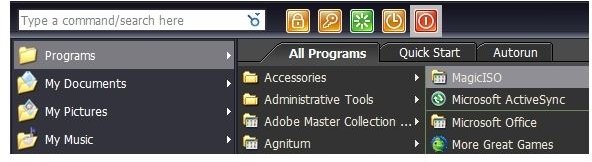
Although you now have a Vista styled Start menu, the shutdown menu element of this can be adjusted to give you all of the shutdown options from the new Start menu.
Open the menu and go to the Power Control menu button. Rather than click this, right-click blank space beside it and in the resulting menu select the shutdown menu item options you wish to display in your new Vista menu.
With these options now selected, you can open the new Vista menu and select restart, hibernate, log off and other typical shut down menu options from the convenience of your new Windows Vista start menu!


