Windows Movie Maker is by far the easiest software for creating good quality videos. It has its share of problems, too. This article deals with the problems with audio files in Windows Movie Maker and helps you solve them using some easy workarounds.
Windows Movie Maker: Audio File is Invalid or Corrupted
The most common error you receive while working on Windows Movie Maker says that the Windows Movie Maker Audio File is Invalid or Corrupted. The reason for the error message can be:
- An incompatible audio file or video clip that you imported into the Windows Movie Maker
- The required codec is missing
- The codec installed on your machine is creating conflicts
Windows Movie Maker Audio Problems: Unsupported Formats and Re-Encoding
Windows Movie Maker supports all formats of Windows Media: WMV and WMA. It also supports AVI files. The best supported audio format for Windows Movie Maker is the WAV format.
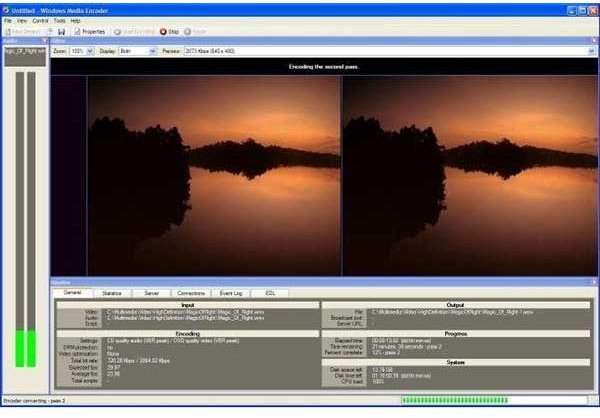
If you receive an error message for a video clip you import into Windows Movie Maker, try playing it on any Media Player. If it plays fine, chances are the software is not able to split the clip properly into video and audio. In such a case, it is recommended that you re-encode the media file into a different format using Windows Media Encoder (Fig 1).
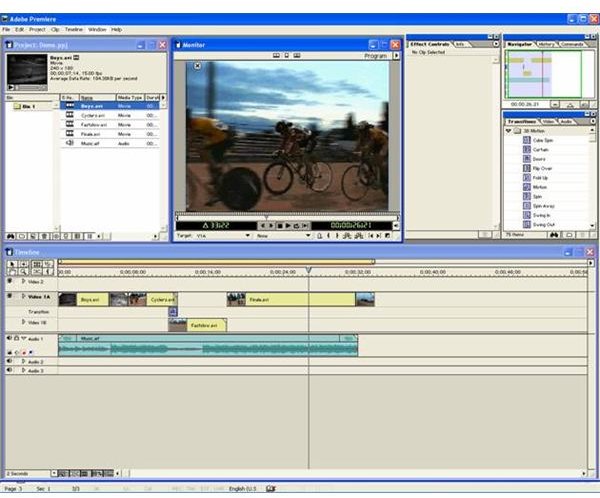
The best bet is to use Adobe Premiere . You can import the media creating problems into Premiere and get output as WMV or AVI. In the first screen that appears after you install Adobe Premiere, select A/B editing (Fig 2) as it is easy. You can see all tracks in the media and export only the ones you need. Better still, when you understand the software, you can create great videos. Still, Windows Media Player is faster than Premier when it comes to rendering the output.
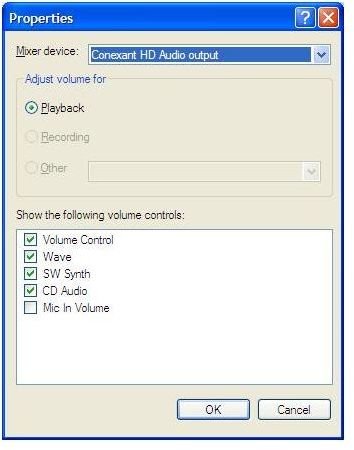
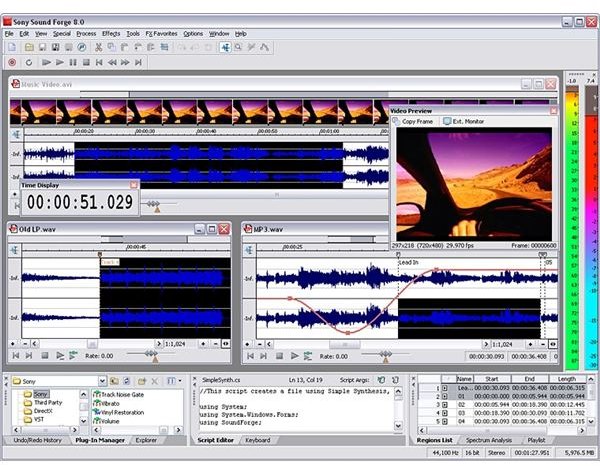
If the problem appears only for an audio file instead of video clip, the best thing is to go for Sonic Foundry’s Sound Forge (Fig 3). From the “Entertainment” menu in “Accessories” under “All Programs” of “Start” menu, select “Volume Control.” In the “Options” menu of “Volume Control”, select “Options,” “Properties,” and then “Recording.” In the “Recording” dialog, click “SW Synth” (Fig 3). With Sound Forge ready, click on its “Record” button while playing the audio file simultaneously on any audio player. All the audio gets recorded until you click on “Stop Recording.” You can save this audio file in WAV file to solve the audio error problem in Windows Movie Maker.
Though the last option seems difficult, it is a breeze. Being a free software and its capability to convert any sound into WAV format, Sound Forge 4.5 (free version) is a must have if you regularly deal with multimedia.
Windows Movie Maker Audio Problems due to Codecs
Note 1: You may try installing latest versions: Windows Movie Maker 2.1 for XP or Windows Movie Maker 2.6 for Vista or Win7 before proceeding with the following.
Note 2: Make sure you have the latest service packs installed for your operating system so that Windows Movie Maker works properly.
.While all codecs required to play and create movies are installed with Windows Movie Maker, you may have uninstalled some of them (accidentally) while removing some program from your computer. If this is the case, you need to get back the missing codec.
If you get an error message that a particular codec is missing, you can search for the codec on Internet and install it on your computer. On the other hand, you can download and install all the major codecs used by Windows multimedia - in a single bundle pack .
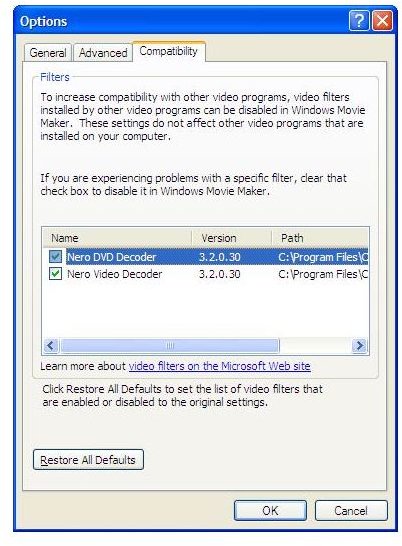
If the Windows Movie Maker still gives you error, check out the codecs in the program. Open “Tools” menu, select “Options,” and click on the “Compatibility” tab of the resultant window. You can see a list of all codec installed in Windows Movie Maker (Fig 5). Uncheck all codecs in the list. Enable each codec one by one and see if the error message disappears.
If you enable all the codecs and the error message still appears, you need to contact Microsoft Support to get rid of the error message saying Windows Movie Maker Audio File is Invalid or Corrupted.
Disclaimer: It is not necessary that the Windows Media Codec bundle will work on all OS/Computer makes. It is recommended that you create a restore point in case anything goes wrong. The author and BrightHub will not be responsible for any damages due to the installation of the codec bundle.
Image References