Internet Explorer has made it easier to erase your browsing tracks using built in tools. This article will show you how to clear your history using Internet Explorer and other free tools including CCleaner and Eraser.
Overview
Do you have a need to erase your Internet Explorer history but want to delete things other than just Internet Explorer’s history? A free tool like CCleaner comes in quite handy to do just this. What about securely erasing your history? Using CCleaner or IE8 to delete the history will delete it from your view, but you’d still be able to use a file recovery program to recover those files. After showing you how to delete your History, I’ll show you how to use Eraser to permanently delete your history data - making it impossible to recover.
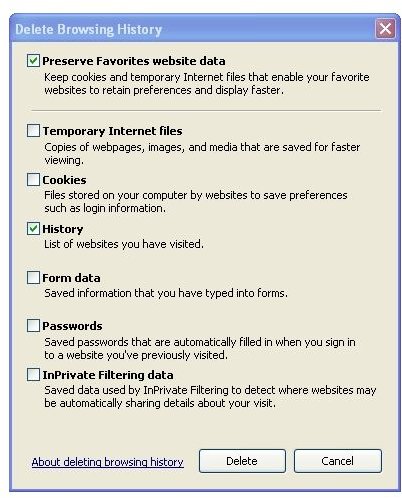
If you want to simply delete Internet Explorer’s history in Internet Explorer 8, you can just go under the Tools, Delete Browsing History… (Figure 1). Select the options you want to delete and click Delete.
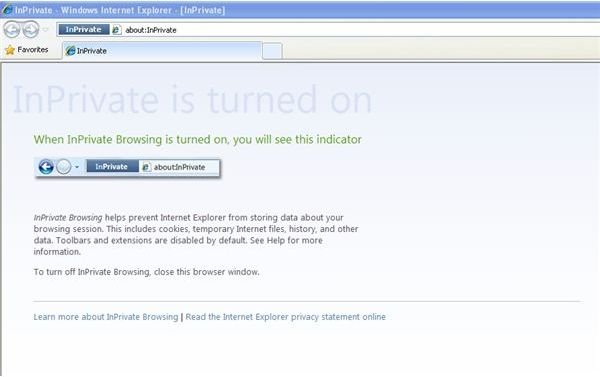
Another nice feature of Internet Explorer 8 is its InPrivate browsing option. InPrivate browsing does not keep track of your history, so as soon as you close your browser, any tracks are promptly deleted. To use InPrivate browsing, select the Safety menu and select InPrivate browsing or hit CTRL+SHIFT+P. A new Window will open up and have “InPrivate” in the address bar (Figure 2).
Erasing History with CCleaner
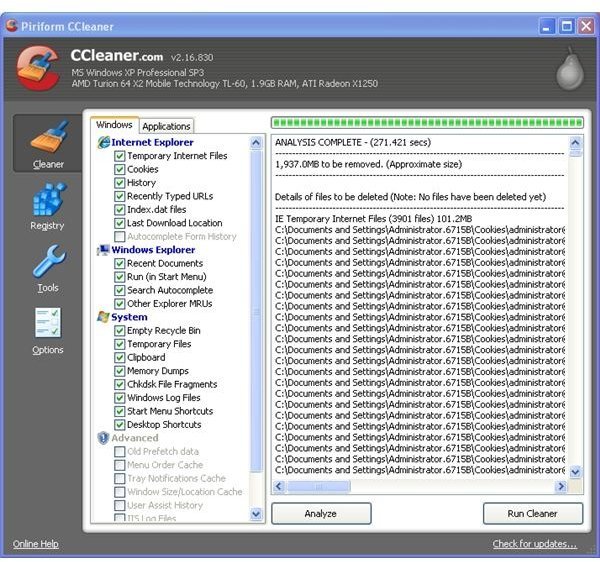
If you want something a bit more fully featured, a great free tool I use frequently is CCleaner by Piriform. You can grab CCleaner from the CCleaner site here . After installing the tool, you can run it and select the items you wish to clean. When you’re ready, hit the Analyze button. CCleaner will report how many files would be removed and the approximate amount of drive space reclaimed (Figure 3). If you want to proceed with the cleaning, go ahead and click the “Run Cleaner” button.
CCleaner can also clean your registry looking for orphaned keys – just click on the Registry tab on the left hand side, then “Scan for Issues” and finally “Fix selected issues”.
Securely Deleting Files
The previous methods discuss removing the history, but in reality your history could potentially be recovered using an undelete program. In order to securely delete your history, you will want a secure file eraser such as Eraser – available here . Run the program after you’ve downloaded and installed it.
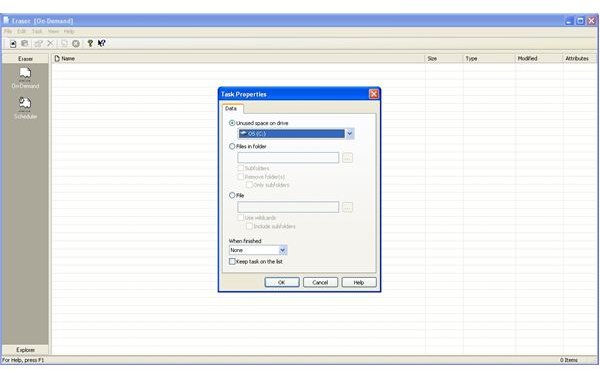
Click the New Task button. Select the option to delete all free space on the C: Drive (Figure 4) and click OK. Back at the main menu, right click on the new task and select Run. This will overwrite all free space with random data in order to reduce or eliminate the possibility of recovering that data.
Images