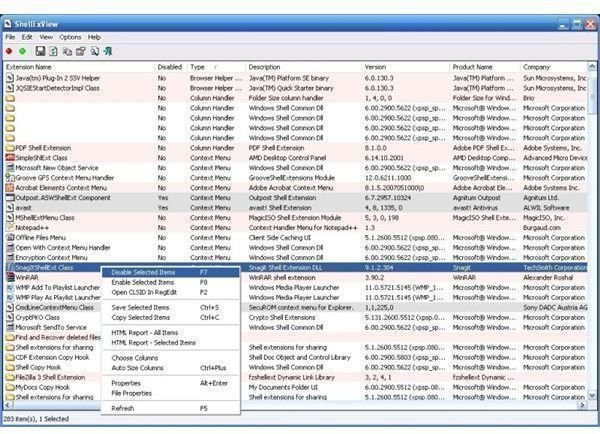
Is your Windows XP hanging thanks to an overloaded context menu or are some badly installed applications are hogging your context menu? With ShellExView you can remove these items quickly, and get your context menu (right-click menu) back in shape!
System Lock-ups - Context Menu Error?
Some Windows XP lags and delays and occasionally system lock ups can be due to problems with the context menu – the menu that appears when you right click on an item.
It is called the “context menu” as its contents change depending on what item is selected by the right-click.
Some applications affect the options available in the context menu – however in cases when these options do not apply correctly at the installation stage, the context menu will cause Windows XP to hang or freeze. An example of this is WinRar – if you installed this application on your PC, right clicking on many document types will give you a menu item “Add to archive…”
Often uninstalling and/or reinstalling the offending menu item can fix this issue, although it can be a problem working out which menu item relating to which function or third party application is causing the lag.
With the right tool however, the troublesome item can be removed from the context menu, while remaining intact on your PC.
ShellExView
ShellExView can be downloaded from www.nirsoft.net . It is a freeware tool that monitors Shell Extensions – various objects that extend the Windows XP operating system.
The download file is just 46 KB but there is no Installation; all you need to do is unzip the contents and run the ShellExView.exe file.
Using ShellExView is simple – the tool lists all of the currently running objects and their associated extensions into the Windows XP user interface. You can browse through the list to see what objects are doing what – such as providing items to the context menu.
Fixing the Menu
Fixing problems with the context menu is just one of several tasks ShellExView can be used to perform. It is useful before proceeding to have an idea as to which application is causing the problem with the menu. If the lock-up or system hang has only started recently then in most cases installation of a particular piece of software at around the same time will be at fault.
After launching ShellExView, click the Type column to sort the items into groups, and then browse through the list of applications and objects until you find the Context Menu items grouped together.
The offending software item will be found here – select the item and press the F7 key to disable it. Exit ShellExView and try to recreate the situation (a right-click on a document icon for instance) in which the system hang was previously occurring – you should find that this has been resolved. If not, disable further context menu items until the offending software object is identified, before re-enabling (F8) the others.
Remember that whichever software utility or application is causing the context menu to slow down, it will remain fully installed on your PC after you disable its context menu elements in ShellExView, allowing you to continue using the application in question.


