What is the difference between a swap file and a page file? What do they do? How will optimizing them speed up a Windows computer? Find out all the answers in this article.
Unless you’re still running Windows 95 or 98 you don’t have a Swap File. It was used prior to Windows ME to manage dynamic memory for the WIN386 kernel, which addressed a swap file. Since then, and up to the present Windows 7, it is now a Page File . Apart from the name difference, the two systems work differently, but because of the legacy of the swap file, it is still a term much in use today.
Whether you call is a swap file or page file, the idea behind it was to allow Windows to virtualize memory space on a disk drive. This allowed memory intensive programs to run in the days when 256Mb of RAM was considered a lot.
When a program asks for memory space, Windows can allocate it an address that is actually on a hard drive. The program won’t know the difference and Windows will treat it just the same as it would if it were memory. This address space is divided into chunks called pages, hence the name.
There are hundreds of informational articles like this one that suggest changing the size of the page file, moving it to a different drive or removing it altogether will speed your machine up. Unfortunately most of them are misinformed.
It is also where the term “page fault” comes from. When an application tries to read memory, but the information is actually stored in the page file, a page fault is generated. Windows responds by moving the page into memory and makes it available to the application. The application picks it up and continues its work.
Back in the days of windows 2000 and XP, before SP1, it might have been advantageous to manually modify your page file. Since then, Windows has become much more adept at managing it, and does so much more effectively than before. Physical memory has also become much cheaper, and it isn’t unusual to run 4Gb of RAM in a PC now. This lessens the demand on the page file, and therefore the effect of modifying it.
The only real scenario now where changing the location of a page file would have any real impact is if you moved it from a traditional hard drive to a solid state one. Then the access times would increase and it would be worth the effort.
If you want to change the size or location of your page file, read on.
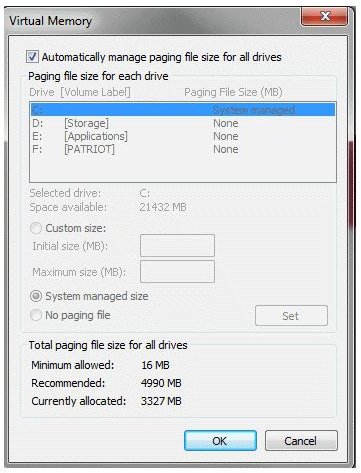
Right Click on My Computer and select Properties, Advanced System Settings, Advanced, Performance, Settings. Choose the Advanced tab, then click Change under the virtual memory section. Untick the box to let Windows manage it and select the settings you want.
See the information at the bottom of the dialog window which will tell you the suggested settings. Once you have modified what you need, confirm by clicking okay and then reboot the system. You have now manually set your system page file.
To undo the changes, repeat the process above and check the box that allows automatic management of the page file size. The system will need another reboot to reset.