Finding your favorites in Internet Explorer 8 the first time can be a challenge. You’re probably used to going under the Favorites menu, but with Microsoft hiding the menu bar and doing away with most of the text descriptions, where did Favorites go? This article will help you out.
Overview
I’ll freely admit it – I’m not thrilled with Internet Explorer 8 - IE8 is not Microsoft’s best browser. It’s “clunkier” than ever, slow and in the process of cleaning up the interface, Microsoft managed to hide common functions like Favorites and History. We’ll cover where your Favorites are – both in Internet Explorer and where they are stored under your profile.
For more information regarding file locations used by Internet Explorer, read this article: Internet Explorer 8 Folder Locations in XP and Vista .
Favorites in Internet Explorer
If you take a look at Figure 1, can you figure out where your Favorites and History are? I’m guessing if you knew the answer, you wouldn’t be reading this article. It’s the star!
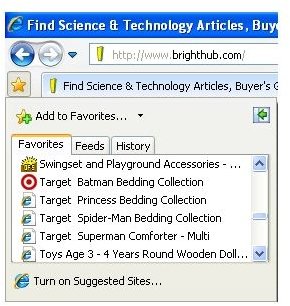
Click on the star and you’ll see your Favorites, History and RSS Feeds pop out from the left side (Figure 2).
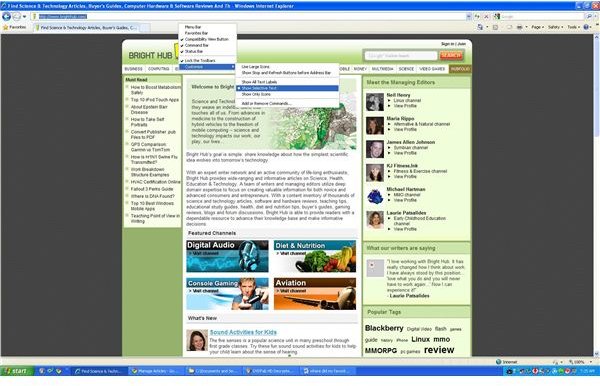
Okay, so now you know where your favorites are, but what about making it easier next time? Did you know you can change the Star icon so it will display “Favorites” next to it? Right click on the area where your tabs are displayed, select Customize and then “Show selective text.” Now, instead of just a star, you’ll see the star and the text (Figure 3).
Favorites in Your Profile
Finding the favorites under XP, Vista and Windows 7 isn’t too much trouble – Just note that the locations are slightly different for each OS.
For XP, open up My Computer and browse to your “C:” drive. Double click on “Documents and Settings” and then on your username (the account you log into the computer with). You will find a Favorites folder there.
Favorites in Vista and Windows 7 are the same. Open up My Computer and browse to your “C:” drive. Double click on Users and then on your username (the account you log into the computer with). You will find your Favorites folder there.
Images