How to Print Professional Labels in Word 2007
One of the most useful features found in Word 2007 is the ability to create professional labels for use in Mail Merges or for other applications. If you want to create a good impression for recipients of your letters and packages, read on for tips on creating labels in Word 2007.
Before you Begin Printing Labels in Word 2007
Before you start printing labels in Word 2007, you need to have an understanding of how you want your labels to look. To start, think of how the labels will be used. For labels to be affixed to envelopes for mailing, you want to choose a smaller label. For labels to be used on larger packages, a large label is preferred. Whatever the application, imagine how you want the labels to look. This will make it easier to create labels in Word 2007 and you will be happier with the results.
How to Print Labels in Word 2007
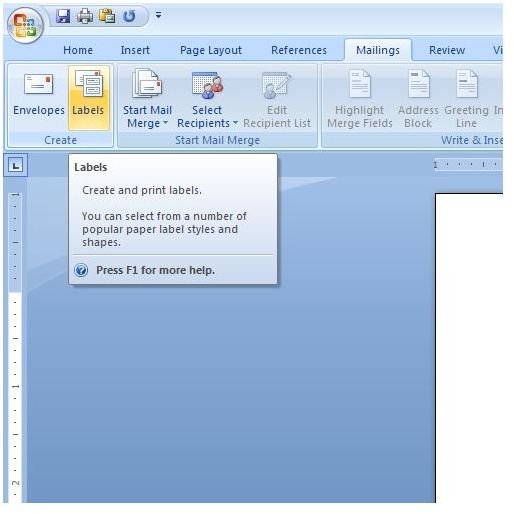
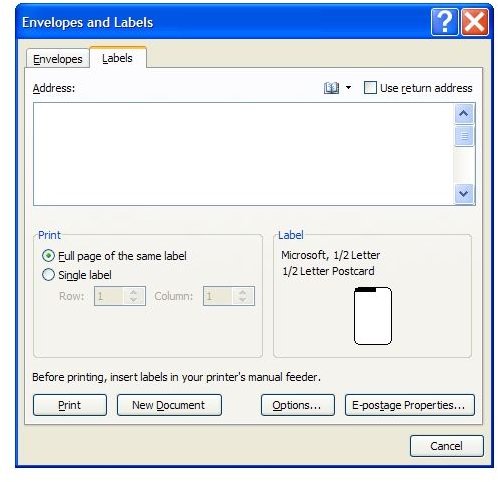
To start printing labels in Word 2007, click on the MAILINGS tab in the Word 2007 Ribbon and then click on the LABELS button (see Figure 1). This open up the ENVELOPES AND LABELS window (see Figure 2). Type in the address or information you want displayed on your label in the ADDRESS text box. Notice that the information you print on your label does not need to be an address. It is an assumption by Microsoft that people only want to print addresses on labels. Of course, you can print anything on your label.
Under the PRINT column, choose whether you will be printing a Full Page of the Same Label or a Single Label. If you are printing only one label, you need to tell Word 2007 where your label is on your label sheet by choosing the column and row of its location. This feature makes it possible to print only the labels you need.
Next, click on the OPTIONS button to open the LABEL OPTIONS windows. This is where you tell Word 2007 the type or brand of label you want to print. The most common manufacturer of printer labels is Avery. Avery’s product numbers are clearly printed on the top of each box of labels it makes and the company prints the product number on every sheet of labels for easy identification.
To print, for example, a label using Avery type A4/A5 2480 labels, choose AVERY A4/A5 in the LABEL VENDORS drop-down box and then choose 2480 in the PRODUCT NUMBER box. Notice that when you choose these options, the information in the LABEL INFORMATION box changes on the right. Be sure your label dimensions match those displayed here to avoid wasted label sheets.
To print your label(s), click on OK to close the LABEL OPTIONS window and position your label sheet in the appropriate tray in your printer. Click the PRINT button and your label will print.
Tips on Printing Good Labels in Word 2007
Generally, you should center information on a label to make it look professional. Also, do not double space information on a label. Not only is single spacing easier to read, it makes for a more professional appearance.
You may find that using bold text for all the information on a label makes it stand out more. Without bold text, it may make your label look like it was printed on an old-fashioned typewriter. Also, use clear fonts such as Arial, Times New Roman, Verdana, or even consider Georgia for a classy but easy-to-read font. Choosing a non-standard font may make it difficult to read, especially by electronic eye machines used by many postal services.
Generally, do not print your labels using light colors; they won’t show up well against the bright white of the labels. It is OK to print your labels using a very dark grey. However, be careful that the color you choose doesn’t simply look like your printer is running out of ink/toner and the result was washed out text. Black or very dark grey text on a white label presents the most professional appearance.
Conclusion
Printing labels in Word 2007 is simply a matter of choosing the options you want and printing your label. You may want to print the label to a scrap piece of paper before inserting your label sheet into your printer. Doing so gives you a real-world preview of the label and saves you money from wasting labels that didn’t print the way you intended. Following the advice in this document, you can print labels in Word 2007 that look professional and make you or your business look good.
