There are two ways to find the IP address in Vista, one involves using a GUI, in other words using windows to get information. The second method involves using the command prompt with the word IP config.
How To Find An IP Address In Vista
The IP address it the unique identifier on a computer, printer, or any device that is attached to a network. It is like a phone number. A phone number has an area code and the exchange number. An IP address has a network part and a host part. The IP numbers are from 0 to 255. An example of an IP number is 154.99.30.200. Each number is separated by a period; and each number is called an octet because when the number is converted to binary notation, it will only have 8 bits with only a 0 or a 1. So the number 154 will look like: 10011010.
Finding the IP address is necessary in order to troubleshoot a network problem that the computer may have. If for instance, there is no connection to the Internet, or you’re not able to print to a network printer, or you’re unable to share files with other computers on the network, you may need to figure out your IP address as part of the troubleshooting process.
There are two methods that one can use to find the IP address. One involves using the standard windows, GUI approach. The second involves the command prompt.
Part 1: Using the GUI to Find the IP Address
Part1: Finding the IP address via the GUI method
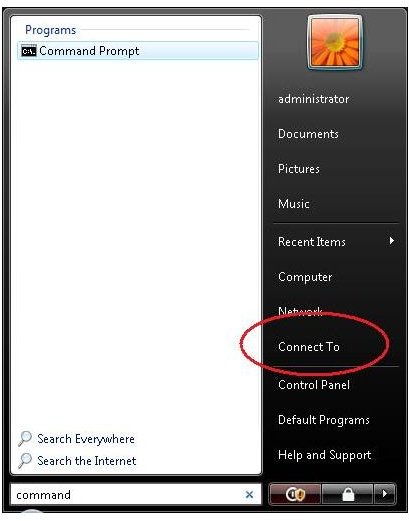
click start
[Start-ConnectTo]
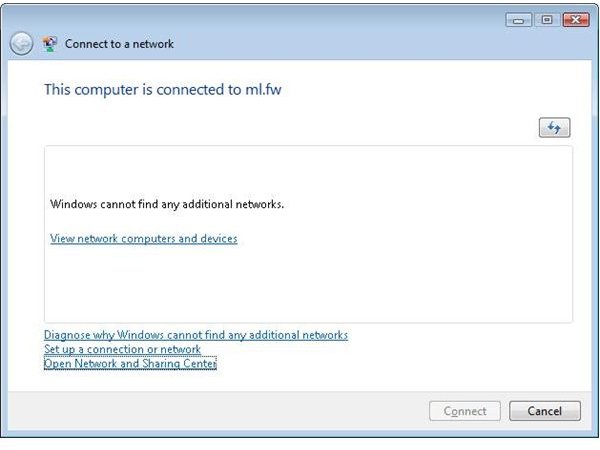
Next click Connect To
[ConnectToANetwork]
Next Click Open Network and Sharing Center

[OpenNetworkAndSharingCenter]
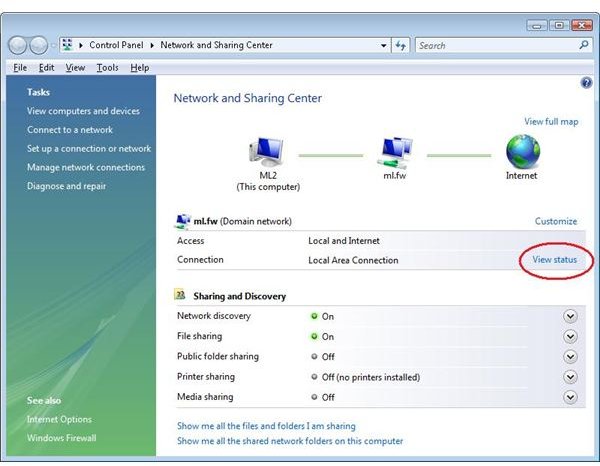
With the Network and Sharing Center screen open click View Status
[NetworkAndSharingCenter-ViewStatus]
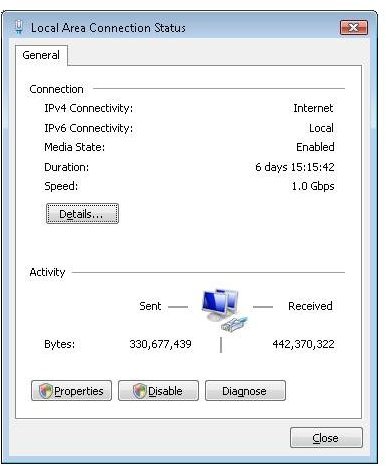
The Local Area Connection Status opens.
[LocalAreaConnectionStatus]
Select the Properties Link Box
There are Three Click Boxes, Install, Uninstall, and Properties.
Select Internet Protocol Version 4 (TCP/IPv4)
And click properties.
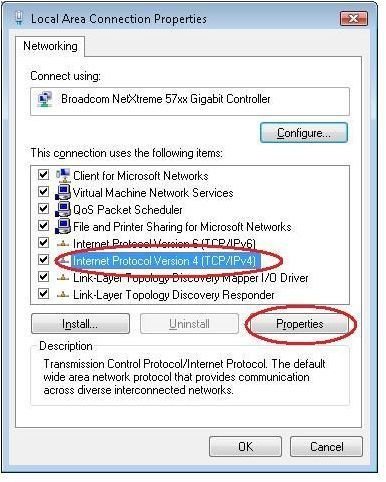
[LocalAreaConnectionProperties-ipv4]
The setting is set for DHCP (Dynamic Host Configuration Protocol).
This means that there is a Server that is issuing the IP addresses. Because of that, the IP address information is not available on this screen. The IP address is being leased to the local host (the computer), and not manually added. This means that to get the IP number, one has to use the second method, the manual method of determining the IP address.[inlineImage|center|AFEF047CA2708F1E41CD409970A48B8F4DD0A475|InternetProtocolVersion4-[TCP-IPv4 Properties]|][InternetProtocolVersion4-(TCP/IPv4 Properties)][inlineImage|center|10ED268E743C53173D1DDC6BFE99E72E18B1754D|InternetProtocolVersion4-[TCP-IPv4 Properties]-ipnumber|][InternetProtocolVersion4-(TCP/IPv4 Properties)-ipnumber]
The GUI method has reached a stopping point. Here there is no IP address, subnet mask, gateway, DHCP server, or DNS server identified because the numbers that this computer is using are coming from a DHCP server, and are leased out. To get the IP number, one must use the Command prompt method.
Part 2: Finding the IP address via the Manual Method with the Command Prompt
This method will provide additional information that is not normally found using the GUI method unless one opens up the GUI, which has multiple steps in the process. This method only takes two steps.
Specifically, it will provide information about the Gateway,
Click the Start Button, then type Command in the Search box
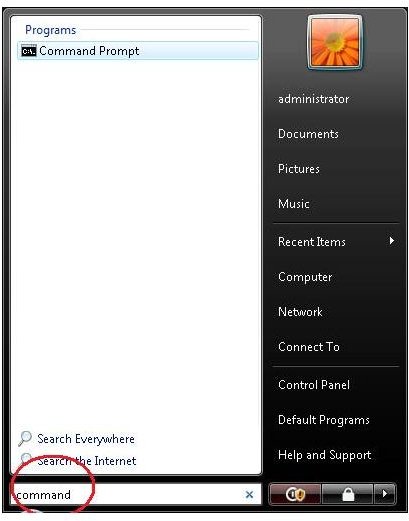
[CommandPrompt]
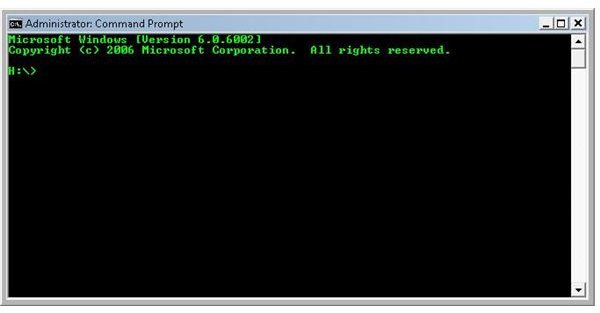
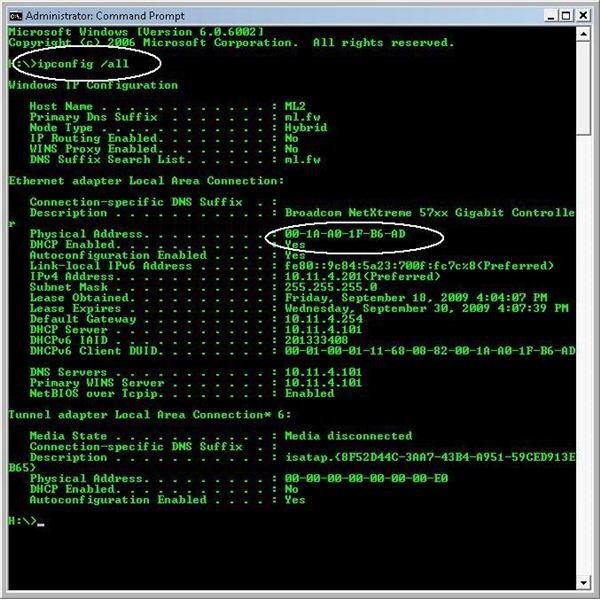
Step #2 Type Ipconfig /all at the prompt
Notice the following information:
IPv6 along with IPv4 is displayed. IPv6 is the next generation IP addressing scheme with 128 bits, as opposed to the IPv4 version with 32 bits.
[CommandPrompt-Window]
The MAC address is available. This is the physical address under the Ethernet adapter Local Area Connection. The physical address is the address of the network interface card, the NIC. This is the device that connects to the network, and ultimately to the Internet.
This command will supply, in addition to the IP address, the subnet mask, the gateway, the DHCP server’s address, the DNS server’s address, the WINS server’s address (for legacy purposes to NT4.0)
[IPconfig/all]
Notice that the GUI method will work if one has a manual configuration for the IP settings. If the settings are based on a lease from DHCP, then one must go to the command prompt to retrieve the information.
IPconfig/all will provide all of the information necessary to determine the IP address.
The shorter version, IPConfig, will only supply the IP address, the Subnet Mask, and the Gateway.
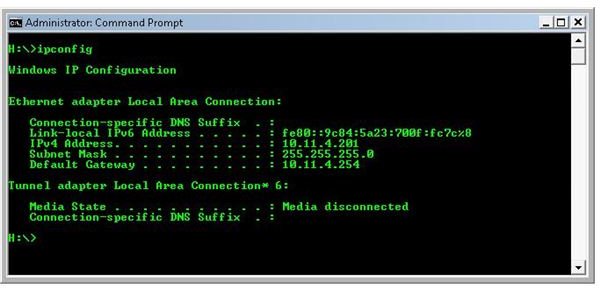
[ipconfig]
As has been mentioned, there are two ways to find the IP address, using the Windows GUI, but it may not provide one with the information if the IP number is leased out via DHCP. The sure fire way of getting the IP address is using the command prompt method.


