Don’t you wish you could save time by typing information into printed forms instead of filling out each one by hand? If you have a scanner and MS Word, you can! Learn how to type on a scanned document using Word.
Scan the Form
Before you can find out how to type on a scanned document using Word, you will need a scanned version of the form on your computer. Refer to your scanner’s instructions to scan the form and save it somewhere on your computer where you can easily find it. Save the scanned document as a picture file, such as a PNG or JPG file.
Insert the Scanned Document in Word
Now that you have scanned the form or other document, open a new, blank Word document. Get to the document’s header by going to the Insert tab in Word 2007 and clicking on Header. In Word 2003, go to the View menu and select Header and Footer. Click inside the header section on the blank Word document. In Word 2007, go to the Insert tab and select Picture in the Illustrations group. In Word 2003, go to the Insert menu, point to Picture and click From File.
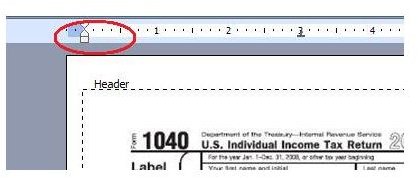
Locate the scanned document on your computer and insert it as a picture into the header. Use the ruler to move the margins, if necessary, and drag the scanned document so that it covers the majority of the Word document.
Format the Scanned Document
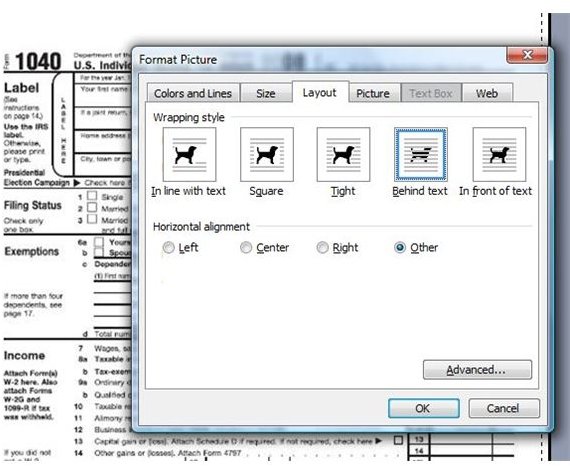
Format the scanned document so that you can type over it without any problems. In Word 2007, click on the scanned form to select it. Go to the Format tab and select Text Wrapping in the Arrange group under Picture Tools. Select Behind Text. In Word 2003, right-click the scanned document and go to Format Picture. Select the Layout tab, click Behind Text and click OK.
Type Into the Scanned Document
Once you have inserted and formatted the scanned form or document into your Word document’s header, close the header. You c
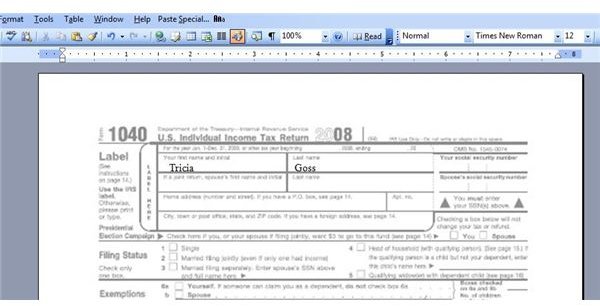
an click outside of the header to get back to the actual document, or click Close Header & Footer in Word 2007. In Word 2003, go to the View menu and click Header and Footer to go back to the document.
You can now type directly into the scanned form or document. You may need to change the font size so that it fits properly into the scanned document.
If you want to insert a scanned form that is several pages long into a Word document, save each form as a different image file. You will also need to let Word know that you want a different header on each page. Check out the Bright Hub articles Section Breaks and Different Headers and Footers and Creating Headers and Footers in Microsoft Word 2003 .


