If you inherit a computer from someone else and Windows and Office is already installed, you may notice when you go to track changes in programs like Word, someone else’s username and initials are entered. This article will show you how to change these values for Microsoft Office 2003 and 2007.
Overview
When you first install Microsoft Office, you are asked to enter your name and initials. Performing some activities such as Track Changes or Comments in Microsoft Office will utilize the name or initials you entered. If you made a goof when entering in this information or didn’t take the time to enter it properly and you want to change it, it may not be entirely obvious how to change these settings. This article will show you where to find the information in the Registry and how to change them within Office 2003 and Office 2007.
Office 2003 - Changing User Information via Registry and Office
Before you make any changes to the registry, make sure you have a good backup. You can run the Windows Backup utility or export the registry.
- Open the Registry by going to Start, Run and enter “regedit”. Hit Enter.
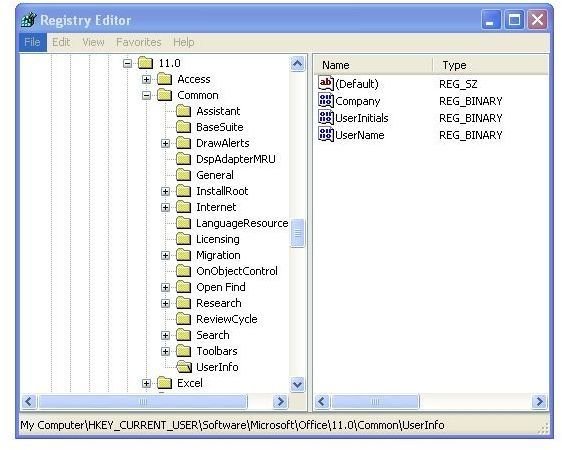
- The Registry should open. Browse to the following location – HKEY_CURRENT_USER\Software\Microsoft\Office\11.0\Common\UserInfo
- In the right hand window (Figure 1), rename the Company, UserName and UserInitials fields by right-clicking on each and select “Rename” add “.old” to each.
- Close the Registry and Open Microsoft Word. You will be presented with a window asking you to enter in new information.
If you’re nervous about going into the Registry, you can change the user name and initials by going into Office. Follow these steps to change the settings in Word:
- Open Microsoft Word
- Go to Tools, Options
- Click on User Information
- Enter the name information in the appropriate box
- Click OK to go back to Word
Office 2007 - User Information via Office
Changing the user information with the Registry for Office 2007 isn’t as easy as it is for Office 2003. I was unable to find any reference to changing the user information via Registry for Office 2007. Luckily, it is quite easy to do this in the user interface of each Office program.
- Open Microsoft Word
- Click on the “Office” button and go to Word Options
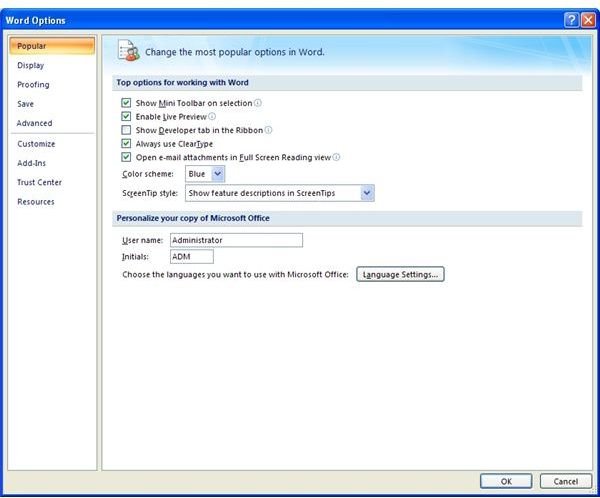
- In the Word Options window, make sure the “Popular” tab is selected (Figure 2)
- At the bottom, update the User Name and Initials fields as desired. Click OK