If you accidentally deleted your Internet Explorer history, you may latter realize you need it back. This article discusses the options you have to recover your history as well as what you can do in the future to increase the likelihood of a full recovery.
Overview
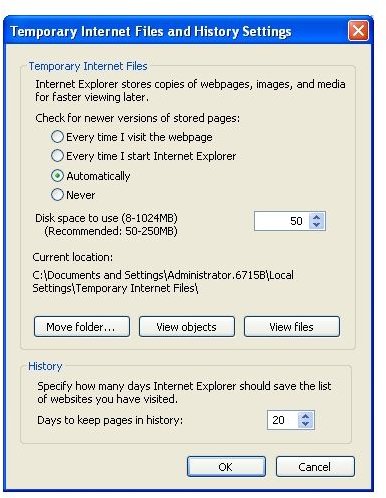
Internet Explorer keeps a running history of everywhere you’ve browsed until you manually erase the history or until it hits the threshold set in the Internet Options, General, History Settings page (Figure 1). If you manually delete the browsing history or if it drops off after the specified limit, you may find that you want to review the history that is now lost. So, is there any way to recover deleted Internet Explorer history?
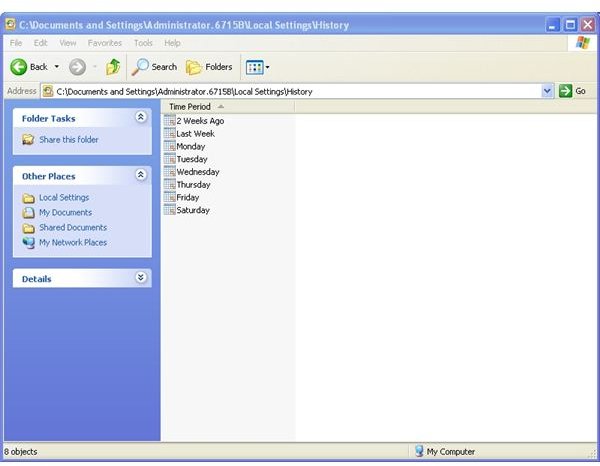
Unfortunately, Internet Explorer’s history is a bit of magic with bits being scattered about between the registry, temporary Internet files and the history folder itself – typically located under c:\documents and settings\
Options
You’ve got a few options for recovery – ranging from – “I’ve got backups and will have no issues recovering” to “I don’t have backups so all I’ve got is this crummy index.dat file”.
The first option is to use System Recovery or a Backup\Recovery utility. Using a recovery program, you’ll want to recover the above mentioned directory and restart Internet Explorer – the history should be back now.
If you don’t have a recent backup, your options are pretty limited. As mentioned above, your typical undelete tool will not be able to recover your history. One thing you can do is to view the contents of your index.dat file. The index.dat file retains a URL history and is used by Internet Explorer to retain the “autocomplete” URL feature which highlights previously visited URLs when browsing a web page. Note that there are multiple versions of the index.dat file – one for retaining cookies, one for cache data and one for your history. The index.dat file you will want to view is under c:\documents and settings\
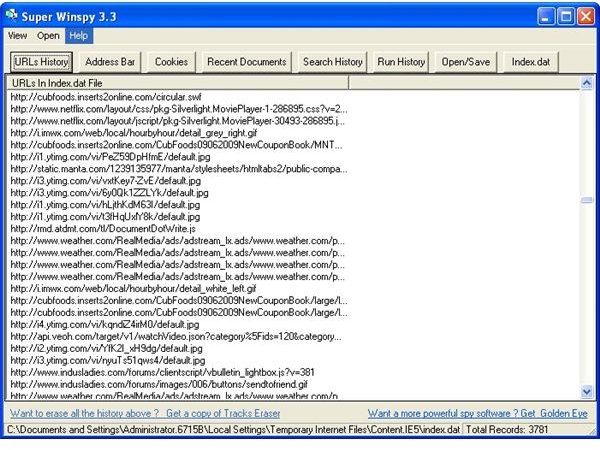
In order to read the index.dat file, you will need to obtain an index.dat file reader. The one I used for this article is called Super Winspy and can be found at the AceSoft webpage . Download and install the tool keeping the defaults. Start up Super Winspy and click on the “Index.dat” button. Enter in the location for the dat file – the default should be okay. After a few minutes, you will see the list of URLs in your index.dat file (Figure 3). Note that the most recent URLs visited will be at the top of the list.
It isn’t pretty and it’s certainly not easy to find what you’re looking for, but it may be better than nothing…. I’d definitely recommend performing regular backups in order to guard against data loss in the future.
Images