When previous URLs appear in the address bar of Internet Explorer, it may be seen as an annoyance or even a privacy issue if the computer is used by multiple people. This guide will show you how to disable AutoComplete as well as how to clear the AutoComplete history.
Overview
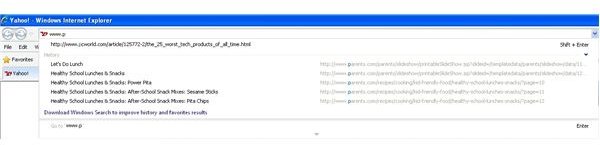
When you start typing a URL in Internet Explorer, you may have noticed how Internet Explorer will start to give you a list of URLs from your history and favorites (Figure 1). This feature is known as AutoComplete. For some people, this may be an annoyance or potential privacy issue. I’ll walk you through disabling AutoComplete and clearing the AutoComplete History.
Disabling or Enabling AutoComplete Options
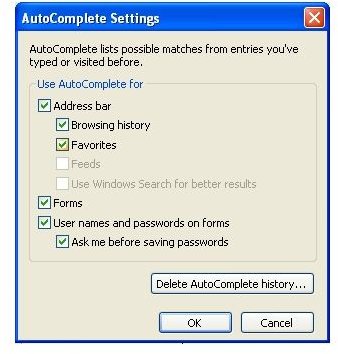
You can access the AutoComplete options by starting Internet Explorer, going to the Tools menu and then Internet Options. On the Internet Options window, go to the Content tab and then click on Settings under the AutoComplete heading (Figure 2). The following options are available:
Address Bar – Checking or unchecking this box will enable or disable the AutoComplete feature in the address bar where you type the URL. Note that you can customize the AutoComplete for the Address Bar by enabling or disabling Browsing history, favorites, feeds and windows search. See Figure 1.
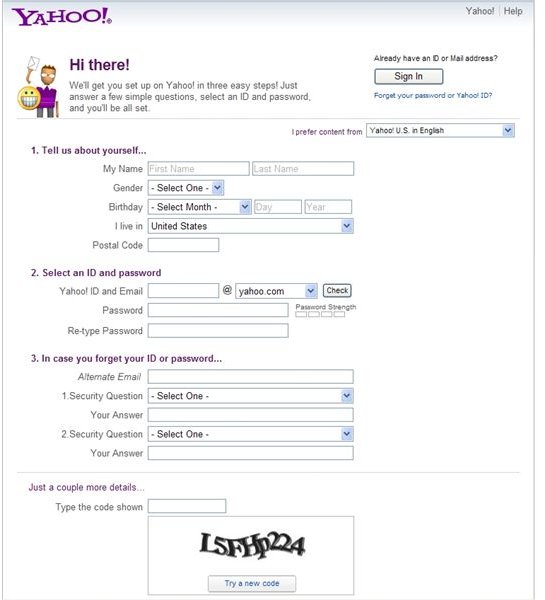
Forms – Checking or unchecking this box will enable or disable the AutoComplete feature for forms. Forms are used when filling in personal information such as a registration page for a web site. See Figure 3.
Usernames and passwords – This allows you to enable or disable Internet Explorer from automatically filling in username and password fields. If you are working on a computer used by others, I would recommend disabling this AutoComplete feature.
When you’re finished configuring the options, click OK to return to the Internet Options page and then OK again to get back to the main browser.
Deleting AutoComplete History
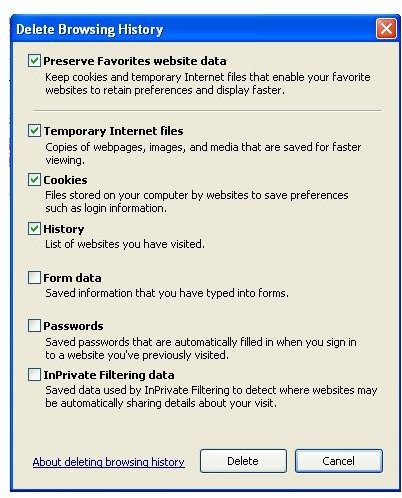
To delete the AutoComplete history, start Internet Explorer, go to Tools, Internet Options, Content and then click Settings under the AutoComplete heading. Click the “Delete AutoComplete History…” button. The Delete Browsing History window will open (Figure 4).
Several options are given. The first is a nice feature – it gives you the option to retain information for sites that are in your favorites list. For this reason, I’d recommend you keep the “Preserve Favorites website data” checked. You can then select other information to be deleted such as temporary files, cookies, history, form data, passwords and filtering data.
Keep in mind that if you do choose to delete form and password data, the next time you go to a site where you typically need to log in, the pre-populated information Internet Explorer enters in for you will no longer be there. If you aren’t sure what password you used for a specific site, you may want to use the AutoComplete feature to log you in and then change your password before clearing password and form data.
Images