Microsoft Memory Diagnostic Tool
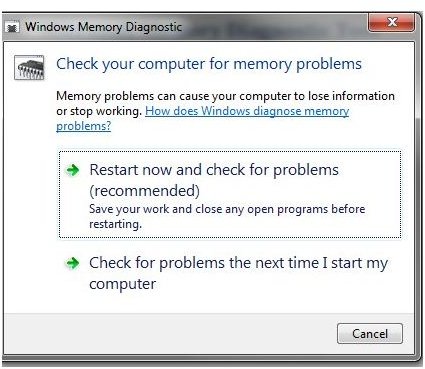
The Microsoft Memory Diagnostic Tool is included in both Vista and Windows 7. It is a tool that checks RAM for any problems that may cause system instability. It can be used while encountering problems or as a preventative measure when replacing memory.
To access the tool, type Mem into the run box. You should now see a dialog box with two choices. Depending on the severity of the problem, make your choice and move on. If you chose to restart, the machine will shut down and reboot immediately. Whichever choice is made the next time the machine boots it will halt the sequence and load the diagnostic tool.
You should now see the familiar blue screen with the progress information. Depending on the speed of your system and how much RAM you have, this testing could take a little while. Don’t press any keys or do anything to interrupt it if you can avoid it.
The diagnostic tool runs a battery of standard tests, but if you want more options, press F1 to access the Advanced screen. In this screen you can choose the test level. The basic is just a standard read/write test. Standard is what Windows runs by default and Extended is an exhaustive set of tests that checks for everything possible. Be aware though, the Extended test can take a few hours to complete. Better let that one run overnight.
The test works by writing a pre-defined pattern of zeroes and ones into memory which is then analyzed by the program. Any deviation from the pattern is classed as an error. The idea of doing two passes is to check that the fault is repeated and not just a one off. Because the test knows exactly what should be where, it can determine the exact point of failure and display it for you. This will indicate on which stick of RAM, or slot the error relates to, enabling you to take action.
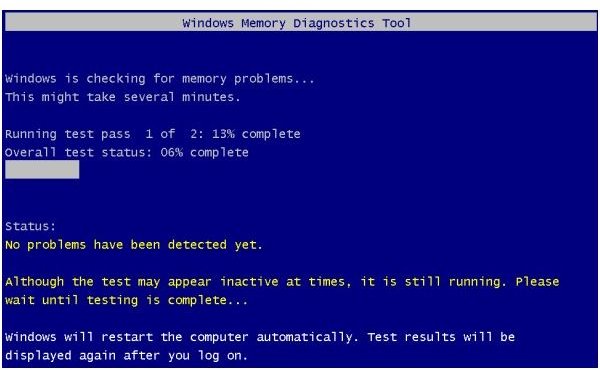
There’s no need to sit and watch the test as the results will be saved for you. A dialog balloon will appear on your task bar when you boot to tell you what happened, or you can check yourself through the Event Logs. Right click My Computer, choose Manage, the Event Viewer, System. The test logs will appear under MemoryDiagnosticResults with the ID of 1201.
If you do decide to watch the test and the test reports no errors, then the memory is probably fine. To be sure, the tool runs two passes just to make sure. If the tool does find errors it will display the error type and where the error occurred.
If you are experiencing problems like errors on booting, crashing, program errors and the like, then memory may be an issue. This is where this tool comes into its own. When you are getting memory errors, the memory diagnostic test results will tell you which slot the error is occurring, so make a note of it. Turn off the computer and swap the memory around so a different stick is in each slot on your motherboard. Run the test again and check the results. If the test now says the fault is in a different slot then chances are the problem is with the memory. If the test reports the same fault in the same slot, then the problem is probably with the slot or the motherboard. You can try cleaning the slot and running the test again just to make sure.
The Windows Memory Diagnostic Tool is a good first step in troubleshooting memory problems and has been found to be very reliable. Using it when experiencing system problems is a good way of troubleshooting, and hopefully will resolve the issue.
