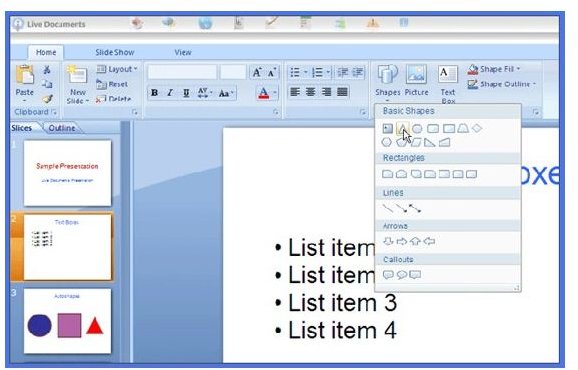
MS Office has been around with almost the same GUI ever since its first release, though it improved on tools with each consequent release. With the entry of Office 2007, the age old GUI changed completely to bring in several new tools. The article deals with the MS Office 2007 new features.
MS Office 2007 – An Introduction
MS Office 2007 was released for retail users in the year 2007 around the same time Windows released its virtually failed operating system, Windows Vista. Though Office 2007 got popular pretty fast in the Western countries, the Middle Eastern and Asian countries are still in a process of migration to the “easy to operate” version of MS Office. As of now, most computers (around 67 per cent, according to CNET) in Middle East and Asia are still using MS Office 2003. In addition, CNET shows a significant percent downloads of an add-on that offers the classic menu in MS Office 2007 . This can be attributed to the human tendency of avoiding changes to their routine life. However, that is totally a different field. This article intends to train you on MS Office 2007 new features so that you can use it easily.
MS Office 2007 is available in a variety of combinations of its popular applications. These combinations are called MS Office Suites. All of the MS Office Suites contains the three applications: Word, Excel, and PowerPoint. MS Office 2007 also brings in several fresh applications, including the MS Groove and MS Accounting Express (available only for US and UK). Among other features is the easy to use GUI, which offers more workspace with less distraction. Microsoft has also enhanced the online review and collaboration features in MS Office 2007. The following sections explain the essential, new features of MS Office 2007.
MS Office 2007 New Features Tutorial – The Graphical User Interface (Office 2007 GUI)
The Office 2007 GUI is officially called Fluent User Interface and is popularly known as the Office 2007 Ribbon Interface. The age old drop-down menus, sub-menus (with further sub-menus for different menu options), and toolbars have all been replaced with a simple strip of icons (see Fig 1 below). Just above the strip are the menu tabs. The strip of icons is displayed according to the tab selected. For example, the Home tab helps you with most common tasks of the application such as editing and formatting in Word, Excel, and PowerPoint. Similarly, the Review tab contains different icons that initiate reviewing tasks: spell check, grammar, translate, protection of documents/worksheets/slides, and tracking changes etc.
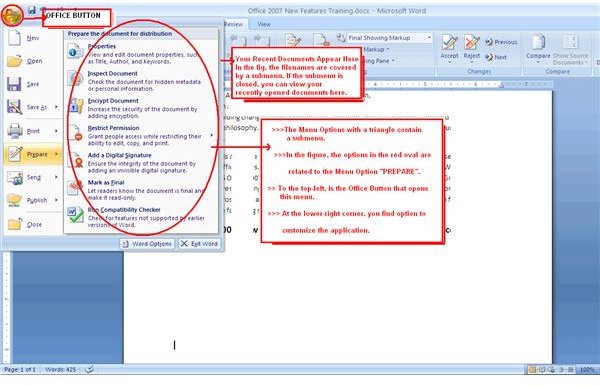
Another change in the Office 2007 GUI is the Office Button. This button offers a menu that collects the most important tasks related to the document. Let us see it this way: While the Ribbon offers tasks that you can perform in the file, the Office Button offers tasks that are applicable to the entire file, such as, saving the file, publishing it, sending it as an email attachment, or sharing it with others. Clicking on the Office Button opens a menu with several options applicable to the overall file (document, worksheet, or presentation). The options may also contain sub-menus depending upon the necessity (see Fig 2. Click here for full screen image if you can’t read the text in the image). A list of recently opened documents is also available in the menu, unless the system administrator turns off history.
TIP: You can also save the frequently used tasks to the MS Office 2007 Quick Access Menu for faster access.
To ease the congestion, several features have been incorporated so as to appear only when required. The next section deals with such contextual features of MS Office 2007.
MS Office 2007 New Features Tutorial – Context Specific Tools
Other than the above mentioned components, the MS Office 2007 new features include contextual tasks. This means that they are not visible as such, until required.
The Contextual Tab appears when you are performing a specific action such as working on images, tables, graphs, or master slides. As with the components mentioned in the above section, these components too are available across the entire range of applications in any MS Office 2007 Suite.
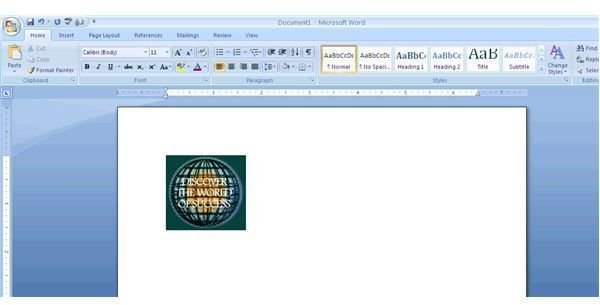
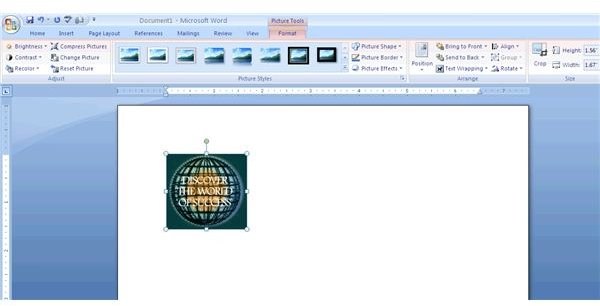
Fig 3.1 (below) shows how the Office 2007 GUI is not affected while you are working with images in MS Word 2007 without selecting the image. When you select the image in the document, the Ribbon is changed to help you make changes and adjust the image. Fig 3.2 offers a glimpse of this scenario.
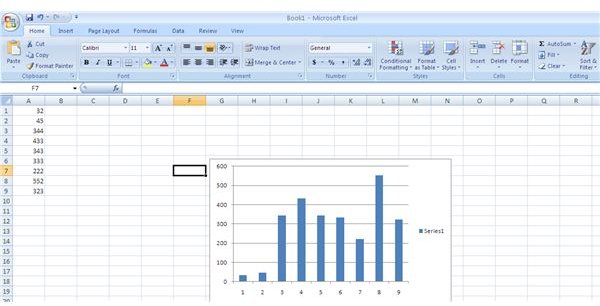
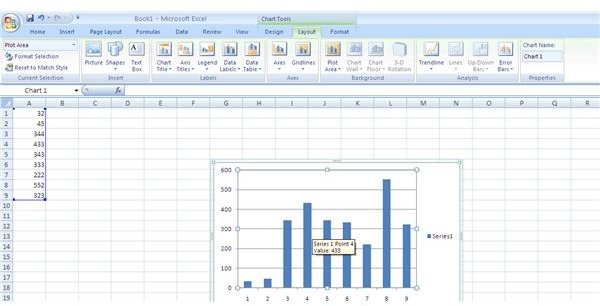
Similarly, when you have a chart in your Excel sheet and you are not working on it, you get the normal interface (see Fig 4.1 below). Once you click on the chart to select it, the ribbon again changes to offer you contextual menu with editing and formatting options applicable to the chart (Fig 4.2).
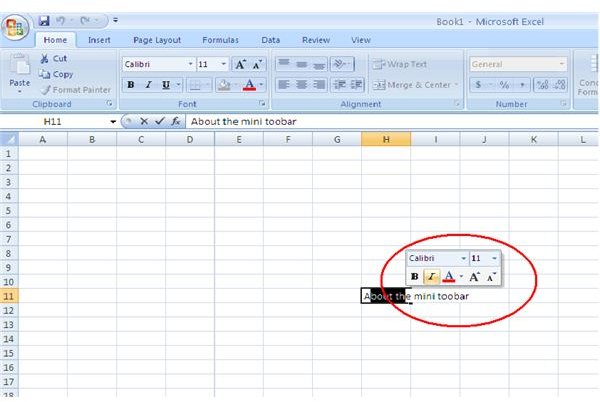
The Mini Toolbar (Fig 5) appears only when you select some portion of your work. As soon as you select some text, a transparent toolbar appears that becomes opaque when you place the cursor over it. The Mini Toolbar is helpful in getting tasks done quickly, without having to right click or having to navigate through the Office 2007 Ribbon.
Among other MS Office 2007 new features is the Live Preview. You need not open a dialog box, select an option, and click OK to see the results. MS Office 2007 has a built in feature that allows you to see how your selection will look like as you hover your mouse over any option. This feature makes your work even faster as you do not have to open any dialog box again and again to select different options for obtaining the results you want.
The next page discusses the advanced MS Office 2007 new features - file formats, online help, and collaboration options.
Image References

MS Office 2007 New Features Tutorial – The File Formats
MS Office 2007 file formats include PDF, XPS, and HTM in addition to the extensions found in the previous versions. The default extension is based on Office Open XML and is appended with an ‘x’ to the normal extensions. For example, the Open Office XML format for Word document is docx instead of doc, though the latter is also available. Similarly, for PowerPoint, it is pptx instead of ppt. The Open Office XML format saves up to 75 per cent of space on your disk as the files are stored in a ZIP container.
Files can also be saved in PDF format once you download the Office 2007 Service Pack 2 . The PDF conversion is not a part of original MS Office 2007 Suites. It is added as a component when you download and install the Service Pack 2 for Office 2007. This component lets you save your files as PDF.
The XPS format is also available when you download the Service Pack 2 for MS Office 2007. The plug in (included in the service pack 2) lets you save the document in a format that is not dependant on paper specifications or resolution. The HTM format allows you to save the file in HTML format, yet in a single file as against the html extension. The HTM or HTML extension creates an HTML or HTM file and an associated folder containing several files related to the original file.
MS Office 2007 New Features Tutorial – Online Help
The age old Office Assistants are no longer included in any of the MS Office 2007 Suites. The different characters that used to appear as soon as you pressed the F1 key while working in any of the Office applications have been removed in the Office 2007.
The Office Assistant has been replaced by Online Help System integrated into each application of the Office 2007. As you click on Help or press F1 key, your copy of Office 2007 initiates an Online Help System rather than offering locally saved help files. The local help files are secondary in case of Office 2007.
The Online Help System integrates several articles from the MS Knowledgebase too. You can also specify where you want the help from. This includes the Microsoft Developers Network (MSDN) among other options. The online help also features contextual help in form of short paragraphs, diagrams, and images.
MS Office 2007 New Features Tutorial – Collaboration Tools
The main MS Office 2007 Collaboration Tools are SharePoint and Microsoft Groove. While SharePoint is available in almost all the MS Office 2007 Suites, the facility of Groove is restricted to Office 2007 Professional Plus and above .
SharePoint is based on the MS Office SharePoint Server 2007. When you use SharePoint, a new site is created for the document, sheet, or slide. The site employs both IIS and ASP for greater stability of the SharePoint site. The site is basically used to maintain any file to be created and edited by a group of collaborators through web browsers.
The Groove, on the contrary, offers a peer to peer scenario. You can use the Groove to host files from Word, Excel, and PowerPoint as well as some other applications. The Groove creates a shared workspace and allows people to work collectively on the files using real time messaging, one to one messaging, and alerts. It also allows for a calendar so that tasks can be scheduled and distributed. However, this calendar cannot be accessed through the MS Outlook 2007.
Other collaboration features include direct emailing and faxing files through the Office 2007 Button.
Overall, there are plenty of new features in MS Office 2007 that are very easy to grasp. Once you understand the different options, the speed of your work - be it an individual file or a huge project involving several people - increases many fold due to the MS Office 2007 new features.


