Being an early adopter isn’t for everyone. Windows 7 is still new and relatively untried. If you want the looks but not the risk of the new operating system, this article shows you how to make a Windows Vista taskbar look like Windows 7.
One of the most significant changes that a user will notice in Windows 7 is the new Taskbar.
I really like it. I looks and feels much nicer than previous versions, almost softer. The focus option where multiple instances of an application are all under a single taskbar icon saves space and is intuitive once you get used to it.
Not everyone wants to adopt a new operating system as soon as or before it comes out (especially given Microsoft’s track record). However, you can get this look with a few tweaks and three small third-party programs. So let’s begin.
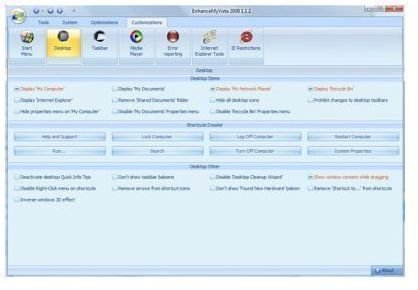
Download a program called EnhanceMyVista here . This is a free program that enables users to configure their systems from one console. Be careful what you’re doing with it, as some of the tweaks can have significant impact on your system.
Once installed, open EnhanceMyVista, go to Customization, Taskbar, and select the “Iconize your taskbar” option. Save and close the program and reboot your machine. Once back on the desktop, right click on the taskbar and deselect “Lock the taskbar.” Right click again on the taskbar and select “View, Large Icons.” This is a dialog added by the EnhanceMyVista program.
Now, drag the top of your taskbar until it is double the height, then right click it again and check “Lock the Taskbar.”
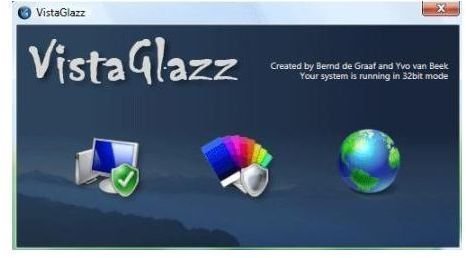
Now you will need the second third-party program called VistaGlazz here . This little program allows you to install other themes onto Vista, which are generally locked out by Microsoft. You will also need the Aero theme from Deviantart to finish off the transformation. Deviantart, despite the name, is a general use gallery site where artists of all kinds display their work for use or just to be admired. Search the site for Aero theme and download it. Don’t worry its free to use. It’s a Rar file, so you will need WinRAR or 7Zip or something to extract it. A Rar is just another method of compressing files, nothing to worry about.
Install VistaGlazz and reboot your machine. Extract the Aero theme into your “Windows\Resources\Themes” folder, being careful to keep the folder structure exactly the same as the themes already in there.
Right click anywhere on your desktop and select Personalize, Themes. Select the Aero theme, click Apply and its done! You should now have a taskbar that looks remarkably similar to that of Windows 7.