One of the many advantages that Expression Web has over FrontPage is the ease at which title, description, and keyword meta tags can be added to your web page without any HTML knowledge. In this tutorial, we will demonstrate how to use this powerful feature.
What are Meta Tags?
If you are new to web design, you may have never heard of meta tags. Even if you are a seasoned pro, you still might have questions about the usefulness of these objects. For general information and definitions, see this Wikipedia entry on meta tags . In this tutorial, we will describe how to add the meta tags of title, description, and keywords to your webpage using Expression Web.
The meta title is a particularly important piece of information to add since it is the text that will appear at the top of the web browser when someone is viewing your web page. Also, if someone bookmarks your web page, the meta title is the default description that will appear on that bookmark. One of the last things you want is for someone to save the link to your web page with the description “Untitled”.
The meta description is a short one or two sentence blurb about the content of your web page. While it won’t be displayed in the browser when people are viewing your page, it may appear in certain search engine results. Meta keywords are simply short phrases that describe the overall content of your web page.
How to Add Meta Tags using Expression Web
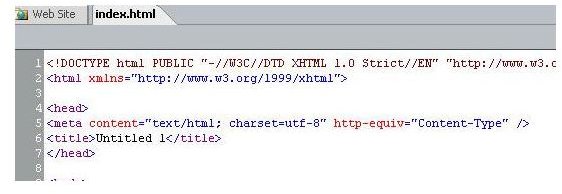
If you’re looking at the code view of a brand new web page that you have just created in Microsoft Expression Web, you’re likely to see something like the following snippet near the top of the HTML code.
This is the part of the code where the meta tag information will be viewable. See the screenshot below for an idea of how this information looks in the Expression Web application. (Click the image for a larger view.)
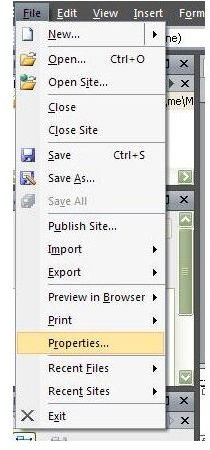
To modify this information, first choose Properties from the File menu on the toolbar.
A dialog box for Page Properties like the one shown below will appear on your screen.
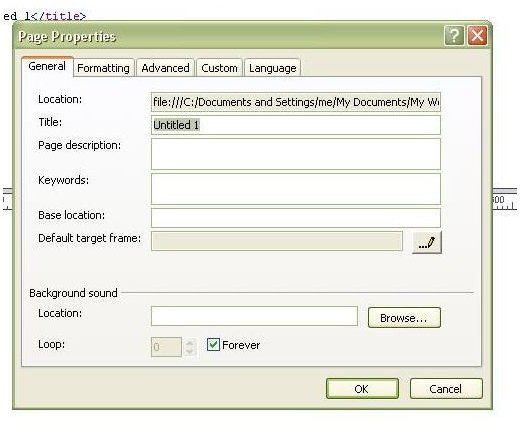
Make sure that you are on the General tab within the box, and you will see the fields where you can input information for the title, description, and keywords for your web page.
Fill in the information as it relates to your web page in the space provided. The following screenshot shows an example of what information we might choose to use if we were creating a web page about this tutorial for Expression Web.
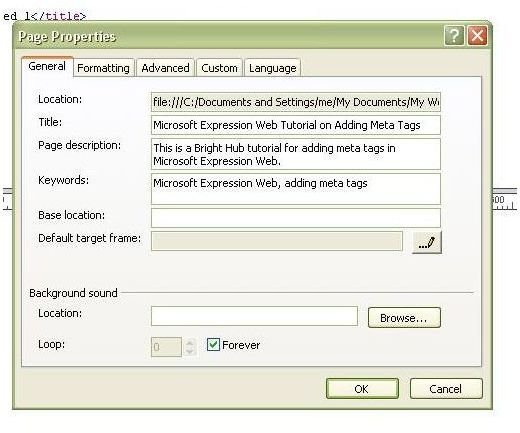
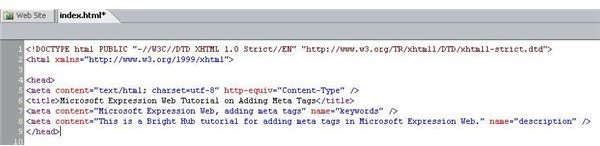
When you are finished, click OK to return to your web page design. Take a moment to look at the code view and see how your information is represented there. It should look much like our resulting image shown below.
For more tips and tricks, be sure to browse through the other articles in Bright Hub’s collection of Expression Web tutorials .


