In our previous article, we made Windows boot faster. Now it’s time to make it work smarter. Here are our tips and tricks.
Introduction
There are many factors that slow down the Windows installation. It is sometimes Windows itself, sometimes the user. It is possible to keep Windows up and running quite efficiently, but this requires thorough maintenance. Following is the list of tasks we have to do to keep our Windows system up and running in good condition:
- Driver updates
- Registry Cleaning
- Disk Defragmentation
- System Tuning
- Getting rid of unnecessary & unused programs
- Careful selection of software to install
- Reinstalling Windows with all updates
Let’s see each item one by one.
Driver Updates
Newly released drivers come with lots of bug fixes, performance enhancements and better use of the hardware. We have to revisit the driver manufacturer’s websites periodically and see if there are any new drivers released. “If it ain’t broken, don’t fix it” may pop up in your mind, but since we want a faster Windows, we have to consider undertaking some “fixes.”
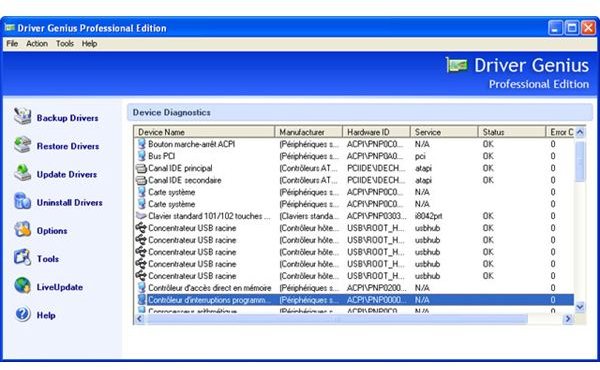
You can set yourself a reminder to check for driver updates or make your computer do this for you. Avanquest’s Driver Genius is a nice software for this if you want to give it a try. But remember that installing an additional program also takes a bite away from your computer’s performance.
Registry Cleaning
When you install a program, the installer always throws away some entries in the registry and some files in the system. Many of the programs’ uninstallers are far from being perfect and during the uninstallation process, they do not delete some registry entries and some files, which accumulate in your system over time. To clean up your registry, try Piriform’s CCleaner; it is lightweight and it does not take away from your computer’s resources.
Disk Defragmentation
We have spoken about disk fragmentation in our previous article in the series. You should defragment your hard disk periodically, but the period depends on how you use your computer. If you are constantly installing and uninstalling programs, then probably you should go for a weekly defragmentation. If you are not trying programs or you are not using your computer heavily then a monthly defragment will be enough. I suggest you to go with Auslogics Disk Defrag program, which makes defragmentation quick and easy, enabling you to claim the speed of your hard disk.
Getting Rid of Unused and Unnecessary Programs
You may have installed a lot of programs on your computer but not run them for a long time. If you want performance gains, make sure that you get rid of those programs as soon as possible. Uninstall anything that you do not use. If you have Microsoft Office running, there is no point in keeping the Microsoft Works that came preinstalled when you purchased your computer. There is also no point in keeping applications where you can access the same features on the Internet; such as weather software that displays weather conditions. Show no mercy and get rid of your unused and unnecessary programs.
System Tuning
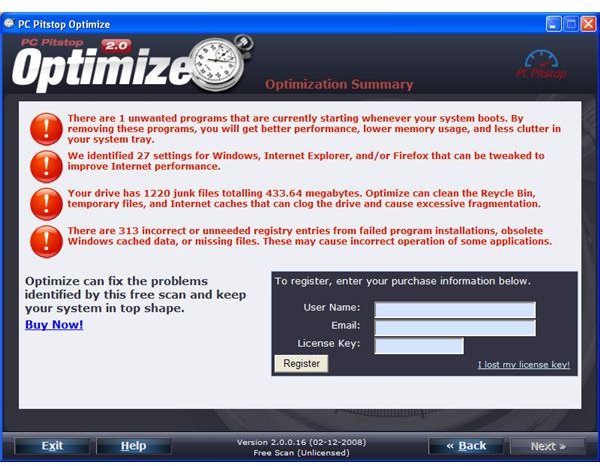
There are many computer optimization (system tuning) software available, but we have to think carefully about them before installing: do they bring more load to our computer than the speed they bring? If your computer is less than 4 or 5 years old, even has a single core processor, running above 1.5 Gigahertz, you can safely install system tuning software. I can safely recommend PC Pitstop Optimize even for the older computers; it can clean your registy, tune Windows settings to increase your Internet connection speed, remove unnecessary files, optimize Windows for your hardware and eliminate rogue background processes, which will result in significant performance gains. However, the program does not have a defragmenter; be sure to defragment your hard disk after you finish with tuning.
Screenshot courtesy of Terry’s Computer Tips .
Selecting Software to Install Carefully
As we have just discussed under the “Getting rid of Unused and Unnecessary Programs”, you should not go around and install every program. This is a “maintenance” task, which is keeping an eye on your computer all the time. Yes, really you do not need an e-mail client which informs you about a new email with cute bunnies. Either use Windows Live Mail or Mozilla Thunderbird, preferably the latter, which uses less system resources. Of course you are free to go with Windows Live Mail if you are using MSN Messenger and Hotmail extensively.
You may also consider using portable applications on your computer. Portable applications are not installed on your computer, and therefore do not use your system resources. I have looked at this issue with the article on “Getting more out of your netbook by using portable applications ”, but you do not need to use a netbook to go choose those. You can basically find the same programs on your Windows computer.
Reinstalling Windows with All the Updates
Yes, you do not need to wait for Windows to download and install all the updates after you reinstall it. You can easily create an installation CD/DVD containing all the updates released for your operating system. First of all, you need a legal copy of your Windows operating system in a CD or DVD. Then, you have to go to Microsoft’s Update site and download the updates which are installed on your system in a directory (the website installs an ActiveX Control and then displays the updates on your computer). Then download either nlite (if you’re using Windows XP) or vlite (if you’re using Windows Vista) and follow the instructions to create a new CD/DVD that contains all the updates. When you go for a new install, use this CD/DVD and you will immediately see that your computer is performing better.
Conclusion
Keeping Windows fast and clean is really a tough process. However, with our Bright Hub tips you can claim your computer’s speed back and keep it fit all the time. Don’t forget to select your programs carefully. If you’re not happy with them, uninstall them, clean your computer and then defrag. Each step comes one after another, if you defrag and then clean, it makes no sense because after cleaning you will free up some space which has to be defragmented.
If you still think that your computer is slow, then you have to think about a possible malware infection and take the necessary steps to clean your computer.
This post is part of the series: Boot and Run Windows Faster
If your computer is slow to boot up everyday, if your boot time is long enough for grabbing a coffee, then the time has come to roll up your sleeves and start optimizing your system. In this article series we optimize our boot time and optimize our Windows system to work faster.


