Improve your familiarity with both the Windows XP System Registry and the Windows Firewall and gain greater understanding of this extremely powerful method of shoring up security on your PC or laptop.
Understand Windows Firewall
The Windows Firewall is an extremely powerful tool, used to protect and control your PC and data and to access to the attached network and the wider Internet. Yet just a few simple commands can turn the Windows Firewall into a gibbering wreck, and these often come from the hand of nefarious coders and their malicious software.
While this overview of Windows Firewall registry settings won’t prevent anyone from switching off your firewall, closing all ports but the one their dialer uses or let the world see the novel you’ve been writing for the past 5 years, it will help to explain the various firewall security functions accessible via the system registry.
Registry vs. Control Panel
Being familiar with the Windows System Registry is a major benefit when dealing with the subject of Windows security.
Typically, you might access your Windows Firewall control interface via the system tray or via the Control Panel. However the options available to the Windows Firewall here are limited – for instance, the designation of applications that can have access to the Internet cannot be easily set without a lot of browsing for .exe files.
For basic access to the Windows Firewall, the simple on/off radio buttons are a great tool for the average user, but a more advanced Windows user or admin will need good knowledge of the firewall options within the System Registry.
Windows Firewall Actions in the System Registry
In order to get an idea of the number of options and controls that can be utilized for a more in-depth configuration of the Windows Firewall, the registry settings can easily be viewed in Registry Editor.
To access Registry Editor, open your Start menu and go to Run. At the insertion point, type Regedit – this will open the Registry Editor.
If you’re unfamiliar with the Registry Editor and adjusting Windows registry settings, this new window will appear a little daunting at first – however with the right use, and no ill-advised alterations you can’t damage your Windows installation unless you’re particularly careless.
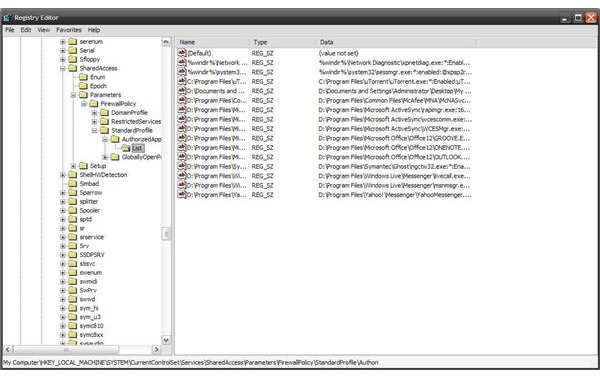
To view a list of Authorized Applications, go to Edit > Find and copy the path below in to the box and click OK.
HKEY_LOCAL_MACHINE\SYSTEM\CurrentControlSet\Services\SharedAccess\Parameters\FirewallPolicy\StandardProfile\AuthorizedApplications\List
This list displays a list of authorized applications (click the image to see this in more detail) within the Windows Firewall – ones that have authorized access to the Internet. The list can easily be added to by the creation of a new String Value, or reduced by deleting the offending application filepath.
From this portion of the registry index, ports and restricted services can also be accessed, although it is rare that any of these should have to be changed.
Centralizing Control
A Domain Administrator might want to prevent typical User access to the Windows Firewall in order to maintain security and system equilibrium – one way to do this would be to prevent access to the Windows Firewall interface via the System Tray.
This change can be made by finding
HKEY_CURRENT_USER\Control Panel\don’t load
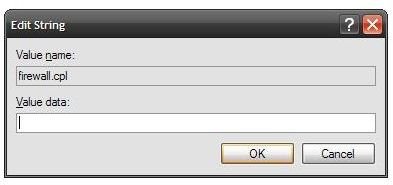
A new String Value can be created by right clicking in the empty space of the registry settings window and selecting New > String Value. Name the value Firewall.cpl, and then right click to Modify the string. Set Value Data as “No” – and the Windows Firewall Control Panel item will be removed from both the System Tray and the Control Panel.


