If you want to have Vista’s sidebar in Windows XP but think that this is a Vista-only feature, you may be in for a surprise. Just give me ten minutes and you will be seeing your new sidebar.
Introduction
If you remember, when Vista first came out, Microsoft announced that Alky, the compatibility layer that allows Vista to run XP programs, would not be released for Windows XP. This meant that Vista’s features would not be available for Windows XP users.
However, the Internet community came up with a solution. They ported the Alky project to Windows XP and allowed users to install Vista-related features to their computers. At this point, I must stop and give Joshoon a big credit for all his efforts from the start of the “Alky for Applications” project to what we have today.
Here is how to install one of Vista’s most liked features, the sidebar.
Downloading & Installation
We will download a file of 14.4 Megabytes from Joshoon’s page on Deviantart. Click on the “Download” link on the left. When downloaded, extract the contents of the zip file and you will have an “Alky for Applications” folder, Gadget_Extractor.exe file and Windows_Sidebar_Installer.exe file.
You have to install in the following order, otherwise you may end up with a broken installation:
- Switch to the “Alky for Applications” folder and click on the Installer to start the installation.
- Click and install the Windows Sidebar Installer.
- Click and install the Gadget Extractor.
During the Windows sidebar installation, the installer will ask what installation type you want to go with. By default, “Full” is selected, which includes Sidebar gadgets, Gadgets extras, and Vista fonts. This is the best option with which to go. Again, during the installation, the installer will connect to the Windows Update site and download some knowledge base patches (the files that have KB in their names). When everything is complete, you will see a configuration window. Go through the options carefully and do not forget to tick the box which asks you to start the sidebar when Windows starts. That’s it!
If you want to add gadgets to your sidebar, right-click on it and select “Add gadgets.” You can also download the gadgets you like from the Internet.
Conclusion
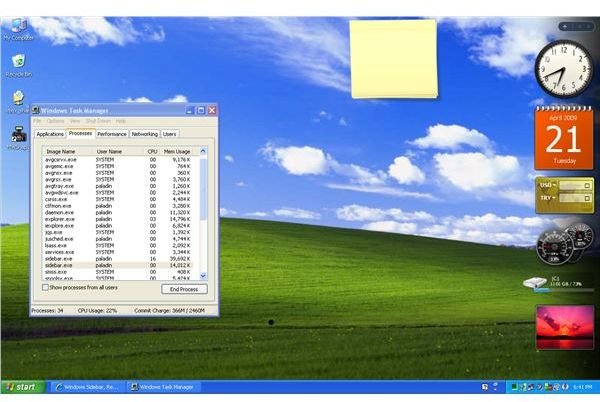
I can say that all three programs – Alky for Applications, Gadget Extractor, and Windows Sidebar Installer – worked like they should on my system; the screenshot shows it all. (Click the image for a larger view.)
However, I have to say that the sidebar eats more than 50 Megabytes of RAM. So if you don’t have a lot of spare memory, then you may have some performance issues.


