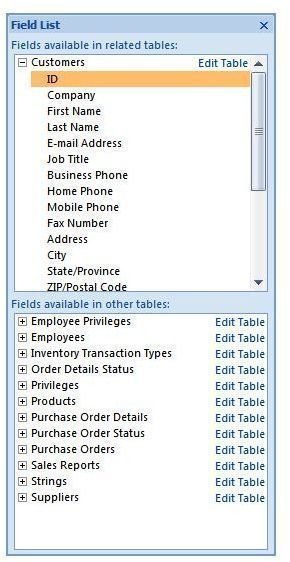
Want to add some new fields to your existing Access database but don’t know how? Well, don’t you fear! We have put together some step-by-step instructions on how to perform the task of adding fields to a Microsoft Access database.
Starting in DesignView
Adding new fields to an existing Access database can be confusing. But, there are simple steps that you can take to make this process easier.
The first thing that you need to do is to open Access. Once the program is open, try following these procedures to add new fields to the database.
-
Hold the Shift key down. This will open Access without having any default forms .
-
Go into your database’s main window.
Advertisement -
On the left-hand side of the screen, you will see a list of options for you to choose. Click Tables.
-
Right-click on the table name for your database. Select Design View.
Advertisement
In Design View, you can add additional fields to your database. But, you also need to add values to these fields. Before you start adding fields, you want to create a table with your needed list of assessors. Once you do this, you need to change your new field’s data type to Lookup Wizard.
Adding Fields
After you have done these steps, Access will then give you an interface (similar to your Excel spreadsheet format), where you can create
and customize the tables that you need. To create your spreadsheet, which will create your table for you, you need to follow the below procedures.
- Create an AutoNumber field. Access will open up the ID field. Use this as the primary key for your table.
- Once this is created, you need to create more fields for the rest of your data. Double-click on the first cell in one of the columns.
- Here, type in the name that you wish to use for the field.
- Click Enter on your keyboard.
- Modify the field by going into the Ribbon and using either Data Type or Format.
- Repeat the previous process until you have all the fields that you need and your table is complete.
- Go to the Quick Access toolbar, and click Save.
User-Defined Fields
Once you have created your table, you need to name it. Another way to make a table is to go into the Create dropdown menu in the Access Ribbon, and select the Table icon. Before you go through the above steps, make sure that you have opened a blank database and renamed it.
If you need to run a query and want to add fields to it, you can also create user-defined fields. You can create a user-defined field by writing the code this way nameoffield:definition. Your definitions can be any of the following:
- Calculations
- Permanent Value
- Parameter
The difference between a regular field created in a table and a user-defined field is that a user-defined field’s values cannot be edited when you go to run a query.
Adding Fields Using a Template
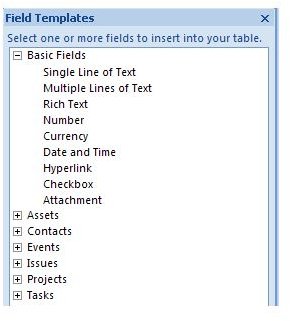
Another way to add fields to your database is by using a field template. The only problem with this method is that you will not be able to customize the field. But, if you can use one of the predefined fields, it will save you time.
- Open a table in the Datasheet view.
- Go to the Datasheet Tab.
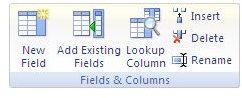
- Go into Fields & Columns, and select New Field. The Field Templates pane will open up.
- Select the fields that you wish to use in the Field Templates pane.
- Select and drag these to your table.
- As the insertion line comes up, drop the fields where you would like them.
If you’re looking for additional tips and tricks, be sure to browse through the other Microsoft Access tutorials available here at Bright Hub.


