Setup Hands Free Incremental Backup in Vista Business Versions
Automate Your Backups in Vista Ultimate, Business, and Enterprise
This article assumes that you are using Windows Vista Business, Enterprise, or Ultimate and that you have already performed at least one full backup to a second internal or external hard drive. In this segment, we want to look at using the tools provided in the premium versions of Windows Vista to automate daily or weekly full incremental backups of our entire hard drive. If you’re looking for an alternative solution to backups also checkout Acronis True Image 2009. True Image 2009 provides complete backup of your system, disk cloning, and imaging features, Bright Hub review available here.
We’ll do this by creating a job in Task Scheduler to run the command line program “wbadmin.exe.”
If you’d like to try a hands-on test run before creating the task, start an elevated command prompt by clicking the Vista start button, selecting All Programs, then Accessories, and then right-click “Run as administrator.” Click Continue when Vista asks for permission. Then type in:
Wbadmin start backup –backupTarget:F: -include:C:
Replace F: with the drive letter where your backups are kept. You’ll see the program asking for permission to continue, so press “Y” on your keyboard, and then you’ll see some output like this:
Image
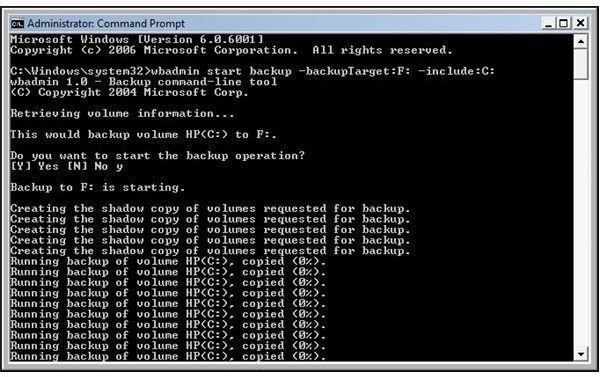
And ending like this:
Image
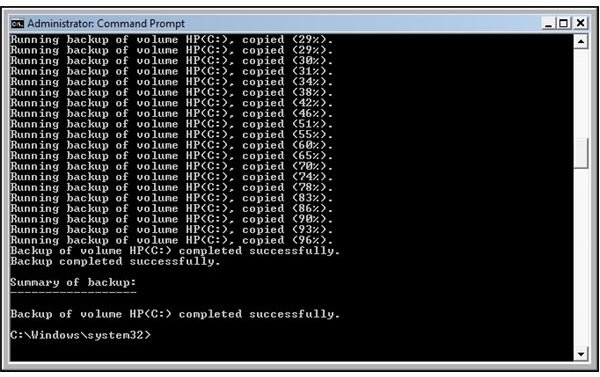
Running this from the command line created an incremental backup (changed data only) of the approximately 195GB of data and files on the hard drive of my PC that took less than ten minutes and was a much lighter hit on the PC’s performance than doing the full backup done in the first section of this series using the graphical interface in Vista’s Backup Center. In fact, this process can be easily run in the background while you continue to make normal use of the PC.
If you get an error message that says, “Failed to create the shared protection point on the source volume,” it probably means that you are trying a backup to a volume that was not started at Vista’s startup. For example, if you’re using an external hard drive that was started at some time after Vista’s startup, you may see this error message. If you do, reboot the computer making sure that the external drive is running and try running the wbadmin program again.
Was your run of wbadmin from the command prompt successful? Great! Let’s now look at creating a job in Task Scheduler to automate the process of getting daily or weekly incremental backups on our PC.
Start by clicking the Vista start button and then typing in
task scheduler
and then press Enter. Click Continue when Vista prompts, and then you’ll see the Task Scheduler program start.
Image
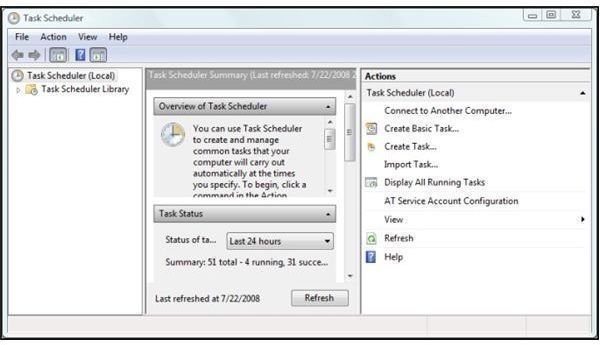
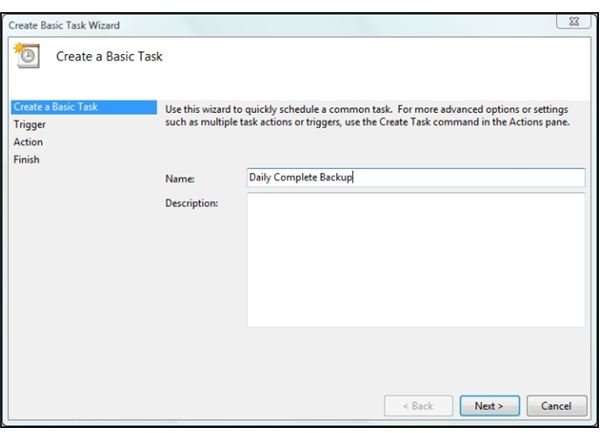
Click on “Create Basic Task” in the left-hand pane, and then you’ll see the “Create a Basic Task” dialog. Type in a name for your task. I named mine “Daily Complete Backup.” Then click Next.
Image
The next dialog is “Task Trigger.” Here you can select whether you want your backup task to run daily or weekly.
Image
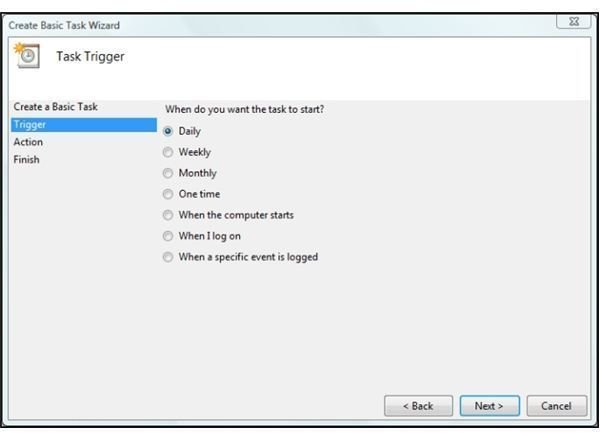
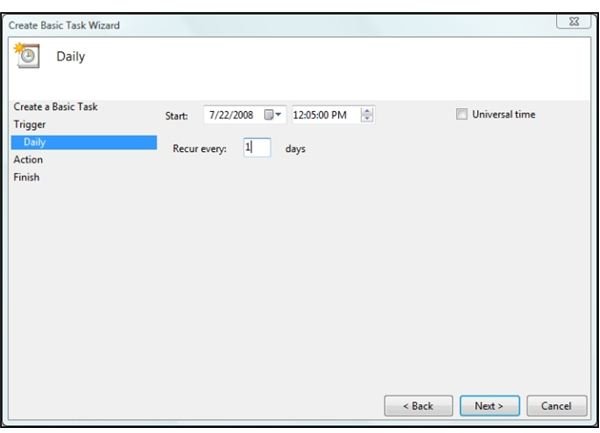
This will take you to the “Daily” dialog where you can specify the start date, time, and recurrence interval of the task. I selected 12:05 PM thinking that even at my laziest, the PC is running by then every day, and because there’s an excellent chance the backup will happen when I’ve gone to lunch. Too, it’ll save whatever work I actually did create in the morning.
Click Next to go to the next dialog.
Image
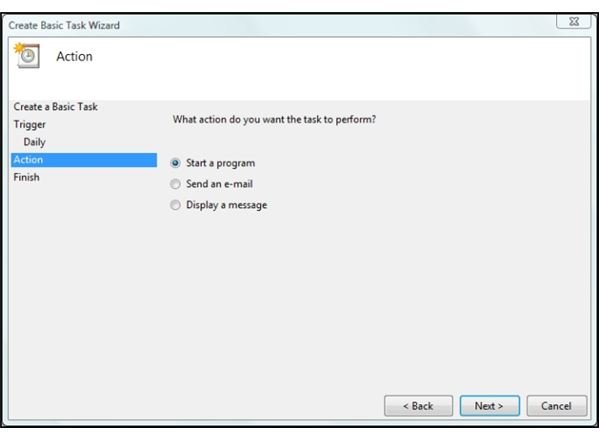
And that will be the task “Action” dialog. The default action is “Start a program,” so click Next to continue.
Image
And here’s where we enter the command that we want to run.
Image
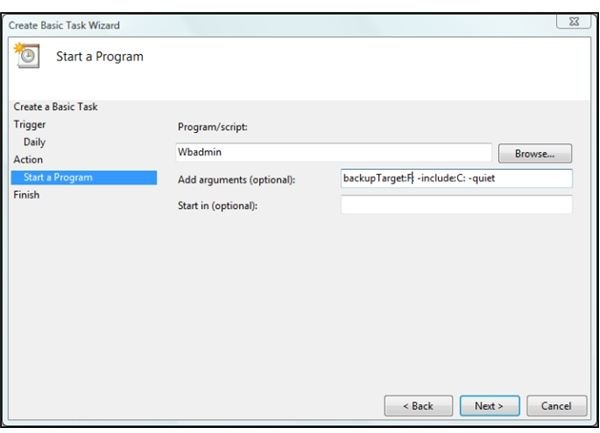
In the Program/Script field, enter
Wbadmin
In the Add Arguments field, enter
backup Target:F: -include:C: -quiet
The “–quiet” switch tells it to run without requiring confirmation from the user. Then click Next.
And the final part is the summary dialog. Click Finish to save your task and exit the Wizard.
Image
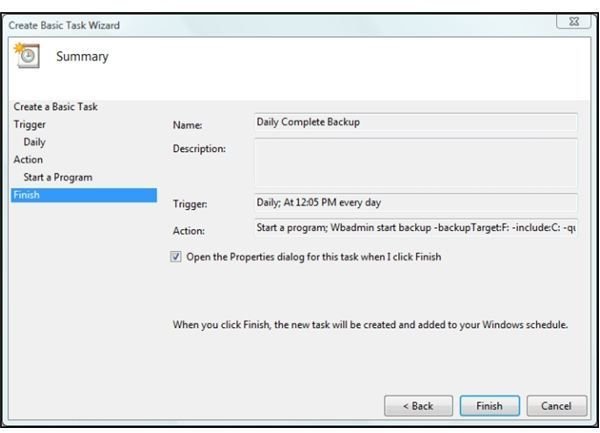
To test your task, back in the Task Scheduler, click “Task Scheduler Library” in the left-hand pane. Then select your task in the center pane. Then select “Run” in the right-hand pane.
Image
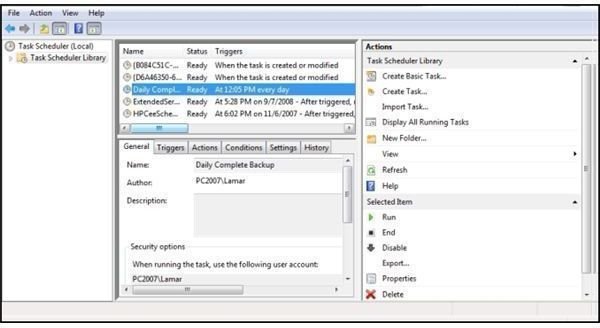
You won’t see much – just a flash as the command prompt box flashes up and disappears – but the Vista tasks services will run your incremental backup at the interval you specified, and you’ll have hands-free incremental backups of your work every day or every week.
Next: Creating a Bootable DVD in Vista (Coming soon)
Previous: Vista Backup Center – the Good, the Bad, and the Not so Hot
