Matrices can help organize your information quite nicely. But, how can you use these in PowerPoint? Learn how to create a PowerPoint matrix by using the tools already available in the presentation software.
Creating a PowerPoint Presentation
Setting up your PowerPoint presentation can be easily done via the use of matrices and SmartArt graphics. Matrices arrange information into rows and columns. You can use axes to display the placement of your theories and show up to four possible combinations of two of your theories.
SmartArt graphics allows Microsoft PowerPoint 2007 users to create stylish themes for your PowerPoint presentation with a few simple clicks of your mouse. This is how you will create your matrices for your presentation.
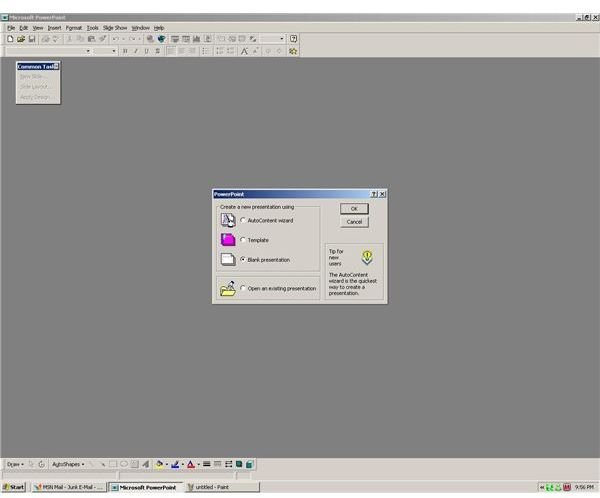
First you need to create your PowerPoint presentation. To do this, follow the below instructions.
1. Open PowerPoint, and then go to File and New.
2. Once the New Presentation pane opens, click Blank presentation.
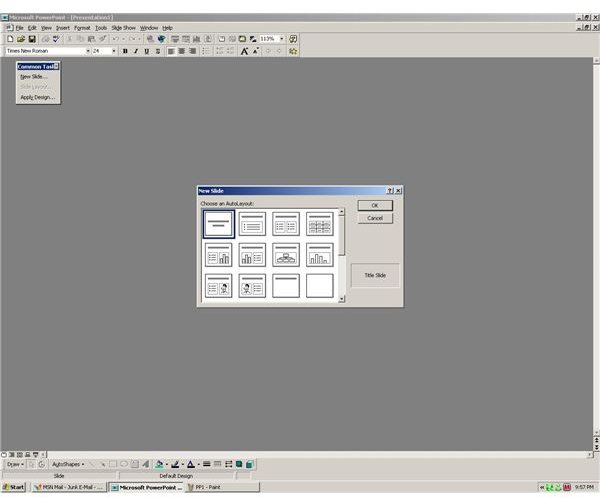
3. Select which layout that you would like to choose for your presentation.
4. Press OK.
To read more information on creating a PowerPoint presentation, read Turn an MS Word Outline into a PowerPoint Presentation [](https://Setting up your PowerPoint presentation can be easily done via the use of matrices and SmartArt graphics. Matrices arrange information into rows and columns. You can use axes to display the placement of your theories and show up to four possible combinations of two of your theories. SmartArt graphics allows Microsoft PowerPoint 2007 users to create stylish themes for your PowerPoint presentation with a few simple clicks of your mouse. This is how you will create your matrices for your presentation. First you need to create your PowerPoint presentation. To do this, follow the below instructions. 1. Open PowerPoint, and then go to File and New. 2. Once the New Presentation pane opens, click Blank presentation. 3. Select which layout that you would like to choose for your presentation. 4. Press OK.) by Tricia Goss.
Creating Your Matrix
Once you have created your presentation, you can start adding SmartArt to your presentation. To create a matrix, follow the below steps.
1. Go to the Illustrations Group, and click your Insert tab.
2. Click the SmartArt icon.
3. Go to the SmartArt Gallery.
4. Click Matrix and Matrix Layout.
5. Click OK.
Once you have created your matrix, you can now start entering text into it. To add text, do the following:
1. Click on the Text Pane.
2. Enter Your Text.
Changing Colors or Borders
You can also copy and paste text from another location by clicking the text pane and pasting your text.
To enhance your PowerPoint presentation, you probably want to manipulate the colors of your matrix. It will show up better on the screen and make your presentation more appealing to your audience.
To change the colors of your matrix, follow the below procedures.
1. To change the background color of your matrix, select the area or graphic that you would like to change.
2. Right-click the border of your box.
3. Select Format Shape.
4. Click Fill.
5. Select Solid Fill.
6. Click Color.
7. Select the color that you would like to use. If you don’t want one of the pre-set colors, you can select More Colors, and pick a custom color.
If you’re planning on adding text over the colored box, you either want it to be a lighter color than you text, or set the background so that it’s more transparent.
To change the color or style of the border of your matrix, follow the below procedures.
1. Right-click the border that you want to change.
2. Click Format Shape.
3. Click Line Color, then Color.
4. Select the color that you want to use for your border.
To change the style of your border (i.e to thin or thick), follow these steps.
1. Click Line Style.
2. Select the style that you would like to use.
Animating Your Matrix
To make your presentation more entertaining, you can also animate your matrix. And, if you make a copy of that slide, the animation will carry over to the next slide. You don’t have to recreate the animation. Here are the steps to animate your matrix.
1. Select the matrix that you would like to animate.
2. Go to the Animations tab.
3. Click Animate.
4. Click One-by-one.
You can also add special effects to your matrix. Effects like soft edges or 3-D style lines can be made through the SmartArt graphics.
However you decide to design your matrix, you should still keep it simple in style. Too many animations or color combinations can make your presentation either hard to read or too busy for your audience. You should always think of things from the perspective of your audience when creating a new presentation.
For more tips and tricks, be sure to browse through Bright Hub’s collection of PowerPoint user guides and tutorials . More are being added on a regular basis, so check back often.


