When you make a PowerPoint slideshow, you want to catch and keep your viewers’ attention. Enhancing graphics, such as adding shadow to shapes, is one way to make your PowerPoint more noticeable.
Overview
One way to make a shape stand out in your PowerPoint slide show is by giving it a shadow, or make the shape look shadowy itself. Learn how simple it is to apply a shadowy outline to almost any shape.
Select a Shape
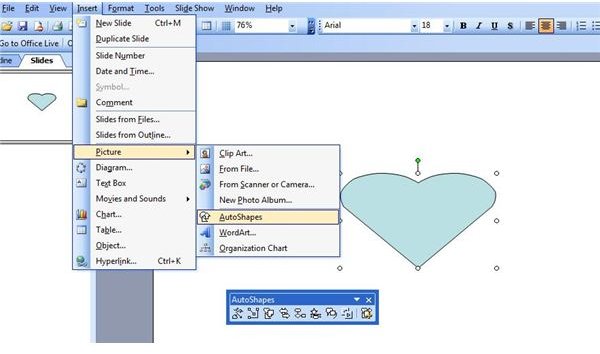
To make a shadowed shape on a PowerPoint slide, you will start with a basic AutoShape. To get to Shapes in PowerPoint 2003 or earlier, click AutoShapes on the drawing toolbar, or go to the Insert menu, point to Picture and select AutoShapes. If you are using PowerPoint 2007, click the Shapes dropdown in the Drawing section of the Home tab of the ribbon.
While most any shape can have a shadow applied to it, start simple until you get the hang of it. Insert a basic shape, such as a circle or a heart, onto your PowerPoint slide by clicking on the shape you want, clicking onto the slide and dragging the shape to the size you want.
Format the Shadow
Right click the shape and select Format AutoShape or Format Shape, depending on which version of PowerPoint you are using. Go to the Colors and Lines tab in PowerPoint 2003, or select Fill in PowerPoint 2007. In PowerPoint 2003, click the Color dropdown, select Fill Effect, and go to the Gradient tab. In PowerPoint 2007, select Gradient Fill.
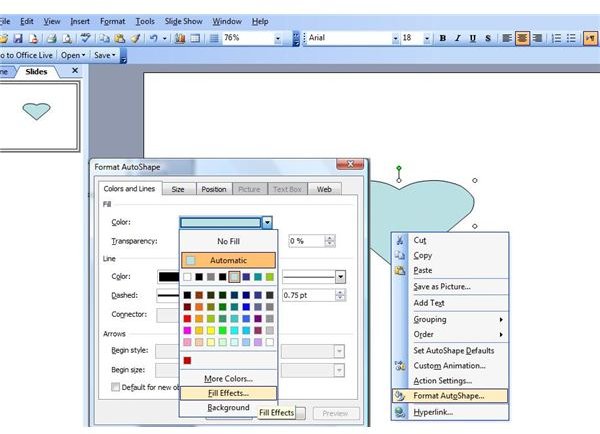
Choose a two color gradient option for the shape, but choose the same color for each color. Change the transparency of the second color to 100%. Select From Center in the Shading Style section. Click OK to apply these changes. Next, go to the Colors and Lines or Line Color tab of the Format dialog. Change the line color to No Line.
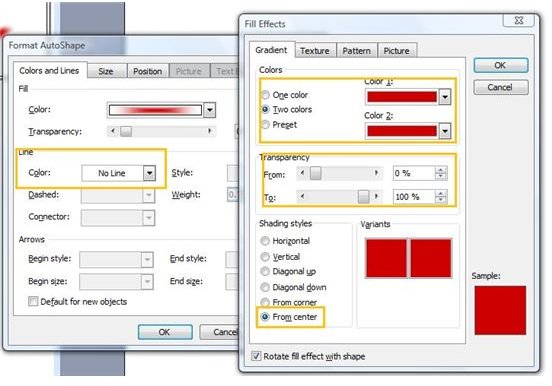
When you apply the color changes, the transparent area should fill the outside of the shape, and there should be no line around the shape on the PowerPoint slide. The shape should look somewhat shadowy already, but we are not done just yet.

The Finishing Touch
Go back to the Shape or AutoShape menu and select the same shape as you already placed on your PowerPoint slide. Drag the shape onto your slide, making it about the same size as your original shape, only slightly smaller. Place it on top of the shadowy shape you created, but slightly off to one side. Right click your new shape, select Format, and apply a solid color to the new shape. Remove the line, apply the changes and show off your PowerPoint skills.

For more, read the Bright Hub Collection of PowerPoint Tips, User Guides, and Tutorials .


