Free Secure Web Browsing: Free Tools to Stay Secure on the Internet
A Prologue
Free secure web browsing means browsing the web without any worries. Free secure web browsing also means that you need not pay anything to browse the Internet securely. Of course almost all major browsers are free to download and use. Mainstream browsers include Microsoft Internet Explorer, Google Chrome, Opera, and Mozilla Firefox. All of these four browsers are free to use. Though the browsers come with security features, you still need to take some precautions and add other free software to your computer for even safer browsing.
The following sections discuss securing Internet Explorer and give tips for finding other free security software products.
Free Secure Web Browsing with Internet Explorer
Internet Explorer is available free for use at Microsoft website. You can download Internet Explorer from Microsoft website without paying anything. Though the browser has its own security features, it also lets you customize the way you browse - thereby increasing the security.
You can also control the way your browsers behave by changing universal settings in the Control Panel. Open Internet Options and you will get some really good options that allow you to secure your browsing.
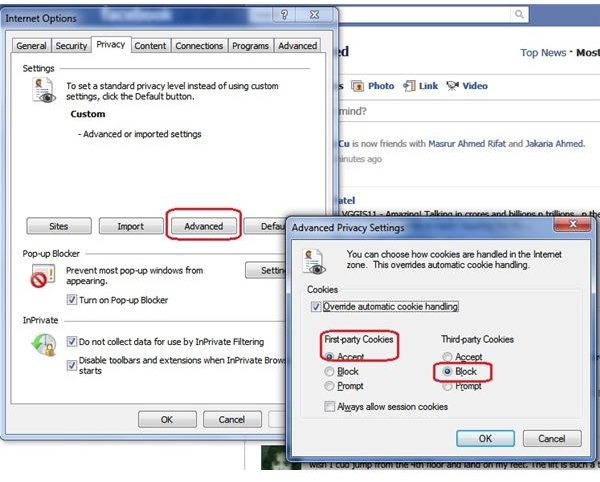
The first one we discuss here is the way cookies are handled by your browser. Open the Internet Options dialog from Control Panel and go to the Privacy tab. Click on Advanced and select Override default settings. Click on Accept for First Party Cookies and select Block for Third Party Cookies. This makes sure that no third party cookies are stored on your computer, thereby increasing your privacy/security.
Note: You can find similar options in Google Chrome. Click Tools -> Under the Hood -> Content Settings -> Cookies.
Coming back to the General tab, click on the Delete Browsing History On Exit. This makes sure no one else gets to know your browsing history once you close Internet Explorer.
Click on the Security Tab to make sure the Internet zone is set to Medium or Medium High. You can click on Custom Level to allow/block .net, javascript, and other components. You may also set the Internet Zone to High where most javascripts will be blocked and you will be prompted for almost each cookie. You can check out the setting and keep it if it suits you else you may return to Medium High or Medium. Use the Restricted zone for websites that you do not trust.
Free Secure Web Browsing using Free Tools
After setting up your browser, you can download and set up free tools to help make the time you spend on the Internet even safer. Plenty of tools exist for secure browsing. You need an antivirus product such as Microsoft Security Essentials and a firewall. You can check our list of top ten firewalls to decide which one to use. It includes some good free firewalls. Also, check out our list of free antivirus software.
Other than antivirus and firewall products, you can use tools that help you stay away from phishing sites. Internet Explorer has a built in feature named SmartScreen Filter that helps in identification of phishing websites. You can enable the feature using Tools menu. There are plenty of software to counter phishing sites. Please read our article on Anti Phishing Filters compatible with different browsers.
There are many aspects to the term “security” and the same can be said about the availability of security tools. You can always Google and find a nice tool that helps with free secure web browsing. If you know any such tool which is not listed here, please share it with others using the comments section.
