Windows Password Management Software - Store Your Passwords in a Secure Application
Introduction to Password Management
All of us have more passwords than we can remember, and these passwords should not be an easy-guess. Creating passwords with easy to find information like birthdays, anniversaries, and telephone numbers is leaving all your doors open to the bad guys. Don’t think so? OK, go to a social networking site such as Facebook. Check out a profile whose birthday is displayed. Now, open up Gmail and try this person’s name/surname combination with his/her birthdate. After spending some time, you will be amazed with the number of matches you can find. On the other hand, passwords like “t1ag/dtd” or “s23.r5t!” are not easily remembered (sorry, easily forgot). What should we do? Create one password and use for all sites? Don’t even think about it. That’s like putting all your eggs to the same basket.
The answer to all these questions is password management software. There are lots of them, but as always we want to find the one that suits all our needs. Before going on with downloading and installation, let’s make a checklist and see what we want:
- Safe storage: All password management programs have cryptology embedded; SHA, Blowfish, Twofish, and AES are some of the algorithms used. Plus, the software should be capable of hiding passwords, meaning that when you are copying/pasting passwords they should also be encrypted in the clipboard.
- Portability: We are going mobile everyday. The password management program better be portable (carried on a USB stick for example). None of us want to go anywhere without our passwords.
- Exporting passwords: The password manager should be able to export passwords, at least to a text file. This will come in handy when you are moving to a new system/formatting/using multiple systems etc..
- Generating passwords: This will come in handy when you run out of “memorable” passwords.
- Integrating with web forms: The software has to remember the information/passwords you put into the web forms.
Now that we have our checklist, let’s see KeePassX first and then HandyPassword.
KeePassX
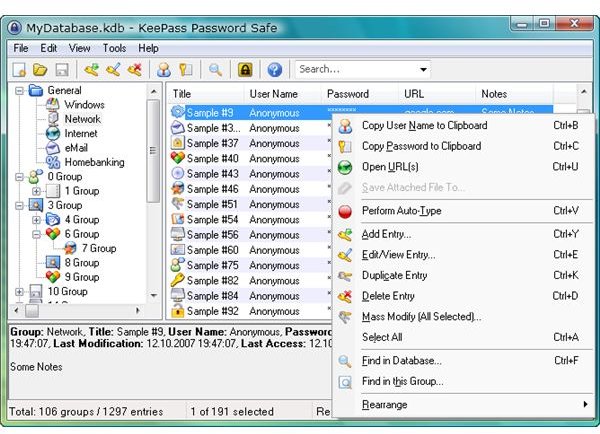
KeePassX is a cross-platform password managing application: you can run it on Windows, Linux or Mac OS X. (We will follow the Windows version in this review.) The program stores passwords by using the AES and Twofish algorithms, so we can tick the first item in our checklist. The second item, which is the portability comes with the KeePassX 1.14 Portable, which is just a 1.0 Megabyte download. After you unzip the file and double click the exe file, you start using the program. Then you can move it to your USB stick, your laptop or whatever computer you want. Tick item number 2.
The next item is exporting passwords. KeePassX can export your passwords to TXT, HTML, XML and CSV files. In my opinion even just a TXT file is enough. Anyway, we can tick our number 3. Next item is generating passwords. You can create any type of password you like. I will not bother giving general information, I suggest you have a look at KeePassX’s Password Generation page. Tick item 4.
The final one is filling web forms. Let’s just pause here. KeePassX is an extensible program, meaning that you can extend its features with add-ons (plugins). One of the plugins that you can install is the KeeForm. But before installing it, check out the Plugins page because you may find something that will suit your needs even more, such as a toolbar plugin. So we can safely tick item number 5.
The program has Classic and Professional Editions. The Classic edition is again two versions: one requires installation and the other is portable. The release number is 1.14 for Classic Edition. The Professional Edition is in 2.06 Beta and it again has two releases: installation and portable. The Professional Edition requires .Net Framework 2.0 (or over) or Mono 2.0.1 (or over). If you are unsure about which one to choose, you can look at the Edition Comparison Page.
Read on for another password manager and our choice.
Screenshot from KeePassX website.
HandyPassword
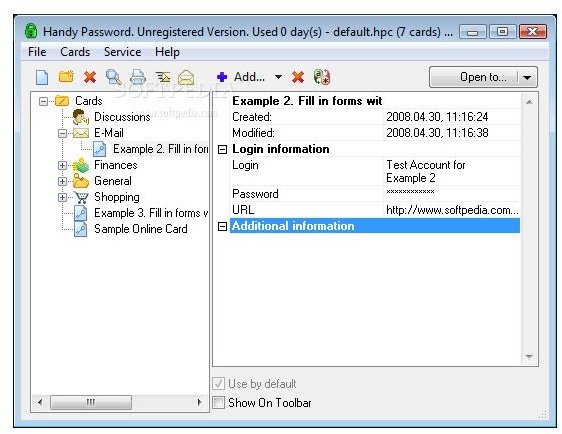
The other product that is very well-known is HandyPassword. Unlike KeePassX, HandyPassword is Windows only and can run on Windows 2000, XP, 2003, and Vista releases.
In our review, we will go with our checklist again. The storage of passwords is safe by a 128-bit encryption algorithm. Do not be misguided by the ‘higher-bit’ encryption advertisement. 128-bit means that an attacker has to use world’s fastest supercomputer for a couple of hundred years to decipher your password. 256-bit is more than that, so probably even your 10th generation will not be able to get your password. So, there is practically no difference between 128-bit and 1024-bit for the end user. HandyPassword can also store your passwords on your e-mail server, if it is POP3 capable - no IMAP or Exchange Support.
OK, move on to the next item, portability. We can say the program is half-portable, meaning that you can not just copy the executable file to the USB drive and go. You have to plug-in your USB stick and specify the stick as the installation directory. In this age of portable applications, this seems weird to me.
Anyway, we move on to the next item, exporting passwords. The software can export passwords only to an HTML file. I do not understand why HTML was chosen when there is an easier TXT format.
The next item is generating passwords, a job which HandyPassword can carry out without problems. The last item is web form filling. The software can fill out web forms with the default installation - there is no additional plug-in or action required.
The additional features are Internet Explorer and Firefox toolbars, templates for storing information, clearing fields, and printing your personal data. You can have a look at the features page.
Screenshot courtesy of Softpedia.
Verdict
Comparing the two programs, the obvious benefit of KeePassX is that it’s open-source (personally I am an open-source/free software user) and free, instead of USD 29.92 for HandyPassword. Looking further at the features, I do not see any reason to purchase HandyPassword, and the ability to store passwords on my e-mail server means nothing to me. I can upload the file to any server and access it from anywhere (for accessing files from the Internet and Cloud Computing, you can check here). Moreover installing a program to a USB drive is odd considering the portable applications around. In my opinion, HandyPassword does not have anything special to justify its price.
There are also a lot of programs that you can use for storing passwords, such as RoboForm for filling web forms. However, I advise you not to trust your web browser’s password remembering feature: Internet Explorer is inherently insecure, Firefox and Opera are much better, but in this age of Internet threats, keeping passwords in a web browser is a big risk.
