Find TV Shows with the Windows Media Center Guide
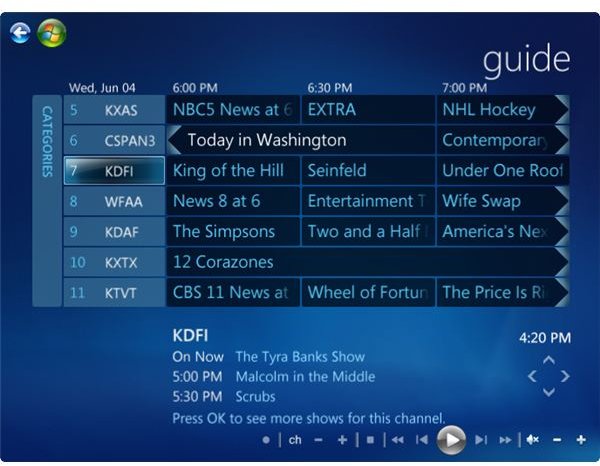
Navigate by Category
You can filter and navigate the Guide by television show category. On the left side of the Guide you’ll notice a categories bar that extends vertically along the side of the channel listing. To select it, press the left arrow key until Categories is highlighted and then press OK.
The categories menu consists of seven categories that you can use to narrow down what the Guide shows – All, Most viewed, Movies, Sports, Kids, News, and Special. As you move over each category option and highlight it, notice that the Guide filters immediately. If you want to keep the filter, press OK on the category – you can also press Back to go back to the Guide.
Navigate the Guide by Television Channel
By default the Guide shows a lot of information – every television show that is airing within the next two weeks for every television station. You can control the Guide so that it shows less information, therefore making it easier to find the television shows you want to watch – think of it as making the haystack smaller so that it takes less time to find the needle.
When you filter the Guide, you make it easier to find that precious gem of a television show or movie that you didn’t know existed or didn’t know was airing.
To filter the Guide by television channel, press the left or right arrow on the Guide until a television channel is selected, and then press OK. The television channels are displayed to the right of the Categories bar on the Guide and to the left of the television show listings.
When you select a television station, Media Center shows a smaller Guide just for that television station. If you press the right or left arrow keys the smaller Guide changes stations – you can tell what station you’re on at the moment by the top right corner of the screen, where it says, for example, 60 COMEDY. Scroll down to see other shows listed in the Guide for that television channel.
When you select the television channel on the Guide, Media Center shows a brief summary for what airs in the future for that television channel on the bottom of the screen.
Note About Media Center Editions
This article was created using the Media Center edition included with a Vista PC. However, the options available on Media Center on a Windows 7 PC are quite similar.
Navigate with the Mini Guide
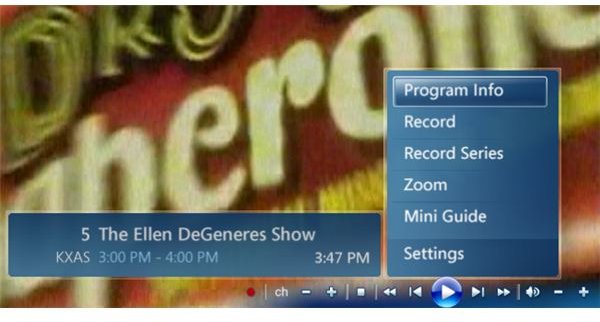
When you change channels or when you first start Live TV, Media Center displays an information bar at the bottom left corner of the screen. The information bar shows the current television station name, television channel, television show title, start and end times for the television show and the current time.
The information bar is actually much more than a simple notification – you can use it to browse the Guide from the convenience of the corner of your display. It’s called the Mini Guide. Press the up or down arrow key on the remote control to expand the information bar and display the Mini Guide. You can also press the More button and then select and press OK on Mini Guide. The Mini Guide displays a description of the television show in addition to all of the other information previously mentioned in the information bar.
The Mini Guide behaves exactly the same way as the ordinary Guide does. Press up and down to change the television channel information that is displayed. Press the right and left arrow keys to see what television shows are coming up – none of these actions actually change the television show that you’re watching.
If you’re watching a television show and you are curious about what is coming up, rather than display the full Guide, you can browse with the Mini Guide. When you find a television show that you like, press OK to change the channel to the television show if it is currently airing, or press OK to open the Program Info screen for the show. If you want to record it, just press the record button on the remote control and Media Center will schedule the recording for you.
This series of articles was excerpted from ‘How To Do Everything With Windows Media Center’, written by Joli Ballew and Justin Harrison for McGraw-Hill Companies and a copyright exists at McGraw-Hill. Permission must be granted by McGraw Hill to reuse or republish this material.
References
Author’s Experiences: I have used Media Center on Vista PCs and Windows 7 PCs. I find the Guide quite useful in terms of locating TV shows and movies, and for scheduling shows to record. Keep in mind that you can right-click on almost anything in Media Center for additional options, though, so if you don’t see what you want right away, consider a right click.
For more information about Media Center, consider these articles:
How to Install a TV Tuner Card
Customize Windows Media Center
This post is part of the series: Microsoft Windows Media Center - The Guide, Record Options, and Navigation
Learn how to navigate Media Center’s Guide and mini-Guide, get program information, record a show or a series, and more in this informative article series.
