Learn How to Change the Default Font in Microsoft Word 2007
Prefer a Different Font?
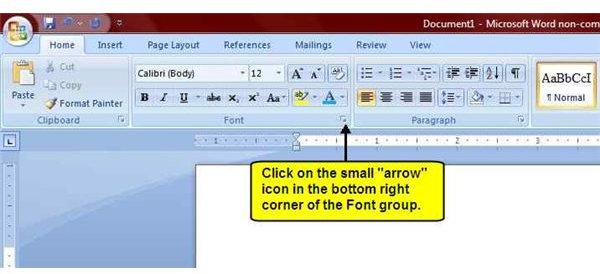
To change the default font in Word 2007, open up Word 2007 and make sure you are on the Home tab on the Ribbon.
On the Home tab, there is a group called Font. In the bottom right corner of the Font group, is a small icon. Click on this icon to open up the Font dialog box.
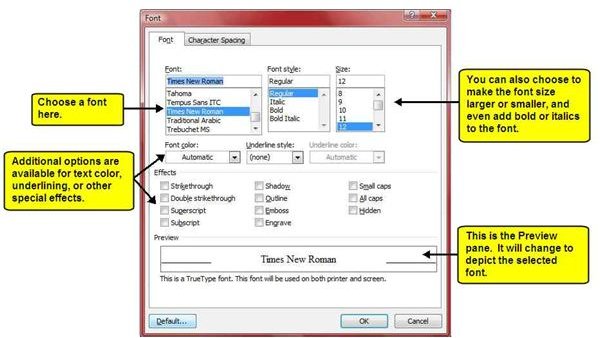
The Font dialog box is where you choose your default font for Word 2007. To select a font, just click on it from the Font list. If you are unsure which font to use, just click on the font and look at the Preview pane located at the bottom of the Font dialog box. The preview pane will show you what the selected font looks like before you actually apply the change.
In addition to choosing a font type, you can choose additional formatting options such as bold or italics, and even make the text size larger or smaller. Any of the options in the Font dialog box can be set as a default setting.
Make It Your Default Font Setting
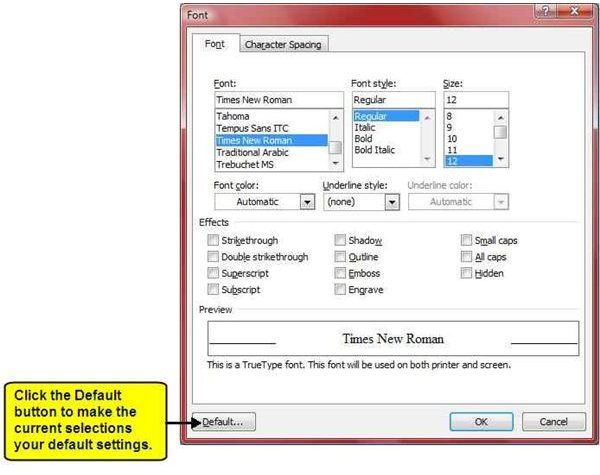
Now that you have selected your preferred font style, you just need to set the selections as your default font for Word 2007. To do this, all you have to do is click on the Default button that is located at the bottom left corner of the Font dialog box.
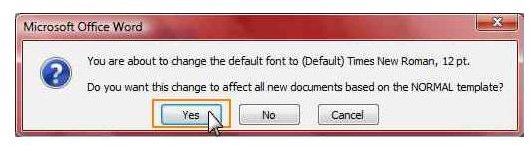
A pop-up box will appear asking you if you want this change to affect all new documents based on the Normal template. Click ‘Yes’.
Conclusion
You have successfully changed the default font for Microsoft Word 2007. For now on, any time you open up a blank document (the document must be based on the Normal template), the default font settings that you selected will automatically be applied.
NOTE: The font settings can be changed at any time using the steps outlined above without affecting the default setting. Just make your selections and click OK instead of clicking the Default button. Only click the Default button if you want the current selections to be your default setting.
If you’re looking for more tips and tricks, don’t forget to browse through Bright Hub’s library of Microsoft Word tutorials. In these guides, you can discover things like shortcuts for adding common accent marks, tips for designing and editing tables, information on how to create a macro, and more. Additional design ideas and tutorials are being added all the time, so check back often!
References & Additional Resources
Microsoft Word Official Site, https://office.microsoft.com/en-us/word/
Screenshots taken by the author.
This post is part of the series: Customizing Word 2007 Default Settings
In this Word 2007 series, learn how to easily change Word 2007’s default settings for font, line spacing, margin settings, and Save To location.
