
If a white or colored background surrounds your image, it will not look professional on your otherwise polished PowerPoint slide. Fortunately, there is a simple way that you can make that background transparent and increase the appeal of your PowerPoint presentation.
Images in PowerPoint
When you are presenting a PowerPoint slideshow, graphic images draw attention and add interest to your presentation. However, you want to be sure that it is the kind of attention you desire. If a white or colored background surrounds your image, it will not look professional on your otherwise polished PowerPoint slide. Fortunately, there is a simple way that you can make that background transparent and increase the appeal of your PowerPoint presentation.
The first course of action is putting an image onto your PowerPoint slide. If you are using PowerPoint 2007, insert an
image onto your slide background by clicking on the Insert tab of the ribbon and clicking on the appropriate button, such as Picture for a file located on your computer or Clip Art for a Microsoft clip art image. Find the image you want to use, select it and click Insert to place it on your slide background.

To insert an image onto your slide background in PowerPoint 2003 or earlier, point to Picture on the Insert menu. Click on From File to insert an image located on your computer, or choose Clip Art to use a Microsoft clip art image. (You can also insert an image directly from your scanner or camera.)
Once you have the image placed onto your slide, you can make the background transparent in just a few, simple steps. If
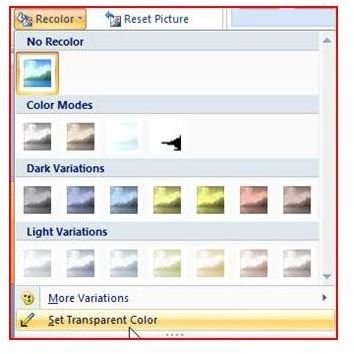
you are using PowerPoint 2007, click on the image to select it. Click on the Format tab under Picture Tools, and go to the Adjust section. Click the dropdown button next to Recolor and click on Set Transparent Color at the bottom of the dropdown selection. Your cursor will become shaped like the Set Transparent Color Tool. Click anywhere on your image’s background; the tool will make the image background transparent.

If you are using PowerPoint 2003, select the image by clicking on it. The Picture toolbar will appear. Click on the Set Transparent Color Tool, which looks like something like a pen with an arrow. Once you click on it, your cursor will take on the tool’s appearance. Click anywhere on the background color of the image that you want to change. It will become transparent, and your slide background will shine through.
One point to be aware of is that you can only change one color within each image. This means that if your background is

made up of multiple subtle colors, only the color you selected will become transparent. For an image with several background colors, you may want to paste it into Paint and crop it as much as possible before inserting it into your PowerPoint slide.
Don’t forget to take a look at the rest of Bright Hub’s collection of PowerPoint user guides for more tips and tricks. New articles are being added all the time so check back often.


