Understanding Task Manager Processes - What is the Windows Task Manager?
How do I access the Task Manager?
You can open the Task Manager by right-clicking at the bottom of the screen in any area which doesn’t have an icon and then selecting Task Manager from the pop-up Windows. You can also press Ctrl, Alt, and Esc at the same time.
From here you will see five tabs (six in Vista) which are described below.
Applications
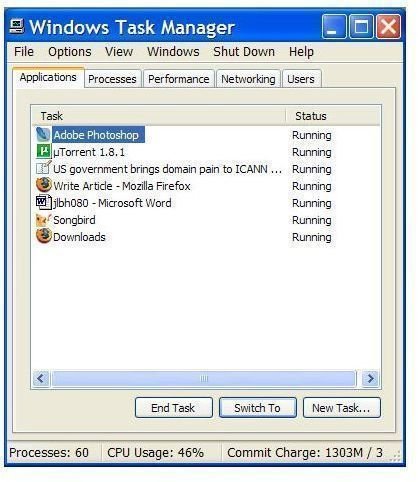
This is a list of programs which are currently running on your computer. If a program is frozen or has otherwise crashed, its status will be listed as ‘Not Responding.’ If you are unable to close such a program in the normal way, try selecting it in Task Manager and then clicking End Task. This will usually let you close the program without needing to restart your machine.
Processes
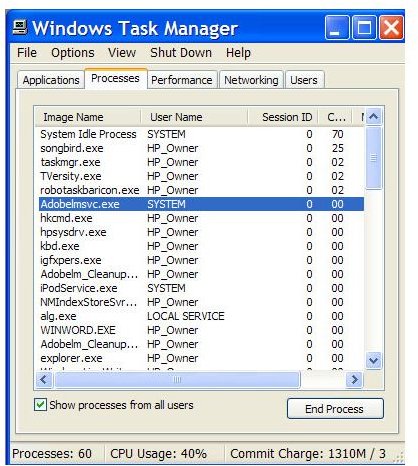
This tells you all the activities your computer is currently carrying out. The most important detail in this list is the fourth column, CPU usage. This tells you what percentage of your computer’s memory each activity is taking up. (There’s also a total figure at the bottom of the screen.) You can click at the top of the column to put the processes in order of memory usage.
If your computer is running particularly slowly, this may show which activity or activities are causing the problem. While some programs (such as video editing) will always take up a lot of memory, others (such as web browsers) may occasionally take up a very high percentage of memory because of a bug. It may be worth saving any work, then closing and restarting the program.
Most of the time, a process named ‘System Idle Process’ will be top of the list. Don’t worry about this figure or close the process as this is simply a dummy process which runs when the computer has spare memory. The process shouldn’t normally be included in the CPU usage total at the bottom of the screen.
Performance
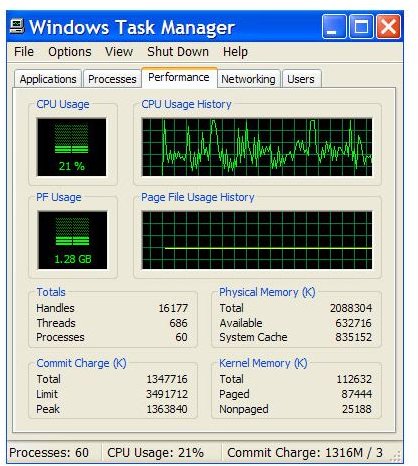
This screen gives details of how Windows uses a variety of types of memory. Generally you won’t need to worry about this information. It is worth keeping an eye on the graph marked PF usage, which refers to the Page File – a section on your hard disk which your computer uses when it doesn’t have enough spare memory. This slows down a computer, so if this figure starts rising or is consistently high, it may be worth considering installing more memory.
Networking
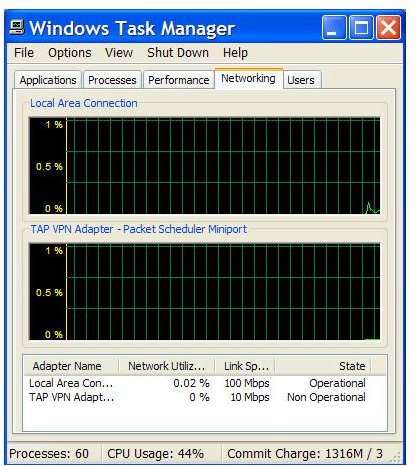
This simply keeps track of how much data is passing through your network connections. Its shows as a percentage of the maximum amount you could theoretically transfer, though it’s unlikely you’ll ever reach this figure, particularly through an internet connection.
Users
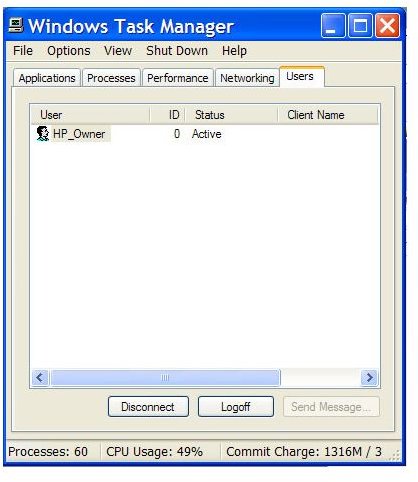
This shows which users are currently logged on to Windows on your machine or network and allows you to remotely disconnect (on a network) or logoff (on a single computer) any other users. (For more details on Windows user accounts, see my article at https://www.brighthub.com/computing/windows-platform/articles/5341.aspx))
Services
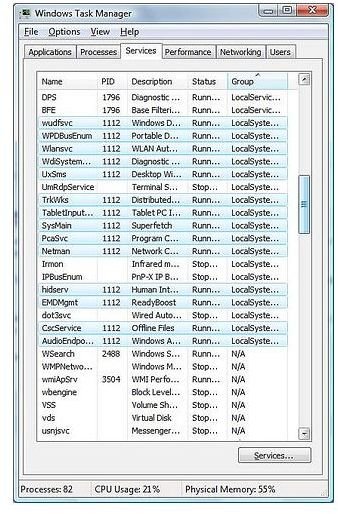
Windows Vista has an extra tab in Task Manager for Services. These are functions of both Windows and other programs which run in the background and don’t normally require any user involvement. (In earlier versions of Windows you can access details of Services by clicking Start, Run and then typing services.msc and enter).
Each service can be set to Automatic (running as Windows starts), Manual (running only when needed) or Disabled. Vista also allows you to select Automatic (Delayed), which means the service starts automatically once Windows is running, which can speed start-up times.
Generally you shouldn’t need to change the settings on any Windows-related Services. However, you may find that changing the settings for Services for other programs to Manual or Automatic (Delayed) may solve some problems with slow start-up times.
