Useful Tips on MS WORD 2003: File Menu – Create New File, Open File – by John Sinitsky
Introduction
Microsoft Word, first introduced in the 90s, currently is, without all doubt, the most popular text-editing program. Word 2003 has many options which are unknown even to advanced users. This article is the first in “File Menu” series and covers the commonly known “Open File” and “Create New File” actions – giving some unexpectedly useful hints and tips.
File Menu
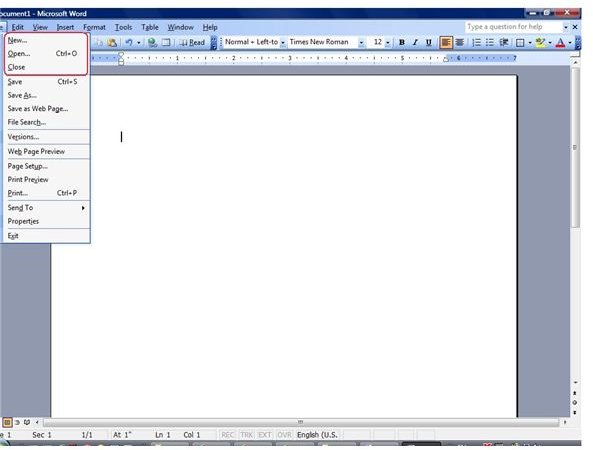
The File Menu is, as one might guess, mostly about file operations. The menu is divided into 7 main parts:
- New and Open
- Saving
- Permissions
- Web Page
- Printing
- Sending and Properties
- Recent files
- Exit Word
Besides clicking on it, the menu can be accessed with a keyboard shortcut – Alt-F.
File Menu
New File
To create a new file – just click the File -> New on the main menu. If you have accessed the File menu with Alt-F – you can simply press “N” on your keyboard. Alternatively, use the shortcut icon or press Ctrl-N on your keyboard. However, the last two options will result in creating a new file instantly (with Word’s default settings), but when accessing the menu you will be presented with several options to choose. You can create a “blank document” (default option) – but more options exist. You can also create a “web-page”-like document (html), xml-document, and email message (you will be taken into Microsoft Outlook if it is installed and is your default mail program).
A very useful option is to create a new file “From previous document”. In this case you will open a new document with the contents (and, also formatting, styles etc.) of your old file making it very convenient if you just want to make changes to one of your previous documents (similar to open and save as option). You can also choose from many document templates installed on your computer – and look for more templates in the internet.
Open File
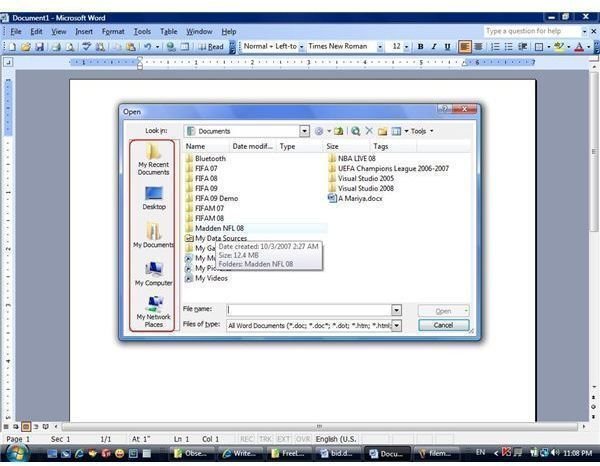
This option (File->Open or Alt-F -> “O”), which is also accessible through the shortcut icon and Ctrl-O keyboard shortcut, will result in a panel which prompts you to choose the desired file. The directory in which the files will be presented is usually the one that you had last used. But note the “quick access” options on the right – there is a link to several directories – the desktop, your recent documents, the “My documents” folder, and “My Network Places”.
To make your search easier, the options to arrange your files was added as well as the ability to pick the file format (which will be discussed in the “Save” article) – presenting only the relevant files in the directory.
Remember, you can also type a web-address (such as www.brighthub.com) as MS Word can open most websites with its powerful HTML editor.
Close
This will close your file. Note that Microsoft Word is still running!
This post is part of the series: Microsoft Word 2003 guide - are you sure you know all about File Menu?
Microsoft Word is a very strong text-editing tool that has enormous number of options If we examine program menus step-by-step we can get the best of our Word 2003 experience. This series goes “deep” into File Menu and is going to give even advanced user many useful tips about MS Word 2003.
- MS Word 2003 - File Menu Overview and Tips – Create New File, Open File, Close File
- MS Word 2003 - File Menu Overview and Tips – Save File – Part I - Options
- MS Word 2003 - File Menu Overview and Tips – Save File – Part II - Formats
- MS Word 2003 - File Menu Overview and Tips – Restricted access and version management
