How to Add a Caption to an Image in a Microsoft Word 2007 Document
Captions can be useful for providing short descriptions of images and objects in a Microsoft Word document, especially if there are several of these items all on a single page. Although it’s possible to create your own caption using a well-placed table or text box, it’s much quicker and easier to use the caption feature that was designed specifically for this purpose.
How to Insert a Caption
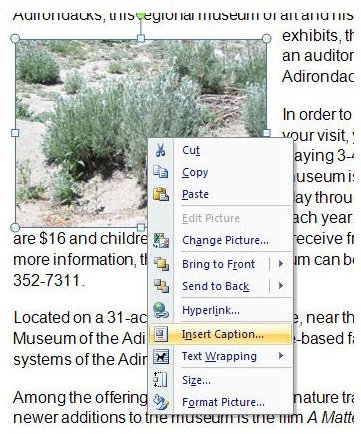
Step 1: Right-click on the image and select Insert Caption.
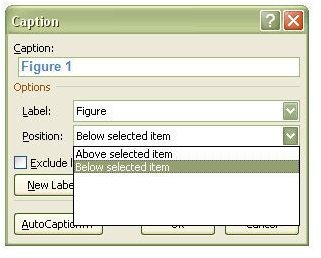
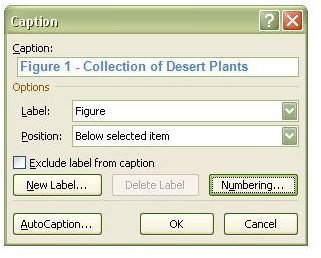
Step 2: Now, the Caption menu should appear. First, decide where you want the caption to appear in relation to the image. From the Position drop down list, choose Above selected item or Below selected item.
Step 3: From the Label dropdown list, select the type of label that you would like to use as part of the caption for your image.
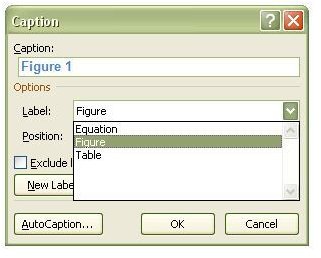
If none of the options in this list are appealing, you can create a custom label type by clicking on the New Label button and entering your own text. Alternatively, if you don’t want to use a label at all, put a check in the box next to Exclude label from caption.
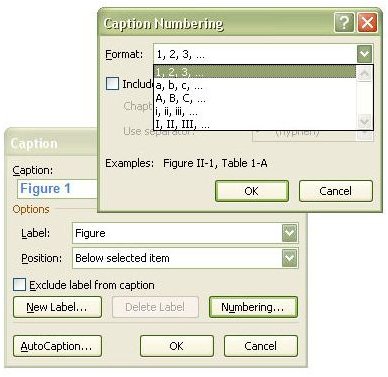
Step 4: By default, captions will use a numbering system of 1, 2, 3, … for each different type of label. If you’d prefer to use a different numbering system, click on the Numbering button. This will open a separate window where you can choose from a variety of other options.
Step 5: Enter the text that you would like to have displayed with the caption label, if any.
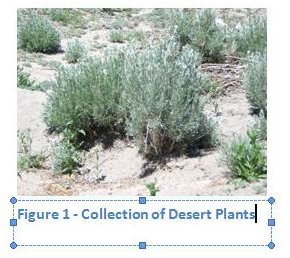
Click OK when done. The caption will appear in a text box located either above or below the image, depending on the position you chose in Step 2. From here, you can format the text within the box in the same manner you would handle any other text in Word.
Using Automatic Captions
If you plan on entering several objects of the same type, you can use the caption feature to automatically label them. To do this, select click on the AutoCaption button in the Caption window. In the new window that appears on your screen, you can choose the type of object that you want to add captions to, how you want the caption labeled, the position of the caption, and the numbering sequence you wish to use.
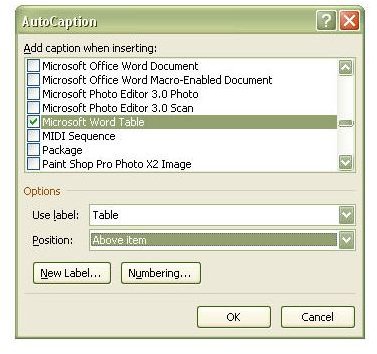
Although you don’t have the option of entering additional descriptive text here, you can always go back and edit the text box after the automatic label has been applied.
This post is part of the series: Working with Images in Microsoft Word 2007
Need some tips, tricks, and pointers for handling images in Microsoft Word 2007? In this series, we’ll start with the basics and work our way up.
