Use Internet Explorer 9's Zoom and Text Size Options
The Problem with Changing the Size of the Text
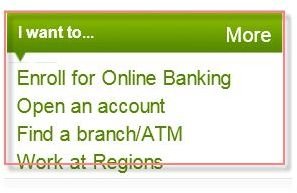
If you’re having trouble reading what’s on a web page, you can change the Text Size options from the View menu. There are several options: Largest, Larger, Medium (the default), Smaller, and Smallest. Unfortunately, this option can sometimes affect a web page’s layout. As an example, when you choose the largest setting, the text can run over images or other text (and the whole page turns into something you’d rather run from than read).
If you’d like to try it:
- Open IE9 and browse to any page that contains lots of text.
- Tap Alt on the keyboard to show the Menu bar.
- Click View, click Text Size, and click Largest.
- Scroll through the page, noting any problems caused by this change, such as text that no longer appears in its related section. Image 1 shows an example.
- Repeat steps 2-4, and return the setting to Medium.
In Step 2, you have to click the Alt key because in IE9 the Menu bar doesn’t appear by default.
Image 1
What’s Great about Zoom
When you use the Zoom option, the entire page is enlarged. What this means is that there’s no problem with text overlapping where it shouldn’t, because zooming maintains the integrity and layout of the page. This is what’s great about using Zoom over increasing the text size.
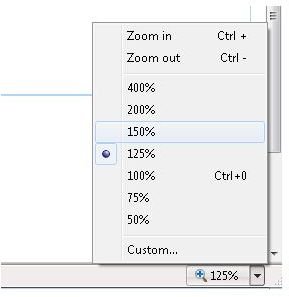
You can find the Zoom options on the Menu bar, from the View menu. Again, to reach it you’ll have to press the Alt key first. It’s much easier to use the link at the bottom right of the browser window, on the Status bar. Just click it to show zoom options. [See Image 2]
To try out Page Zoom features:
1. Open Internet Explorer and browse to a web page.
2. Click the arrow located at the bottom right of the Status bar to show the Zoom options.
3. Click 150%.
4. Repeat and click 200%.
5. Use the scroll bars to navigate the page.
Image 2
Use the CTRL key and + and - to zoom
If you prefer to use keyboard shortcuts over using the mouse, you can. Just hold down the CTRL key and tap the + sign to zoom in, or the - sign to zoom out.
Did you know? In Image 2, Zoom in and Zoom out have something written by them. It’s Ctrl + and Ctrl -. These are keyboard shortcuts, and you’ll find them on almost any menu and in various programs.
Reference Section
Author’s Experience: I find it easiest to use the Ctrl+ and Ctrl- on the keyboard to make pages easer to read. My hands are generally on the keyboard anyway, so making that move is often faster than taking hold of the mouse and clicking the small Zoom options in the bottom right corner. It’s also easier than using the trackpad on a laptop or netbook; again key combinations seem to work best there too.
