Kaspersky Kryptostorage is software used to properly store data and information. It was created specifically to protect sensitive information from being accessed.
An Introduction To Kaspersky Kryptostorage
Kaspersky Lab has created an application called Kaspersky Kryptostorage and it is popular software mainly involved in the proper storage of data and information. It was created uniquely to protect the sensitive information that a user has to store. The following will detail how to use this program and its advantages and disadvantages.
System Installation of Kaspersky Kryptostorage (5 out of 5)
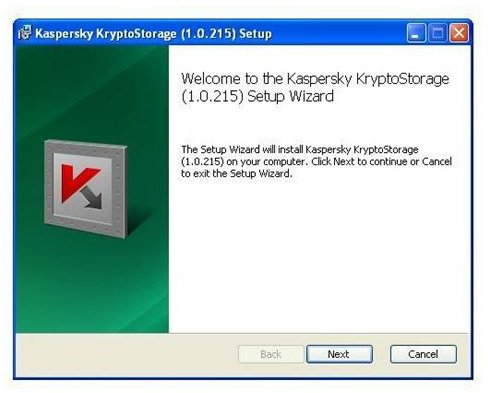
Kaspersky Kryptostorage can be downloaded as a trial version from https://www.kaspersky.com/trials or the full license can be purchased for $29.95. The application did not having any problems, and no remarkable changes to the performance of the computer were noted. It can also detect if any storage devices are attached to the computer, especially if the information they contain need to be encrypted. The application can start working immediately after it is installed.
Images of Kaspersky Kryptostorage
How It Performs (5 out of 5)
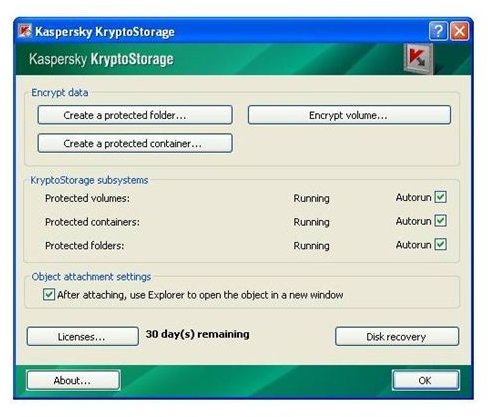
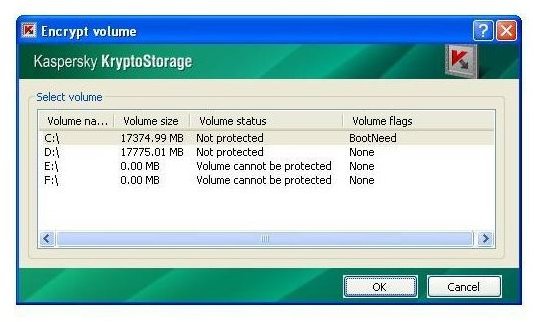
After the software has started running, the main menu will open and the first section gives the option to Encrypt Data. In this section, the user can “create a protected folder,” “create a protected container,” or “encrypt a volume.”
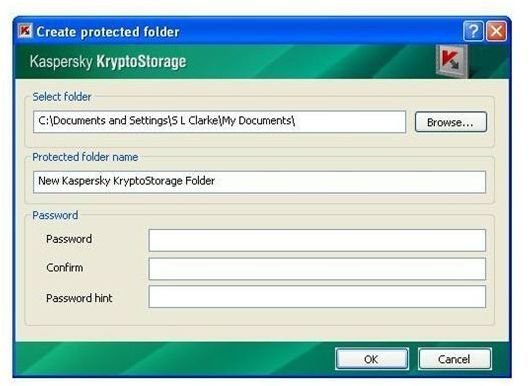
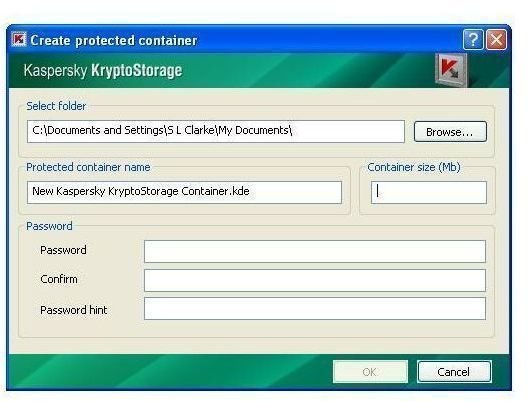
If you click any of these two tabs to create a protected folder or to create a protected container, the application will ask you to choose the specific folder. There are also options to apply a password to it, confirm the password, and even suggest a “password hint.” This level of security is quite thorough as it ensures that the password the user intended is applied to the encryption, but it also ensures that in case the computer user forgets their password, the password hint can be used to help remind them. The third tab to encrypt a volume will show a list of all the drive volume partitions located, with the volume status stating if they are currently encrypted.
The second section on the main windows shows a list of the KryptoStorage subsystems, and the system user has the option of selecting auto-run protection for either files, folders, or drives. This software was also created with the ability to backup a disk drive, and subsequently perform a disk recovery if a problem arises.
Therefore, this application has very distinct ways it will use to protect your information. The most important is its ability to prevent access to the computer by storing encrypted files that cannot be removed or altered in any way. The file is protected using a password, but a second method of protect makes it possible to encrypt a whole folder instead of just a file. Finally, the software can prevent access by encrypting a partition or drive instead of just a file or folder.
Conclusion (5 out of 5)
Overall one advantage of this program is that good for anyone who needs to store data and keep it out of prying eyes. It is quite beneficial on a shared computer where more than one person has access. Surprisingly it is quite easy to use- for the type of protection it offers- especially when being used by beginners. However, one of the advantages of using Kryptostorage is also one of its disadvantages. The technology it uses to delete a file will not allow the information to be restored. Yet this is great if the file is deleted on purpose, but this can be a disaster if the information was deleted accidentally before a backup could be made.


