Windows Vista and 7 have the option to create a Shadow Copy or back-up of previous versions. If this is something you want to do in XP, or you are looking for a more flexible application to handle your previous versions as back-up, you might want to try FileHamster.
Shadow Copy is a feature in Windows 7 and some editions of Vista that will automatically save a backup copy of previous versions of files in Windows. This feature is not available in earlier edition of Windows but fear nothing if you are not ready yet to upgrade to a newer OS while you continue to take advantage of the support by Microsoft to Windows XP Service Pack 3 (support will end on April 2014) and would like to see this feature in XP. FileHamster comes to the rescue. Find out if it’s better than Shadow Copy in Windows.
Features and Options of FileHamster (5 out of 5)
FileHamster is a neat application that will backup your files as you work. The program will not replace or overwrite your backups but will keep all versions.
Other options and features in FileHamster:
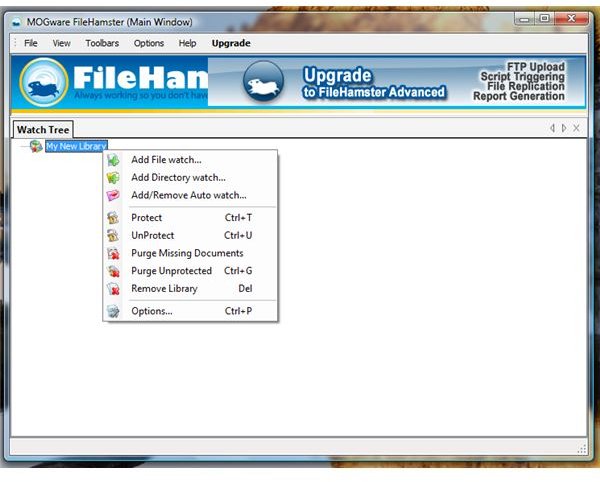
- Add/Remove files and directory to watch
- Protect/Unprotect saved revisions
- Add Comment in backup and revisions
- Add limit backups or leave it to 0 for no limit
- AutoClean – if you want FileHamster to automatically remove older files, simply use the advanced option when watching a file or folder by configuring the PreserveTimeSpan.
- Option to not to backup a file if the file size has reached the entered maximum file size.
- Autowatch (this feature is available to paid edition of FileHamster)
- Add or use plug-ins
- Restore previous version
- View File History
- Watch everything in a directory or watch only specified file extension in a directory
- Portable mode by copying FileHamster directory (located in C:\Program Files\FileHamster) to removable drive (flash drive, USB drive)
- Built-in Program Updater
System Requirements and Installation (5 out of 5)
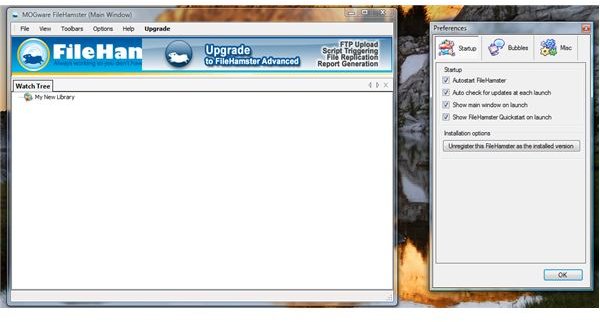
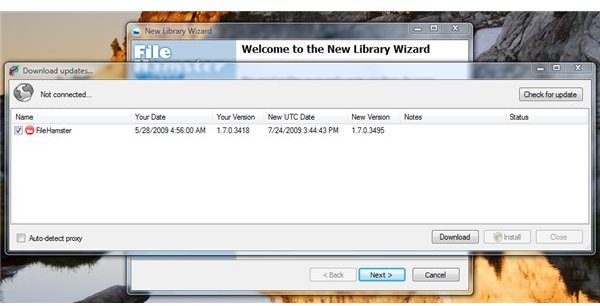
You can install FileHamster in Windows 7, Vista, XP and Windows 2000. Microsoft .NET Framework 2.0 and higher is required to continue using FileHamster. Installing FileHamster is a quick process and requires no restart. It uses an acceptable amount of memory and can be configured to automatically start during Windows log-on. After installing FileHamster, the program will automatically check for updates and offer a new build or version. It will give you an option to install the new build.
Usage (5 out of 5)
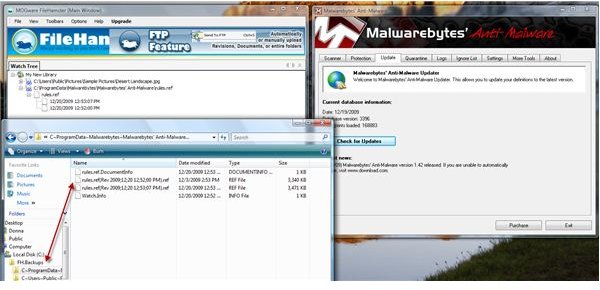
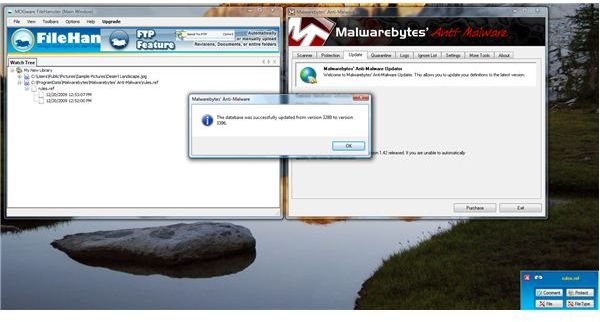
A great example of using FileHamster is to secure a copy by adding the files that you don’t want to lose or copy of definitions update by anti-malware. We often find false positive reports on many anti-malware programs and it can cause trouble if you don’t have a backup of definitions that does not give false positives. The example below is a screenshot of Malwarebytes’ Anti-Malware files that I asked FileHamster to watch. As soon as I finished updating MBAM’s definitions, FileHamster automatically store the original and new database for MBAM’s rules.ref:
What is neat with FileHamster is the ability to run and use its features in another computer without the need to install again. Simply copy the entire folder of FileHaster from C:\Program Files and copy it to your removable device (flash or USB drive). Execute it and create your library and backup location for previous versions of any file.
I find FileHamster to be more flexible to use than Shadow Copy in Vista or Windows 7. With FileHamster, you don’t have to worry how many previous versions to keep. The Shadow Copy in Vista and Windows 7 is limited and you have to make sure that System Restore or System Protection is enabled.
Images
Price to Value and Download Location (5 out of 5)
Free to use but with some limitations. The paid edition costs $29.00 or $79.00. The vendor is offering support via its forum and also provide tips and tricks in using the program.
Where to download the free edition of FileHamster?
The website of FileHamster is https://www.filehamster.com but I could not find the download location of free edition on that page (let me know if you spot it!). You are able to download the free edition from CNET’s Download.com and you can find it at Softpedia . I wanted to try the trial edition of FileHamster Basic or Advanced but the supposed e-mail containing the download link has not arrived since I requested via their website .
Conclusion
Like Shadow Copy in Vista and Windows 7, FileHamster is a useful utility in keeping previous or original versions of files as backup and there’s no need to worry in losing older version. Recommended if you want to backup files in real-time!


